
Web app: advanced
The sgbus terminal
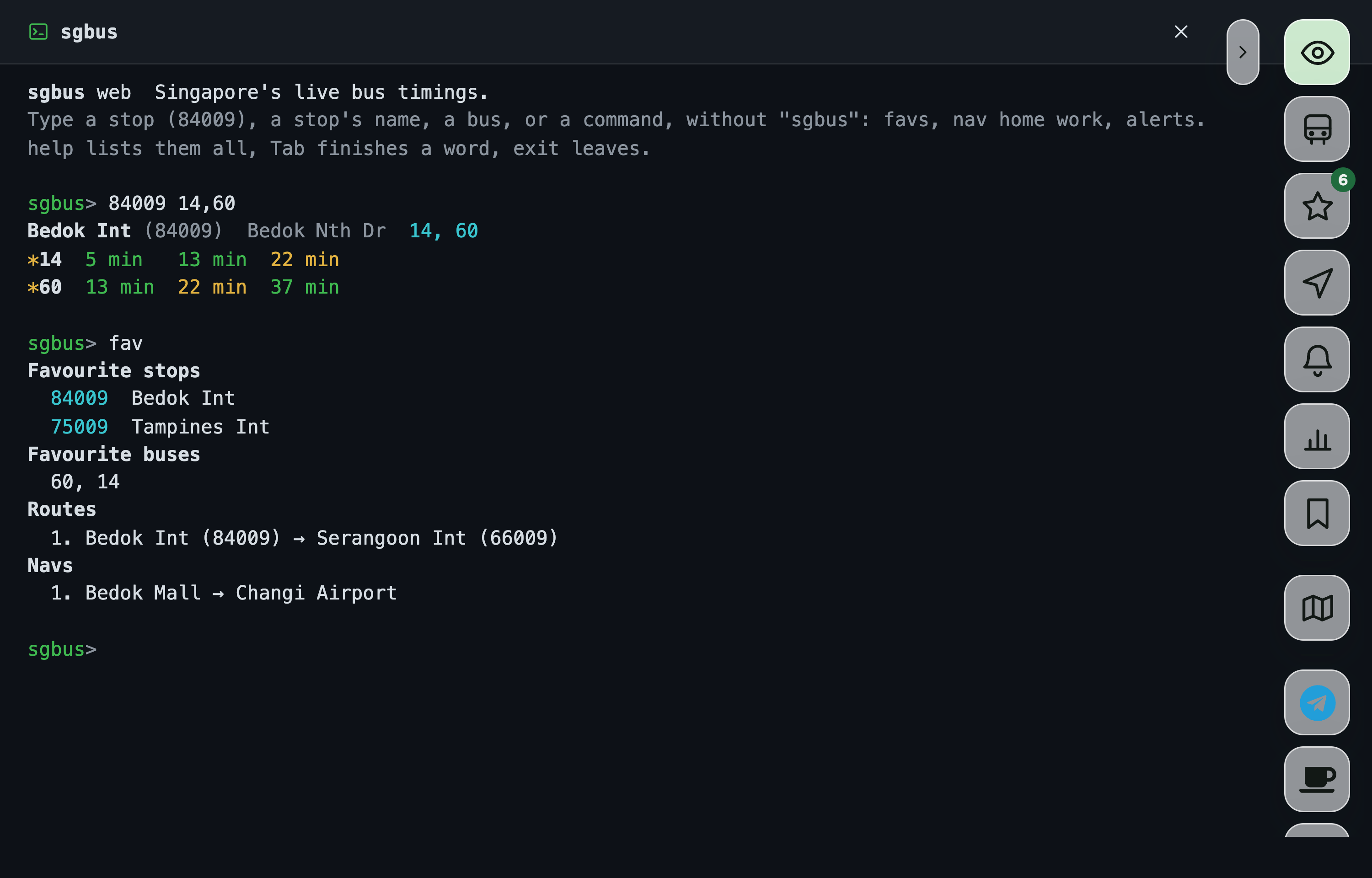
The Linux app's sgbus> prompt inside the web app, full screen: type a stop, a nav or any other command instead of tapping.
The sgbus terminal is the Linux command line's prompt, inside the web app. Type what you want instead of tapping for it: for a stop's timings, for the way to work, to keep your favourite stops' timings on screen. It fills the whole screen, as the live map does, with the Edge Tray still beside it: a button there closes the terminal and opens what it's for.
Open it
Any of these opens it:
- Settings: tap Open the sgbus terminal, under sgbus terminal.
- Ctrl+` (Ctrl and the backtick key, left of 1) anywhere in the app, on a computer. Press it again to close.
- Your browser's console: open the developer tools (F12, or Ctrl+Shift+J; ⌥⌘J on a Mac), type and press Enter.
The first time it opens, a short tour shows you round: where to type, where the answers show, and how to close it. Show me around in Settings shows it again.
Esc, , the × at the top or Back closes it. What's on screen is still there the next time you open it.
Type a command
Commands are the Linux app's, typed the same way, without in front (it's fine if you type it anyway):
84009                 a stop's timings
84009 14,60           just those buses; 84009 22* for every bus starting 22
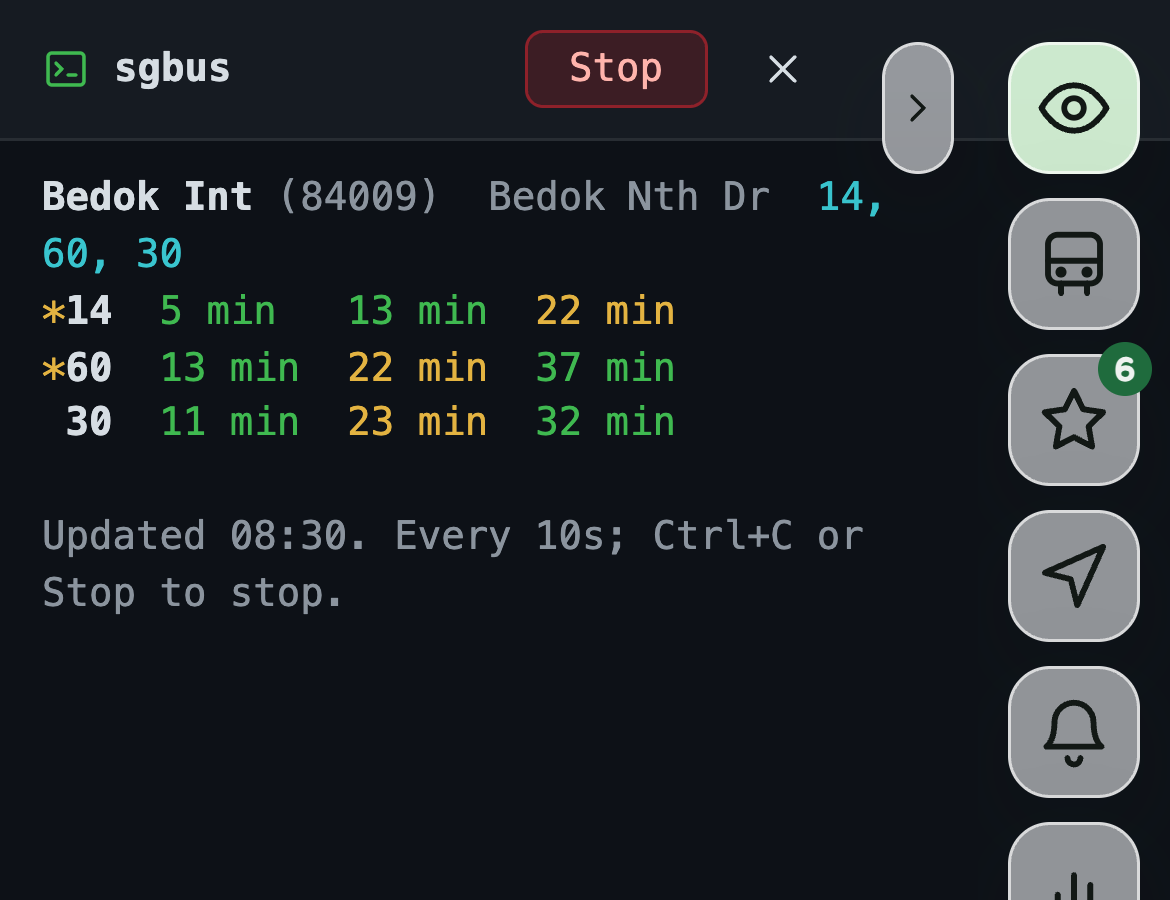
84009 -w              kept up to date, every 30 seconds
bedok int             find a stop by its name, road or station
519599                the stops nearest a postal code
22                    bus 22's route
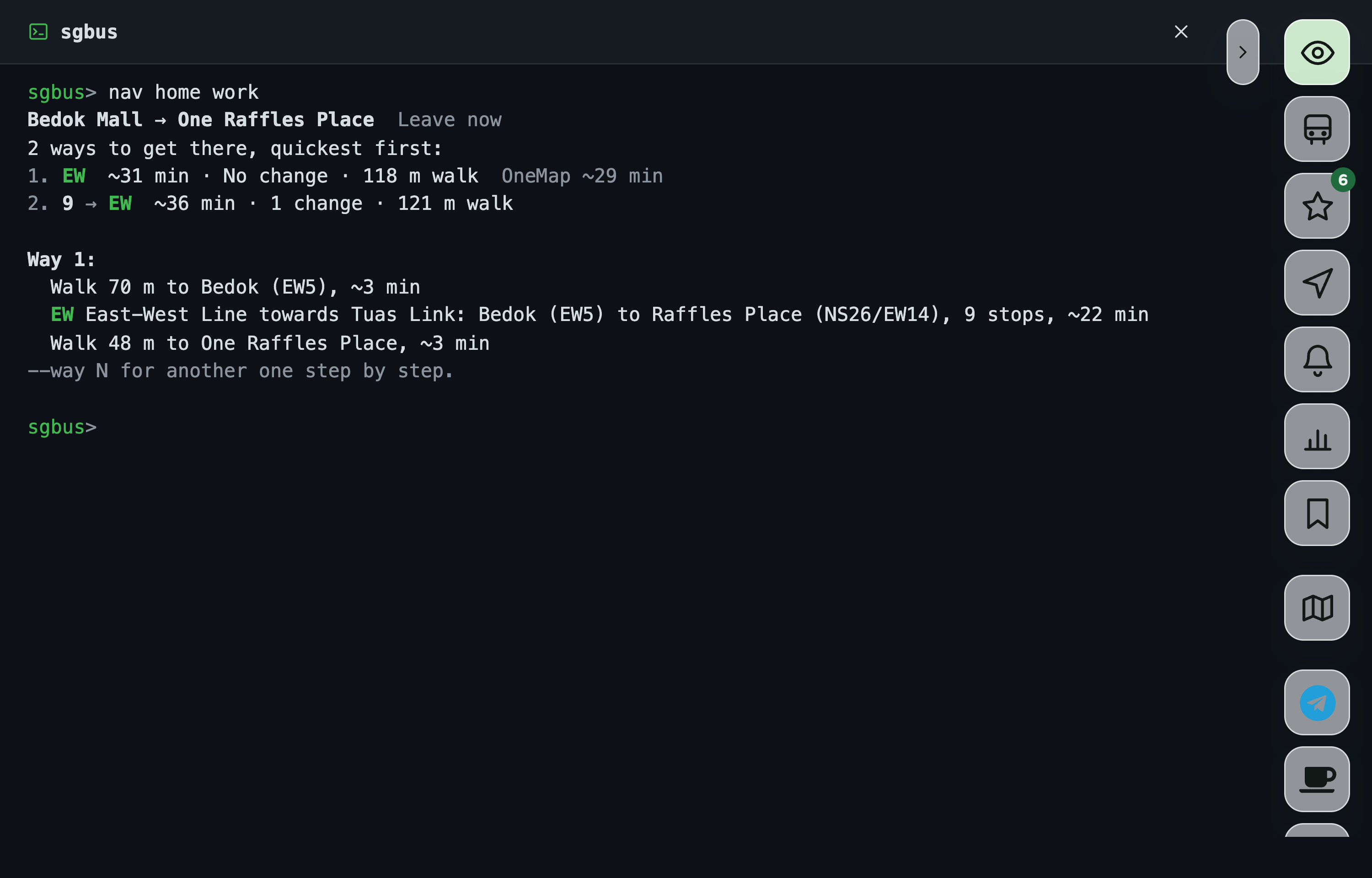
nav home work         by bus and train, between two of your places
nav "Bedok Mall" 6PH57RQ8+X2 --arrive 9am --day mon
route 84009 66009     by bus only, stop to stop
favs                  every favourite stop's timings
alerts                train disruptions and traffic incidents
weather               today's weather, PSI and PM2.5
help the restPut an end with spaces in quotes: . An end can be one of your places by its name, a stop, a postal code, an address, a station, GPS coordinates or a plus code, as in Navigate.
Keys
| Key | What it does |
|---|---|
| Enter | Runs what's typed. |
| ↑ and ↓ | Go back through what you've typed before, kept in this browser. |
| Tab | Finishes a command, , or one of your places' names. Where several fit, it lists them. |
| Ctrl+C | Stops a , or clears what's typed. With text selected, it copies it instead. |
| Ctrl+L | Clears the screen, as does. |
| Esc | Stops a ; otherwise closes the terminal. |
On a phone, a has a Stop button at the top instead.
What it saves
It saves to the app's own lists, so the app and the terminal always agree:
- and are favourites on Bus timings too.
- saves a place in Places, and sets Home.
- and add a favourite route or nav.
- links your calendar, and lists its events, from a linked file or the phone's calendar too.
- changes Settings' pins, Restricted areas and Immigration time.
Routines are set here only in the Android app, which sends them with the app closed. A browser can't send them, so there it says so. Updating is the app's own job too: points you to the update bar.
Safe to use
Commands are read only as words, never run as code. The terminal only acts on what's typed into it: no link, page address, message or sync can type a command for you. It only asks this site for data, prints text and nothing else, and it can't do anything the app's own buttons can't.
When your browser's console opens, it shows a warning: never paste code there that someone sent you. That code would run as you, with your saved stops, places, routines and calendar link. Typing is safe: it only opens the terminal.
Your calendar's private link isn't kept with what you've typed before, so ↑ won't bring it back.
Also on Linux
The same commands run in a Linux terminal, with routines as desktop notifications: see The command line on Linux.