
Android app: basics
Updates and offline use
How the Android app updates itself, how to hear about new versions, and what works with no connection.
Update it
The app from Google Play updates through Google Play, like any other app, and has no bar, update page or Check for app updates of its own. The rest of this section is for the app from GitHub.
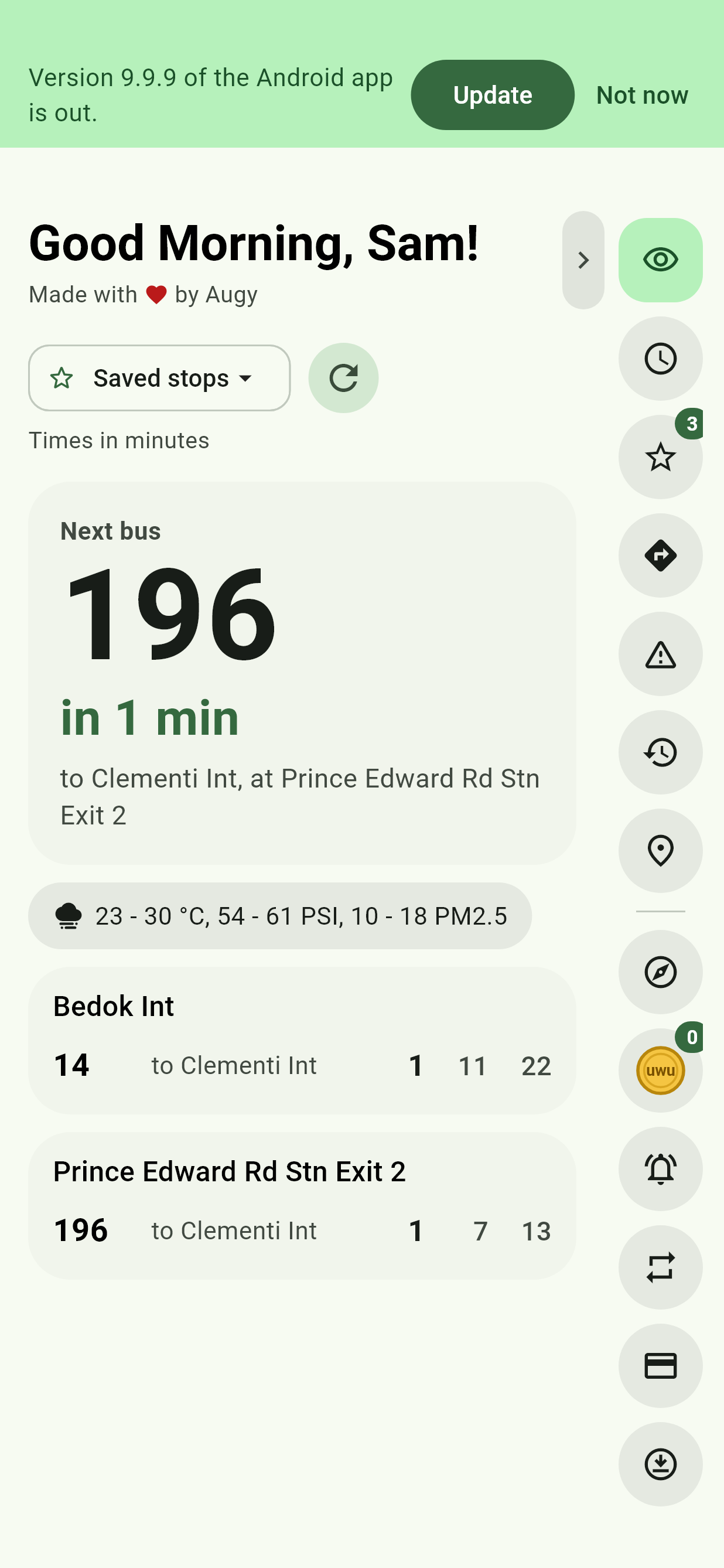
When there's a new version, a bar at the top of the app says so:
- Tap Update. The app opens its update page and downloads the new version.
- The first time, Android asks you to allow SG Bus Timings to install apps: turn on Allow from this source, then go back.
- Tap Update on Android's own screen. The app closes to update; open it again.
Everything you've saved stays. Not now hides the bar until you next open the app.
You can also check whenever you like: tap Check for app updates, the arrow into a tray in the Edge Tray. It says if you already have the newest version, or which one is out, with Update to install it as above.
What's new in each version
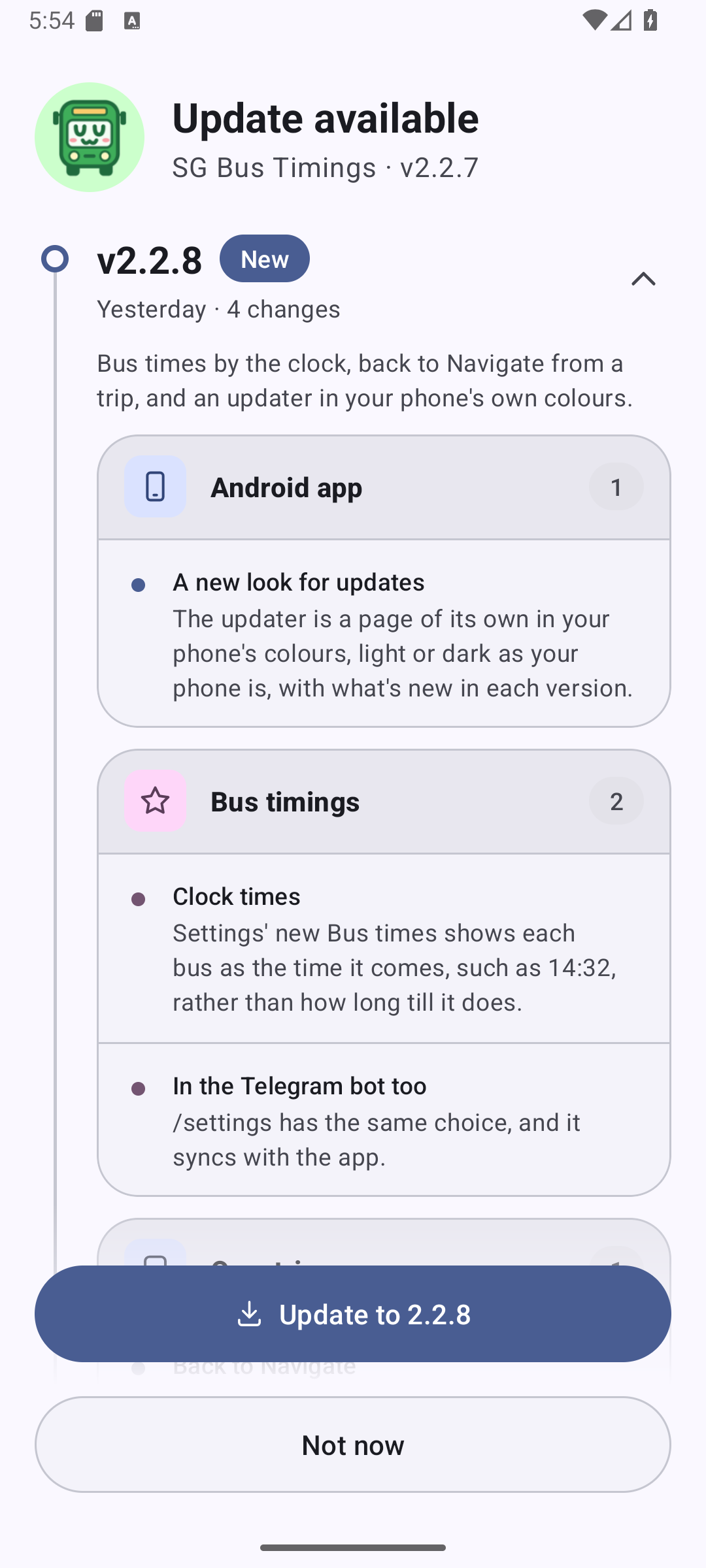
The update page is in your phone's own colours: on Android 12 and later they come from your wallpaper, and it's light or dark as your phone is. On older Android, it's in the app's green.
Each version is on a timeline, newest first: the one you'd get marked New and open, with what's in it in cards by part of the app, and the one you have marked Installed. Earlier releases, every one back to the first, are under them; tap any version to see what came with it, and Show all in a card for the rest of its changes.
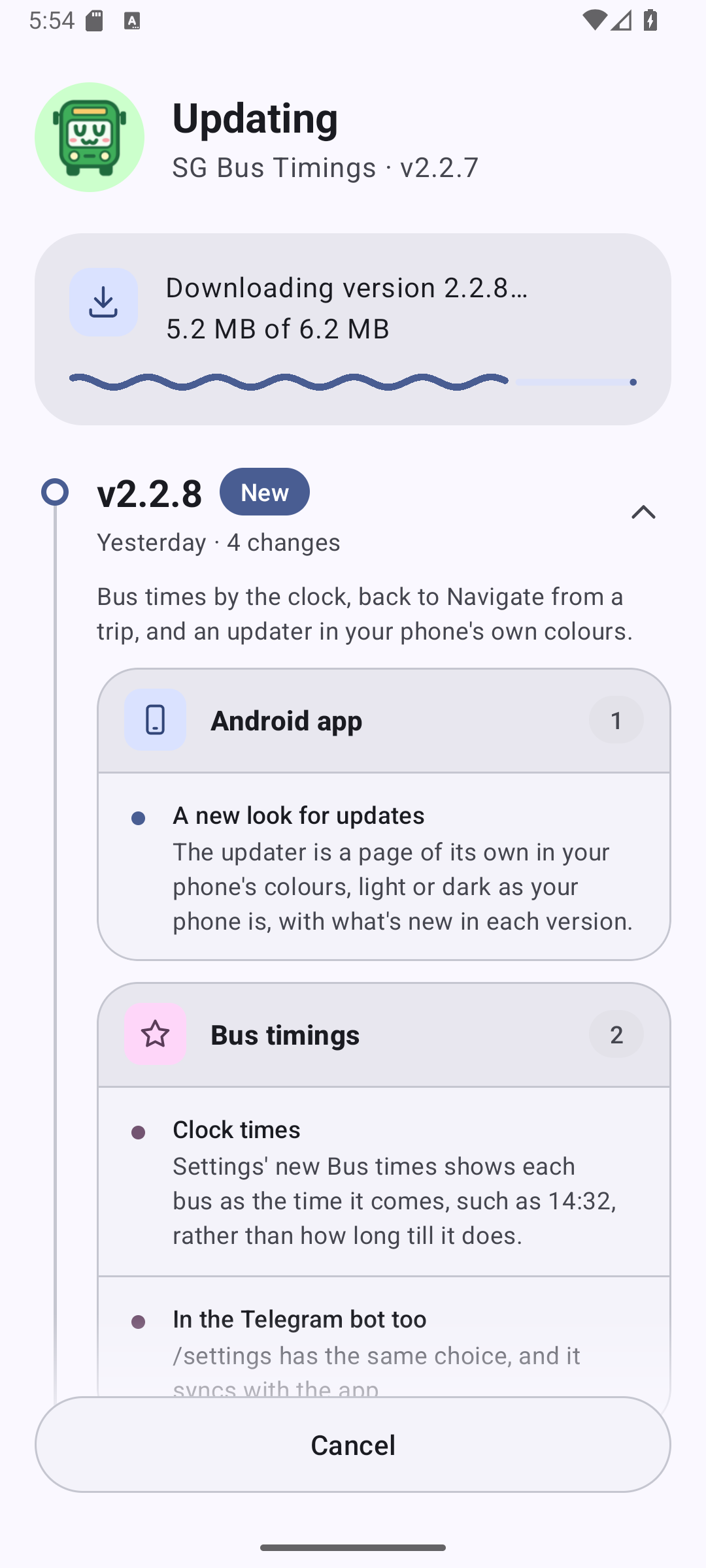
While it downloads, a wavy line grows along its track, with how much has come; Cancel stops it. With the newest version already, the page says You're up to date, with GitHub for its page there.
Hear about new versions
The app can tell you the moment a new version is out, even when it's closed: open Service alerts and turn on New versions of the app. The first time, Android asks to allow notifications. Tap the notification and the app says which version you have and offers Update. A watch paired with your phone shows it too.
It's off until you turn it on, and needs Google Play services, as most phones have.
With no connection
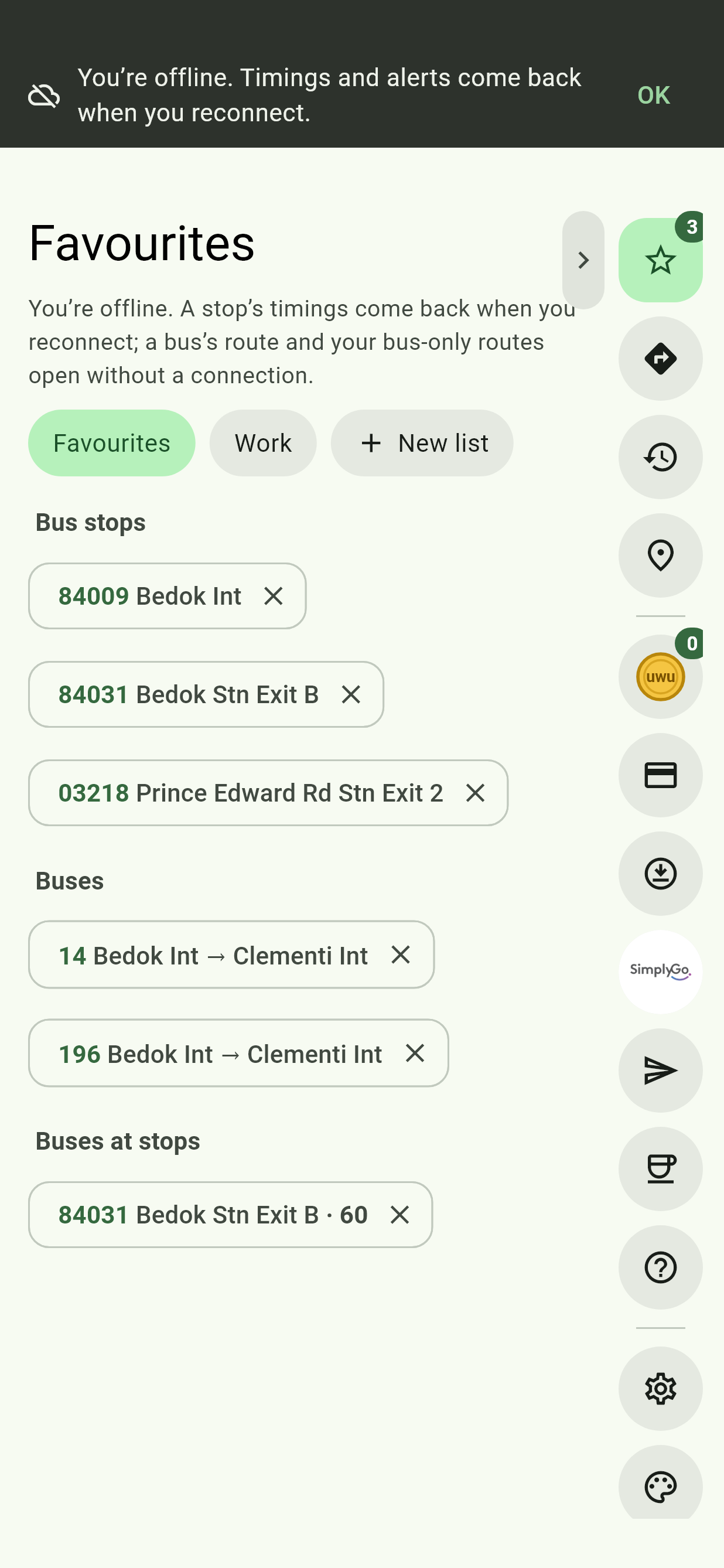
With no connection a bar says so, and OK puts it away. The pages and buttons that need a connection leave the Edge Tray, and it all comes back by itself once you reconnect.
| With no connection | Works? |
|---|---|
| Opening the app | Yes, straight away, on a page that doesn't need a connection |
| Favourites, Your trips, Places, Settings and Theme | Yes |
| Navigate's Bus and train | Yes, planned on your phone, with estimated times |
| Navigate's Bus only | Yes, with estimated times |
| The live map and Explorer | Once you've saved Singapore's map |
| Offline Sharing and Receive nearby | Yes |
| Glance, Bus timings and a stop's timings | No |
| Service alerts | No; notifications still arrive once you're back online |
| Searching addresses and postal codes | No: they're looked up online |
| Sync between devices | No |
Live timings are never shown from an old copy: an old arrival time shown as if it were live would be worse than none.