
Android app: basics
Settings
The Android app's Settings: finding a setting, each group of settings, the app's language, and reporting a bug.
Open Settings with the gear at the foot of the Edge Tray. Tap a group to open it, and the back arrow for the groups again. Changes save as you make them, with no Save button, except where a screen has its own.
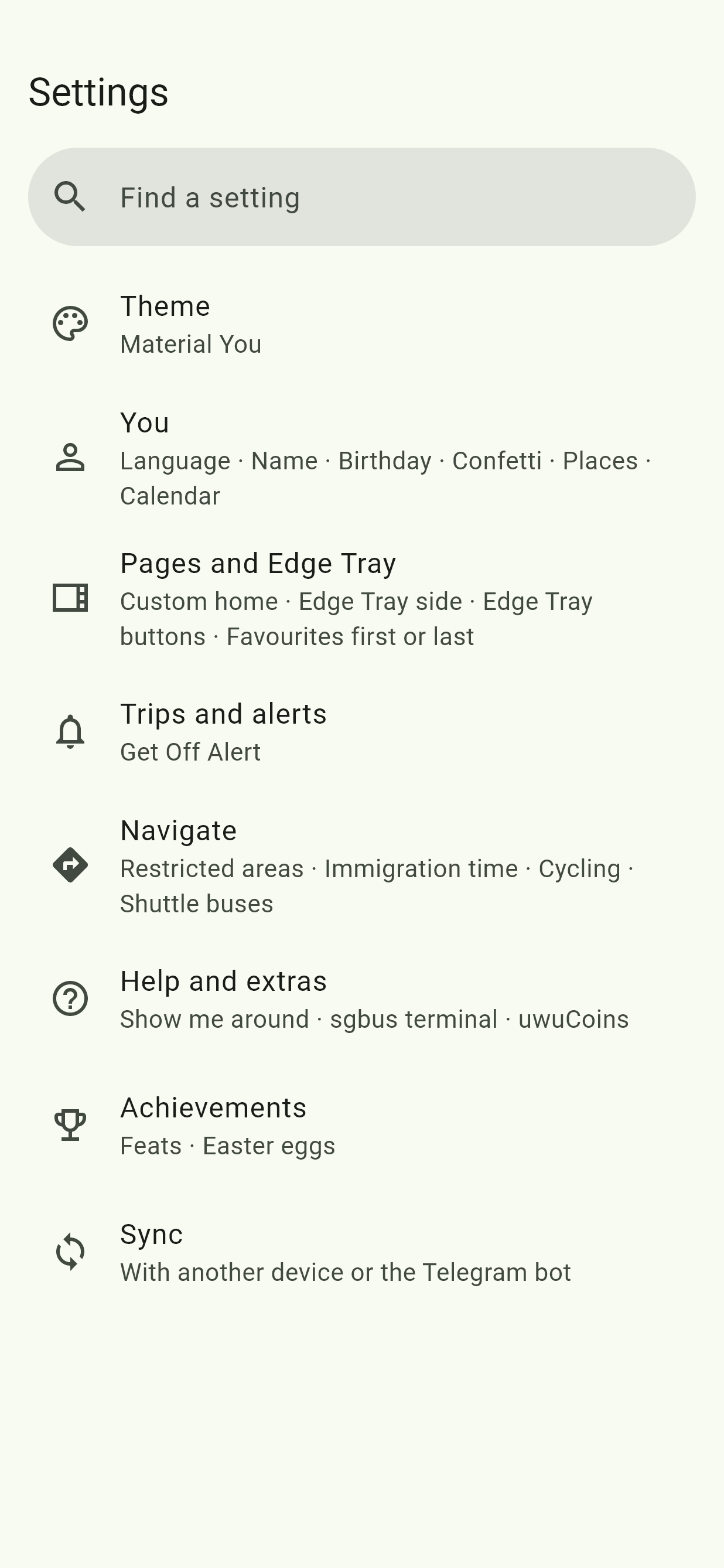
Find a setting
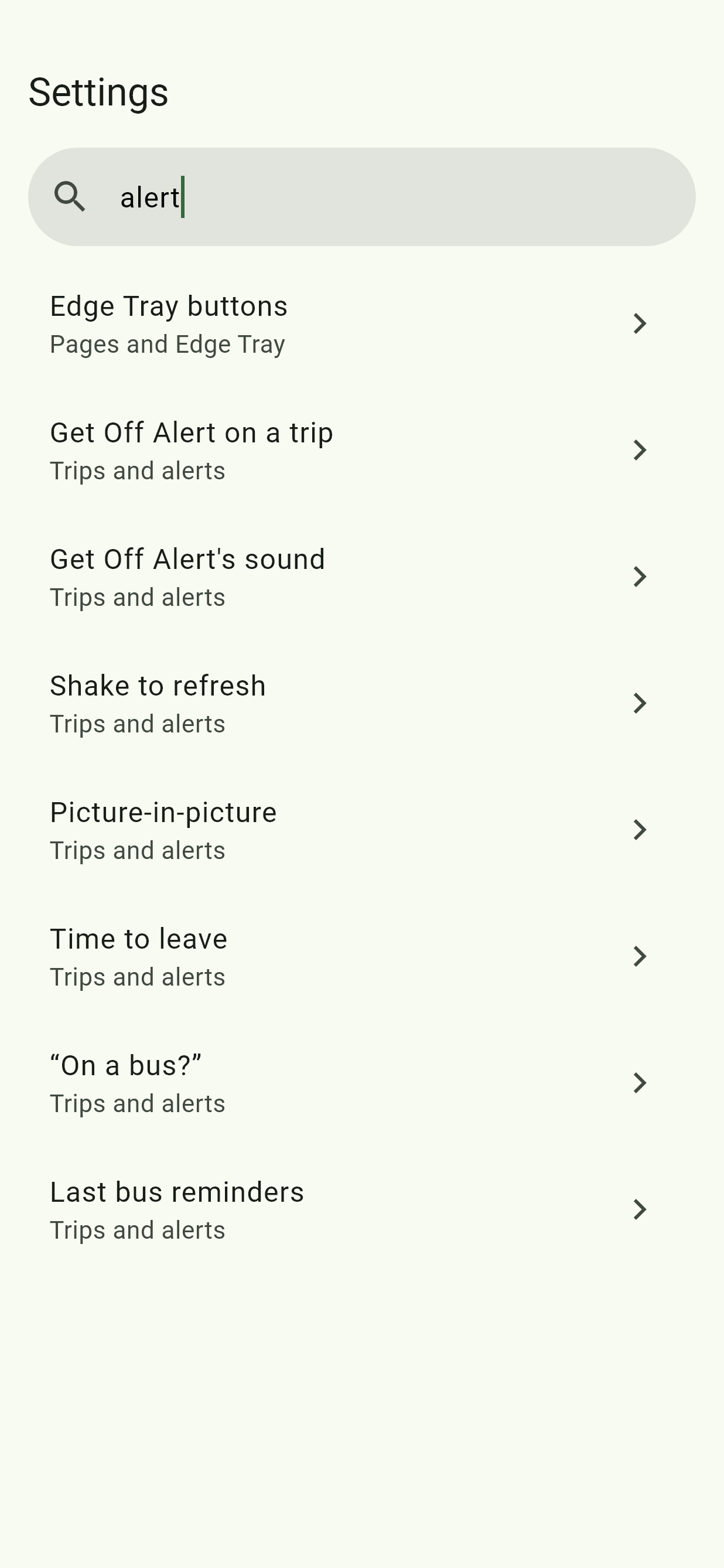
At the top of Settings, Find a setting lists the settings with every word you type, by name or by what they do: , or . Tap one to go straight to it.
Theme
Material You or the UwU Apps theme, light or dark, and high contrast. See Material You and themes.
You
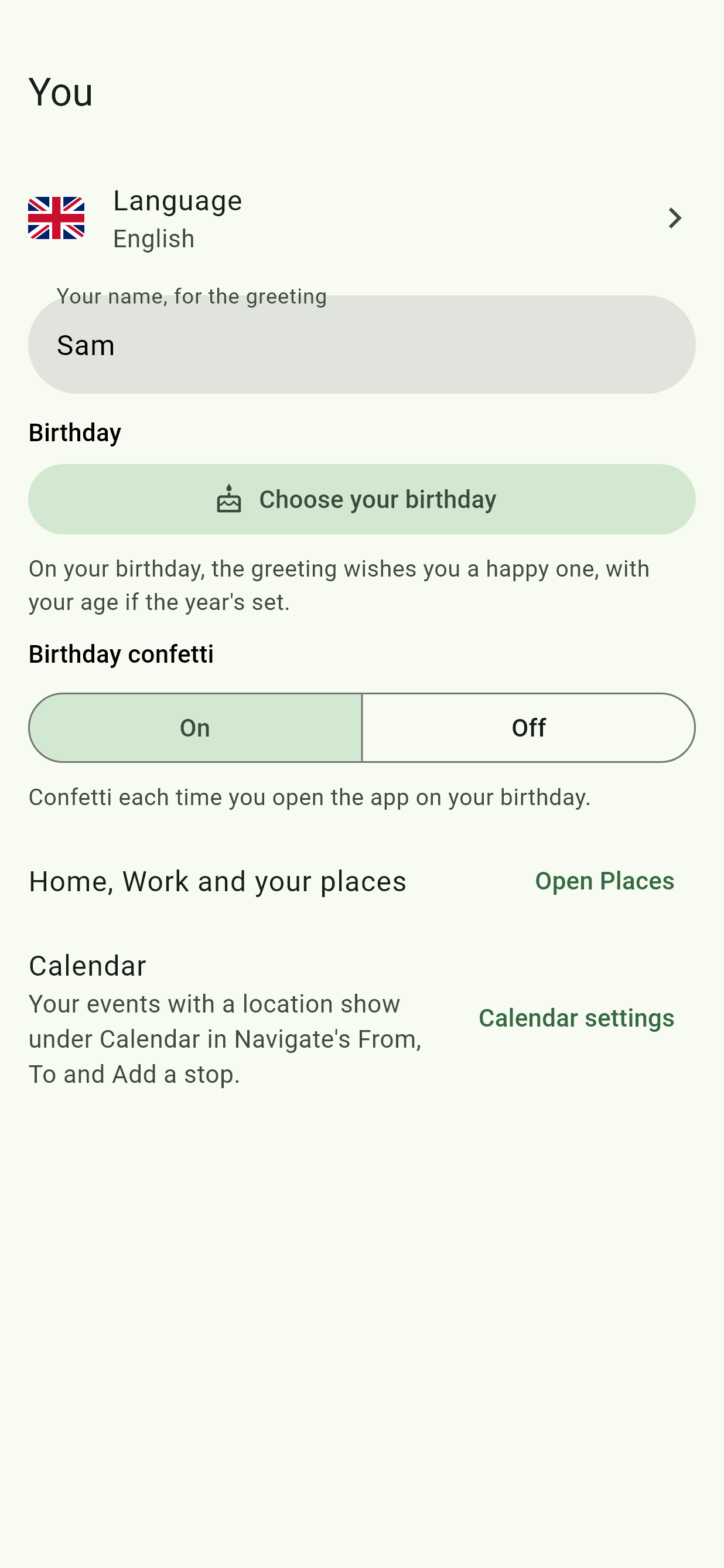
| Setting | What it does |
|---|---|
| Language | English, 中文 (Chinese), Bahasa Melayu or தமிழ் (Tamil), each with a flag. See The app's language. |
| Your name, for the greeting | The greeting says "Good Morning, Sam!" Other people see it in a shared ETA and Offline Sharing too. |
| Birthday | Choose your birthday opens a calendar to pick the date from. On the day, the greeting wishes you a happy one, with your age if the year's set. Clear removes it. |
| Birthday confetti | Confetti each time you open the app on your birthday. |
| Home, Work and your places | Open Places opens Places. |
| Calendar | Calendar settings links your calendar: see Calendar. |
Pages and Edge Tray
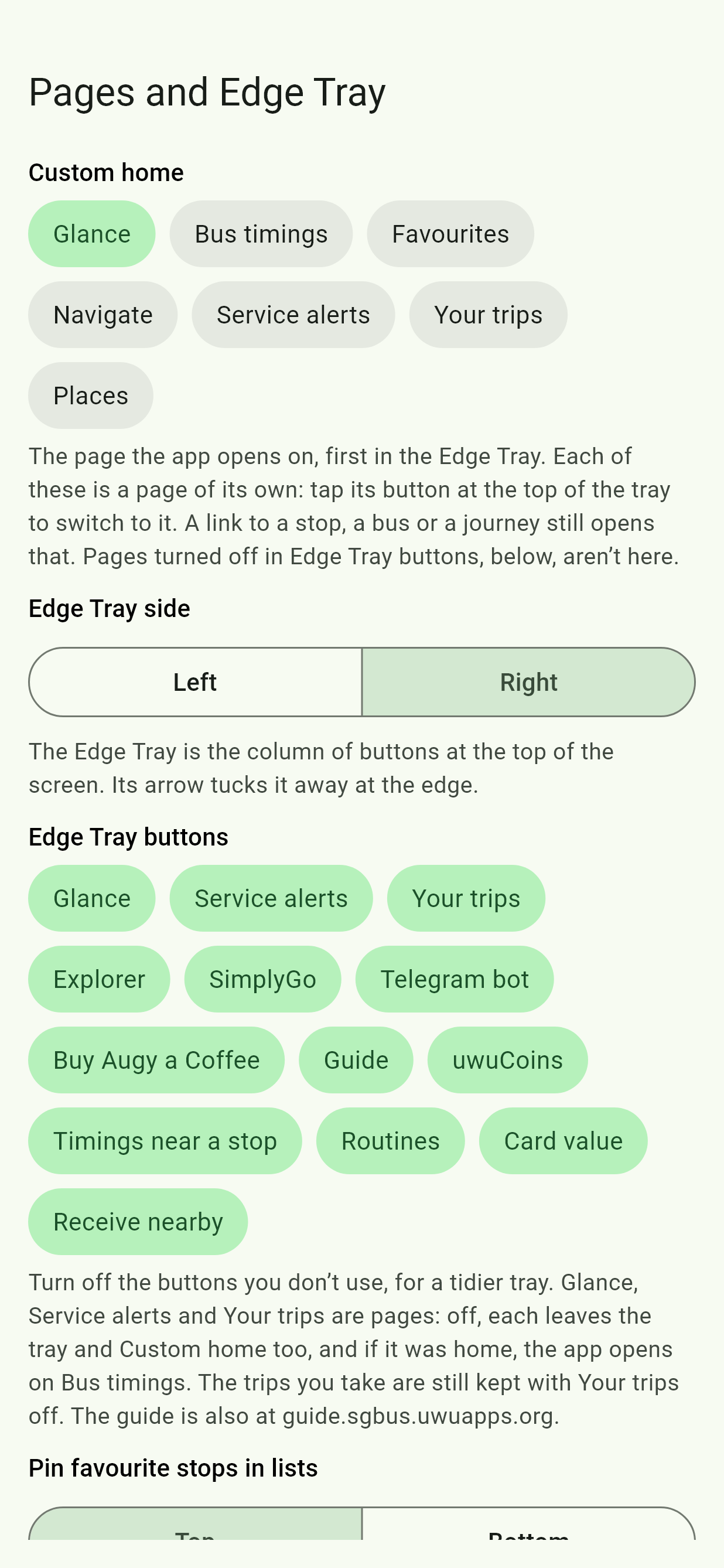
| Setting | What it does |
|---|---|
| Custom home | The page the app opens on, first in the Edge Tray. See Custom home. |
| Edge Tray side | Right (the default) or Left. |
| Edge Tray buttons | Tap a button to turn it off or on: Glance, Service alerts, Your trips, Explorer, SimplyGo, Telegram bot, Buy Augy a Coffee, Guide, uwuCoins, Timings near a stop, Routines, Card value and Receive nearby. A page turned off leaves the tray and Custom home. Your trips are still kept with its page off. |
| Pin favourite stops in lists | Top or Bottom. |
| Pin favourite buses in timings | Top or Bottom. |
| Bus times | Minutes and seconds, such as 3 mins 20s, or Clock time, such as 14:32. Every bus timing in the app follows it. |
Trips and alerts
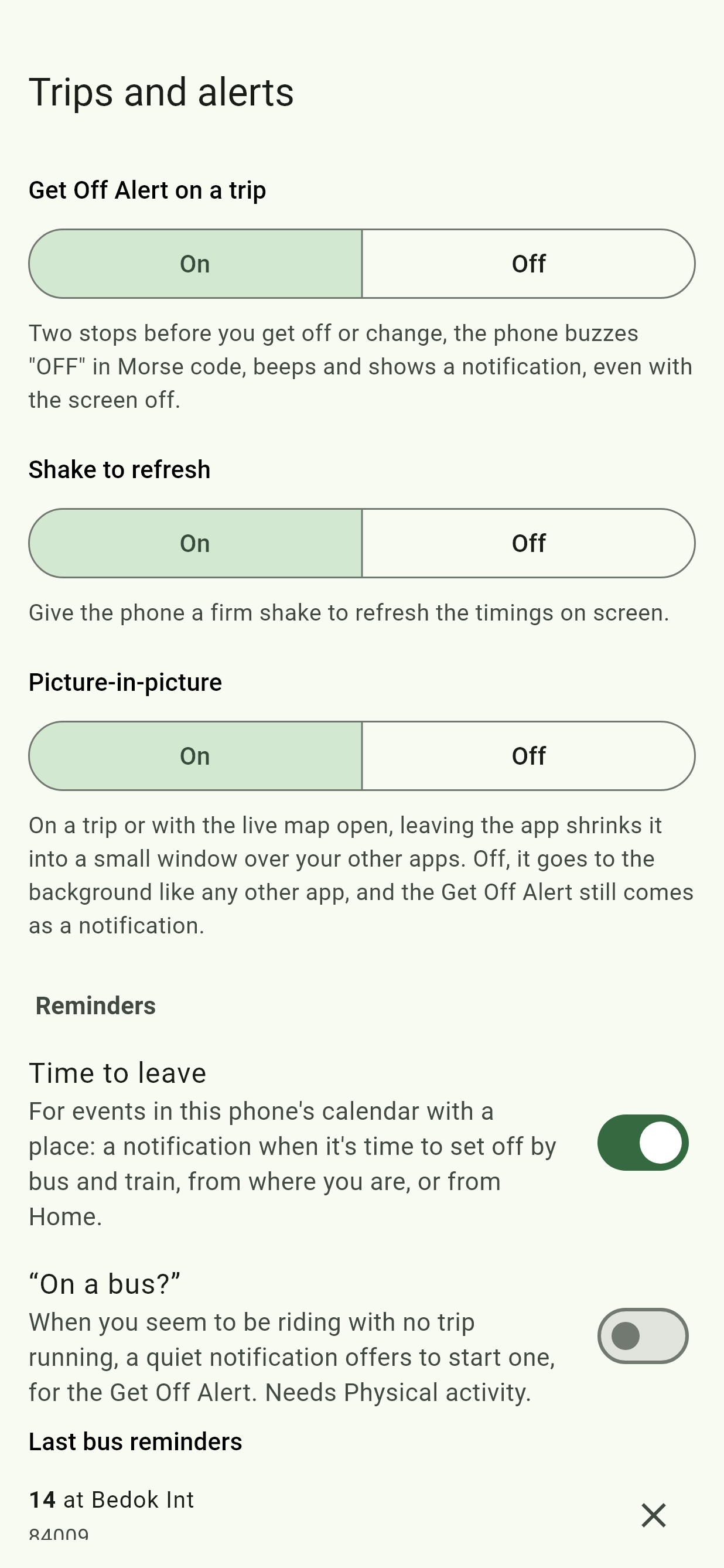
| Setting | What it does |
|---|---|
| Get Off Alert on a trip | On (the default) or Off: see Get Off Alert. |
| Get Off Alert's sound | Out loud, or Earphones only: with earphones in, the beeps play just in them; with none, the phone only buzzes. |
| Shake to refresh | A firm shake refreshes the timings on screen. |
| Picture-in-picture | Whether leaving the app on a trip or the live map shrinks it into a small window. See Picture-in-picture. |
| Time to leave, "On a bus?", Last bus reminders | See Reminders. |
Navigate
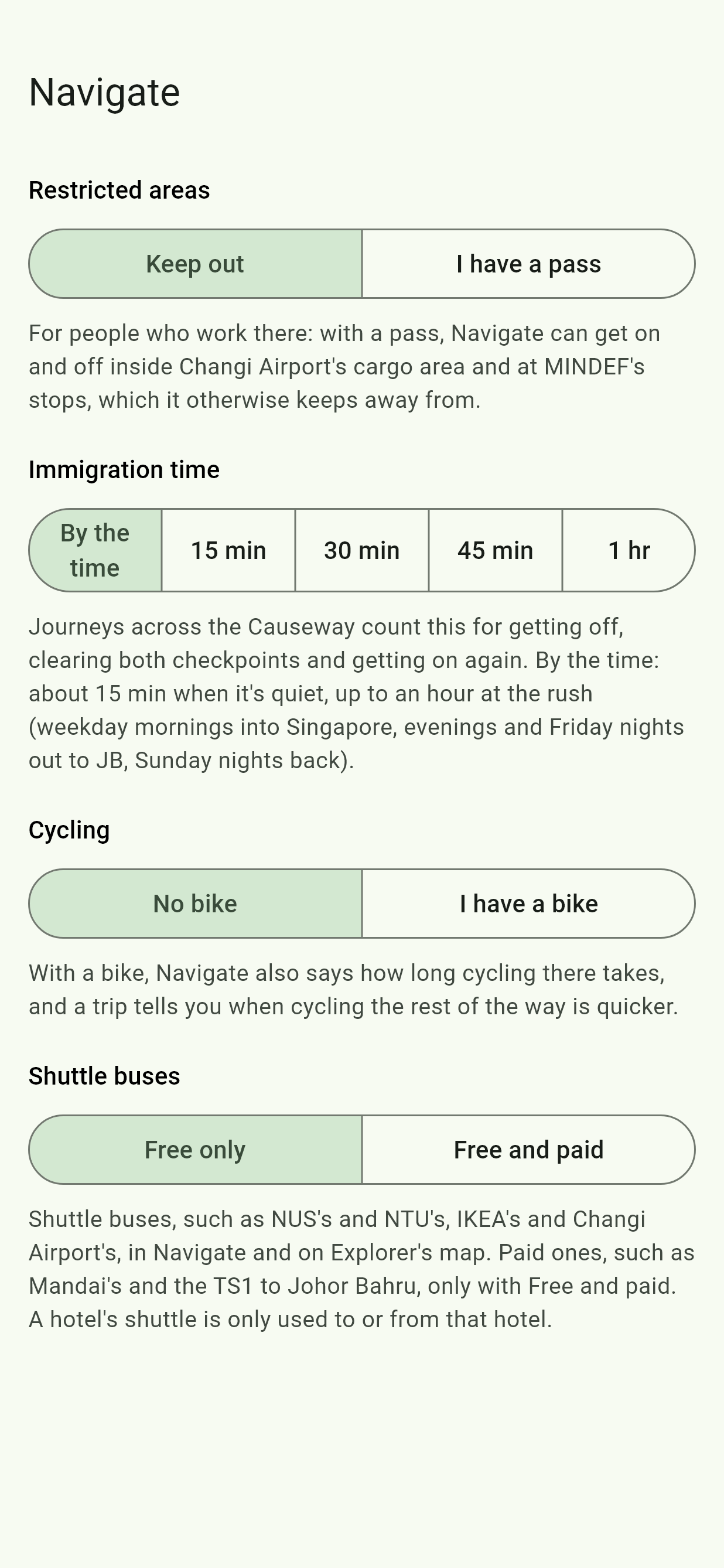
| Setting | What it does |
|---|---|
| Restricted areas | Keep out (the default) or I have a pass: for people who work inside Changi Airport's cargo area or at MINDEF's stops. |
| Immigration time | What a journey across the Causeway counts for clearing both checkpoints. By the time (the default), about 15 minutes when it's quiet and up to an hour at the rush, or 15 min, 30 min, 45 min or 1 hr. |
| Cycling | No bike (the default) or I have a bike: Navigate also says how long cycling takes, and a trip says when cycling the rest is quicker. |
| Shuttle buses | Free only (the default) or Free and paid: which shuttle buses Navigate rides and Explorer shows. |
Help and extras
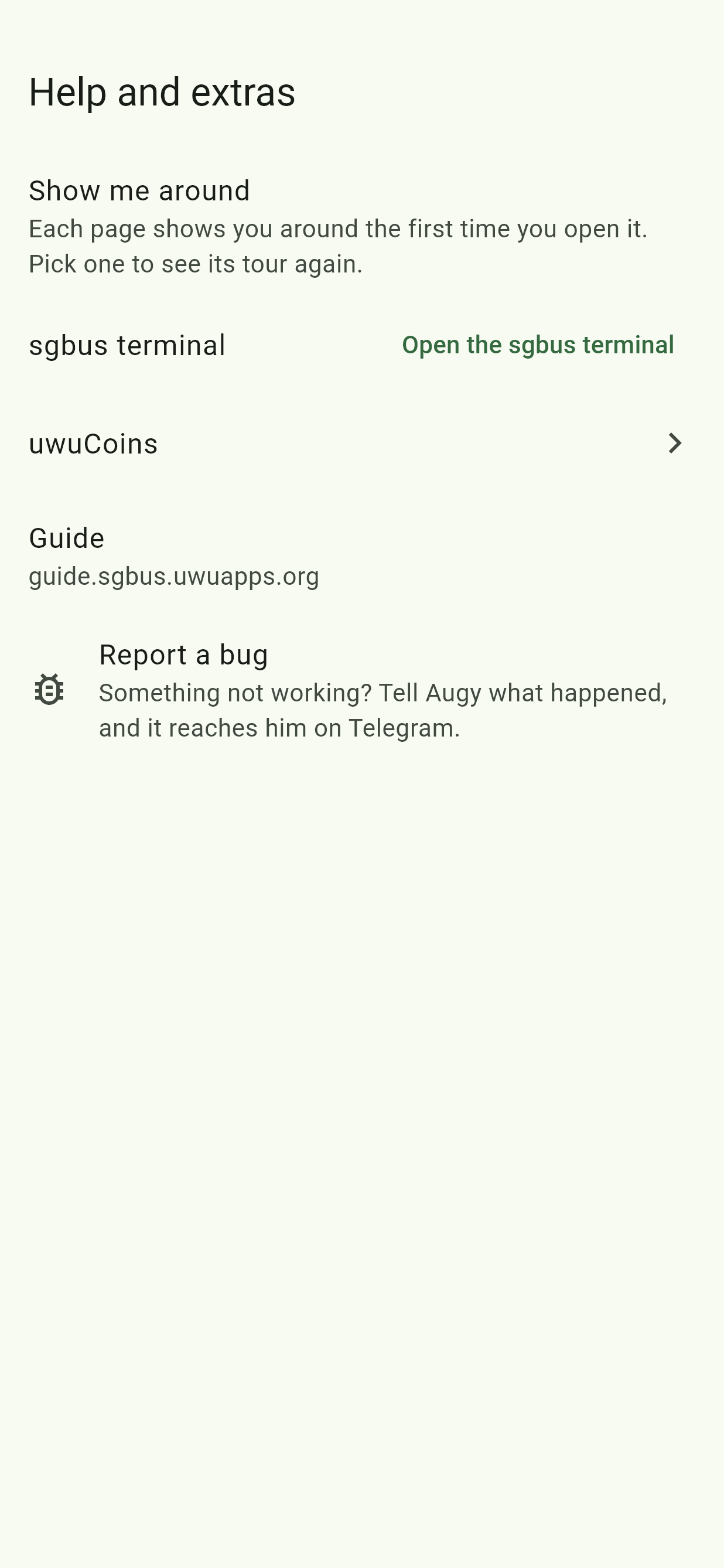
| Setting | What it does |
|---|---|
| Show me around | Each page's tour, to see again. |
| sgbus terminal | Open the sgbus terminal: see The sgbus terminal. |
| uwuCoins | Your coins and the wheel. See uwuCoins. |
| Guide | Opens this guide. |
| Report a bug | See Report a bug. |
Achievements
The feats, with how far along you are, and the Easter eggs found. See Achievements.
Sync
Copies what you've saved to another device or the Telegram bot. See Sync.
The app's language
The app has a language of its own in Android. On Android 13 and later, open your phone's Settings, Apps, SG Bus Timings, Language, and pick English, Bahasa Melayu, தமிழ் (Tamil) or 中文 (Chinese).
It's the same language as Language in the app's Settings, whichever you change:
- Pick one in Android's settings and the app follows, at once if it's open.
- Pick one in the app, and Android's setting changes to match, so the app's notifications, its widget and its update page are in it too.
- System default in Android's settings puts the app back on your phone's language.
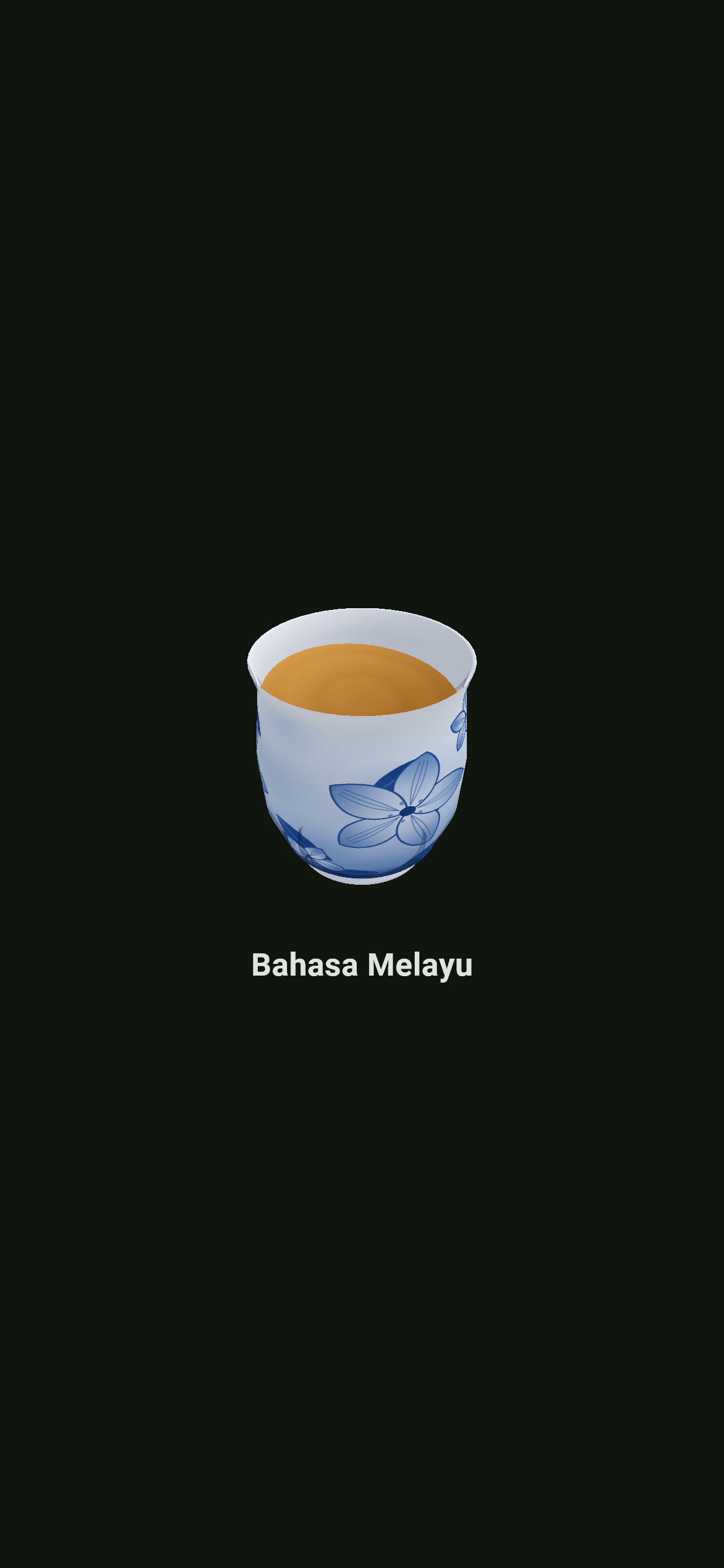
Changing it takes a sip from Singapore's famous language-changing cup: it spins for under a second with the tea swishing around it, and the whole app changes behind it. With animations off in Android's settings, the language just changes.
On Android 12 and older, Android has no setting for it: the app's own Language sets both.
The app's text also follows your phone's font size (your phone's Settings, Display, Font size), changed while the app's away or not.
Report a bug
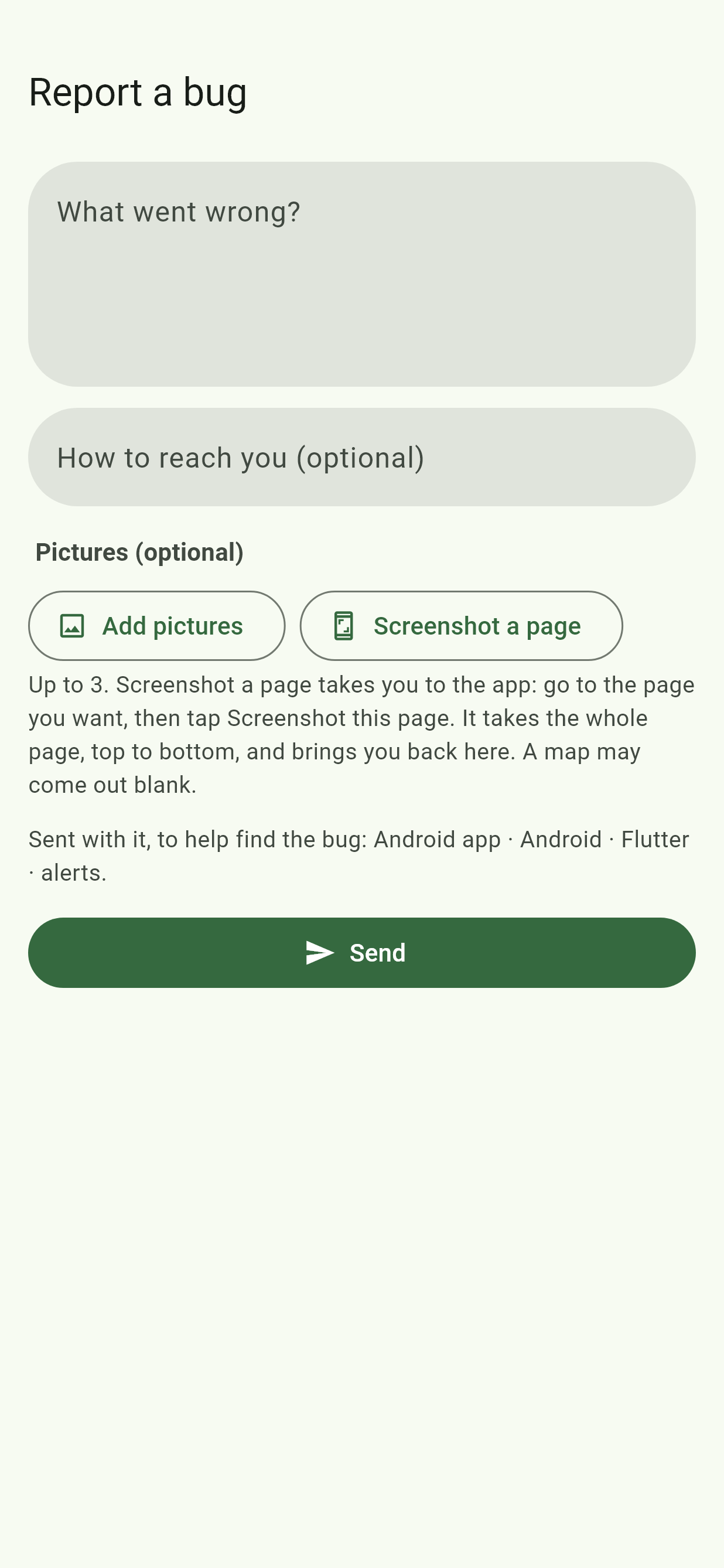
In Help and extras, Report a bug sends a note to Augy.
- Under What went wrong?, say what you did, what happened, and what you expected.
- Under How to reach you, add your Telegram @name or your email if you'd like an answer. It's optional.
- Add up to three pictures. Add pictures picks them from your phone. Screenshot a page puts the report away so you can go to the page you mean, anywhere in the app, with a floating Screenshot this page button. That takes the whole page, top to bottom, and brings you back. The button isn't in the picture, and what you've typed is still there. A map may come out blank.
- Read Sent with it, to help find the bug: the app's version, your phone, the page on show and your language go with your words.
- Tap Send. It reaches Augy on Telegram, and the app says Sent as report 20261103-7K3Q. Mention that ID if you write to Augy about it.
Offline, what you've typed stays here to send once you're back online. Or use Email it instead.