
Web app: basics
Windows, Mac and Linux apps
Download the desktop app for Windows, Mac or Linux, on Intel, AMD or Arm, and what only it does: the tray, Service alerts as desktop notifications, starting when you sign in, uwu:// links, and updating itself.
SG Bus Timings for Windows, Mac and Linux is the web app in a window of its own, with a few extras only a desktop app can do. This page covers those extras; everything else works as the rest of this guide describes, and updates the moment the website does.
Download and install it
Open the latest release and download the one for your computer from under Assets:
| Computer | File |
|---|---|
| Windows 10 or 11, Intel, AMD or Arm | , which installs the right one for your PC. (The is the same app on Intel and AMD, for installing it on many computers at once.) |
| Mac with Apple silicon (M1 and later) | |
| Mac with an Intel processor | |
| Debian, Ubuntu, Mint | |
| Debian or Raspberry Pi OS on 64-bit Arm | |
| Fedora, openSUSE, RHEL | |
| Fedora, openSUSE, RHEL on 64-bit Arm | |
| Any other Linux | |
| Any other Linux on 64-bit Arm |
The version in the names goes up with each release; download the newest.
Not sure which Linux file? In a terminal, says for Intel and AMD, and for 64-bit Arm, such as a Raspberry Pi 4 or 5 on 64-bit Raspberry Pi OS. 32-bit Arm isn't supported.
Windows: open the . If Windows says "Windows protected your PC", click More info, then Run anyway: the app isn't signed with a certificate yet. Pick where to install it, then open SG Bus Timings from the Start menu.
Mac: open the and drag SG Bus Timings into Applications. It isn't signed with an Apple Developer ID yet, so the first time, right-click it in Finder and pick Open, then Open again; on macOS 15 and later, go to System Settings > Privacy & Security and click Open Anyway.
Debian, Ubuntu, Mint, Raspberry Pi OS: open the with your software installer, or in a terminal, ( on Arm).
Fedora, openSUSE, RHEL: open the with your software installer, or in a terminal, on Fedora and RHEL, or on openSUSE ( on Arm).
AppImage: make it runnable (right-click > Properties > Allow executing file as program, or it), then open it. Some systems need FUSE 2 first: on Debian 13 and Ubuntu 24.04 and later.
Rather have it in a terminal, or on a server without a desktop? See the command line on Linux.
Install and update it with apt
On Debian, Ubuntu, Mint or 64-bit Raspberry Pi OS, you can add the app's own apt repository instead of downloading each new :
sudo install -d -m 0755 /etc/apt/keyrings
curl -fsSL https://augy-studios.github.io/sgbus-timings/sgbus-timings.gpg | sudo tee /etc/apt/keyrings/sgbus-timings.gpg > /dev/null
echo "deb [signed-by=/etc/apt/keyrings/sgbus-timings.gpg] https://augy-studios.github.io/sgbus-timings stable main" | sudo tee /etc/apt/sources.list.d/sgbus-timings.list
sudo apt update
sudo apt install sgbus-timings-desktopAfter that, brings each new version with your other updates. An app already installed from a downloaded is the same package, so adding the repository is enough for it to update. To take the repository away again:
sudo rm /etc/apt/sources.list.d/sgbus-timings.list /etc/apt/keyrings/sgbus-timings.gpgMake it yours
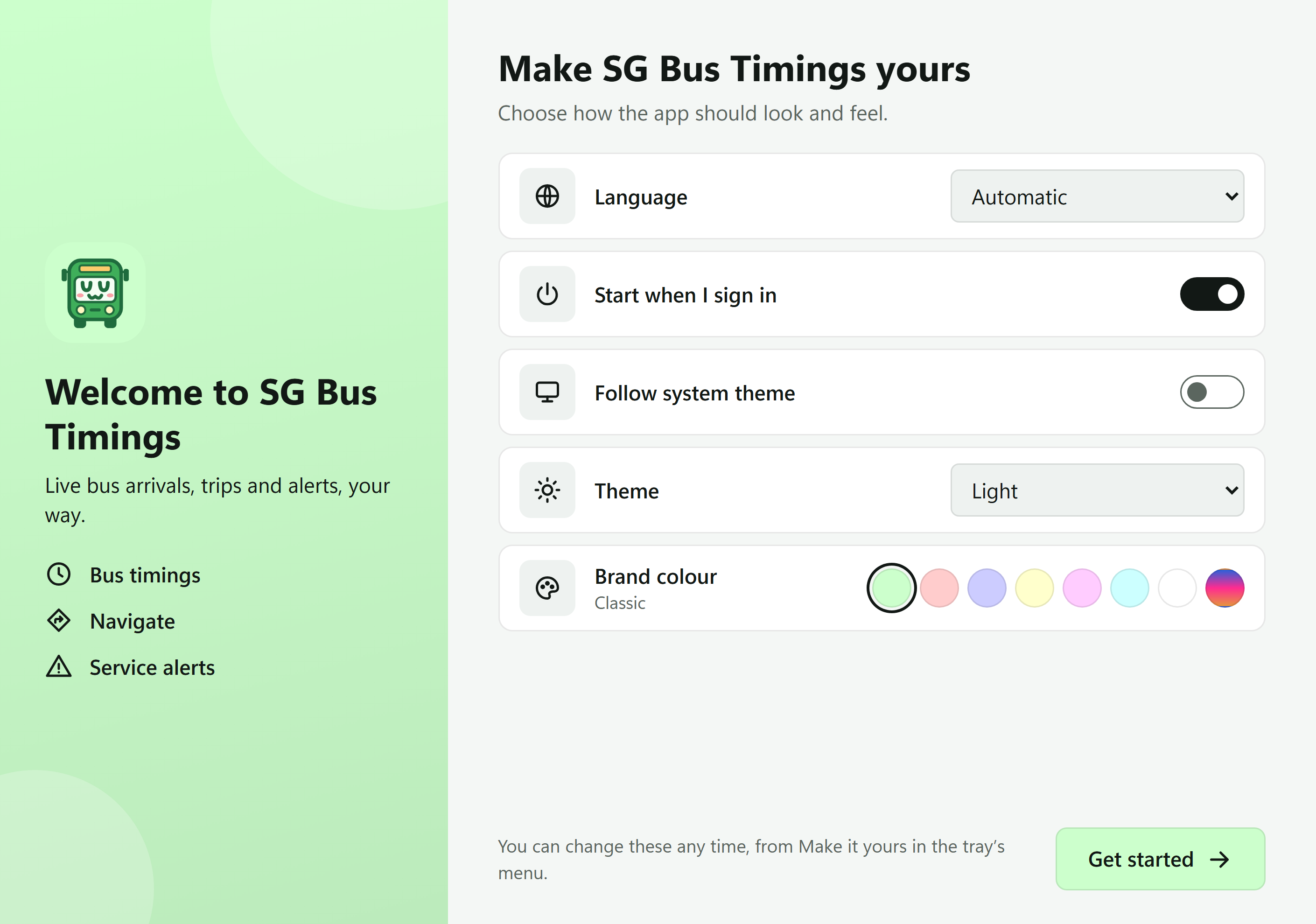
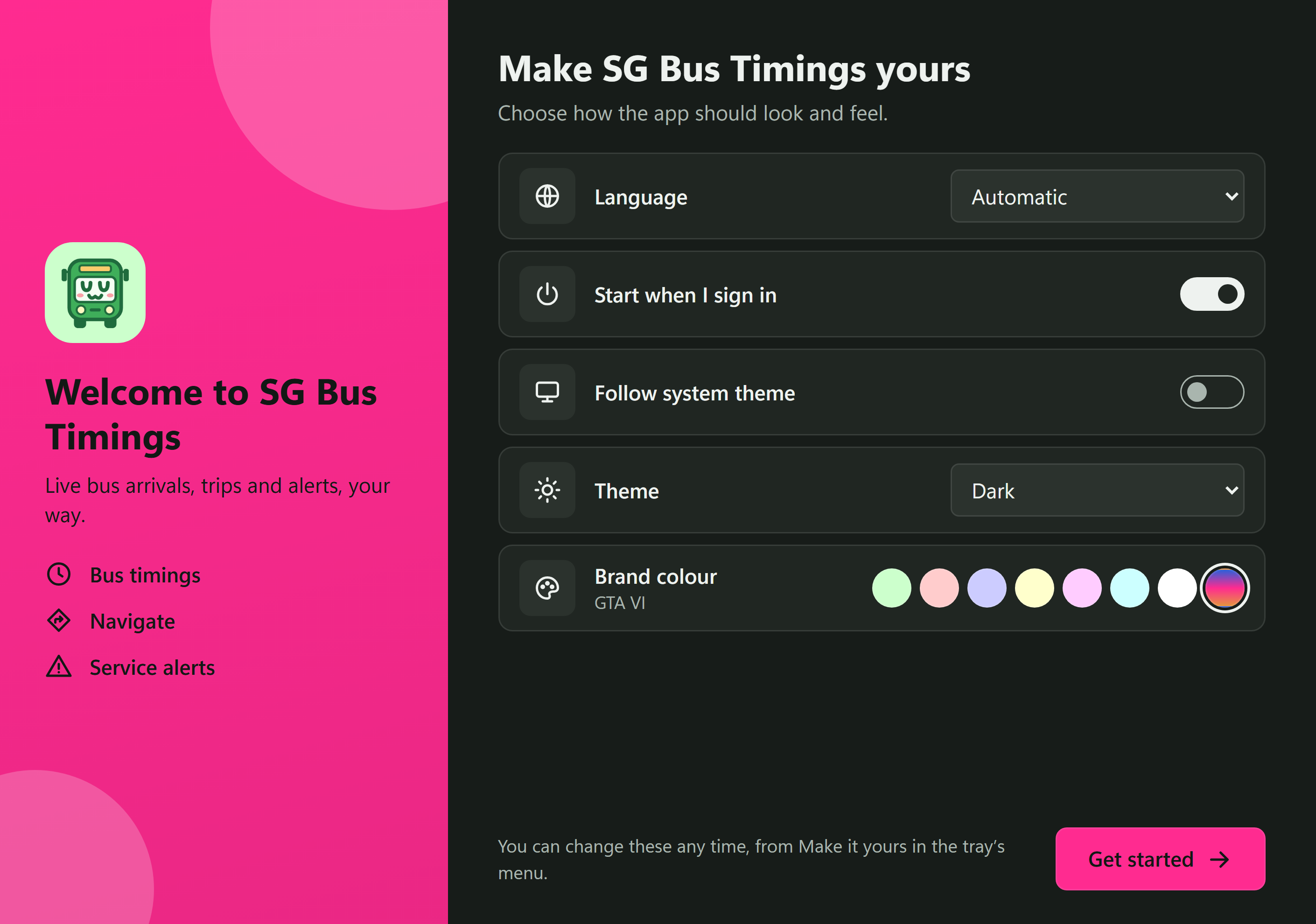
The first time the app opens, whether you've just installed it or updated to a version with this window, it lets you set it up in one go:
- Language, or Automatic for your computer's.
- Start when I sign in.
- Follow system theme, for your computer's light or dark, or a Theme of your own: Light, Dark or Time-based.
- Brand colour, one of the theme picker's. With Your colours on, they wait until you turn those off.
The window shows each choice as you pick it, and Get started opens the app with them. Closing it changes nothing. To see it again, right-click the tray's bus and pick Make it yours....
The tray
Closing the window doesn't quit the app: it keeps running in the tray (the bus by the clock on Windows), so Service alerts still reach you. Click the bus to bring the window back. Right-click it for Service alerts, Navigate, Make it yours..., Start when I sign in, and Quit, which closes it for good.
A stop's buses in the tray
Open a stop and click Tray countdown: its next buses then show when you hover over the tray's bus on Windows and Linux, and beside it in the menu bar on a Mac, with the next bus's minutes on the Dock icon too. Narrowed to one bus first, it follows just that bus. It refreshes every 30 seconds. Right-click the tray's bus for Stop the tray countdown.
Your favourites on the taskbar and Dock
Your favourite stops are a right-click away on the app's taskbar icon on Windows (its Jump List), and on its Dock icon on a Mac. On Windows, hovering over the taskbar icon also gives Refresh, and the previous and next favourite stop, under its preview.
Service alerts on your desktop
Turn them on as on the website: the bell in the Edge Tray, then pick what to hear about. The app checks every minute while it's running, open or in the tray, and shows what's new as a desktop notification, with no browser open. Click one to open Service alerts.
Bus timings widgets
Keep a stop's live timings on your desktop, in a small window of its own:
- Right-click the tray's bus and pick Add a Bus timings widget.
- Pick one of your favourite stops, or type a stop's 5-digit code. To show only some buses, type their numbers, such as . Click Save.
Drag its top to move it, and its edges to resize it any way: it shows as many buses as fit, and scrolls for the rest. It refreshes every 30 seconds. Its buttons refresh it now, pick another stop, keep it on top of other windows, and remove it. Click a bus to open it in the app. Add as many as you like; they're where you left them each time the app starts.
Starts when you sign in
The app opens when you sign in to your computer, so alerts reach you from the start. To stop that, right-click the tray's bus and untick Start when I sign in. It opens maximised; if you make the window smaller, it opens that size next time.
uwu://sgbus/ links
links open the app on the stop, bus or page they name, as they do the Android app: see App links. On Windows they work once you've opened the app once. An AppImage needs adding to your desktop's app menu first, as AppImageLauncher or Gear Lever do.
With another UwU app installed on the computer too, such as uwuPromptr, its links open that app, not this one, whichever of the two you opened last.
Updates
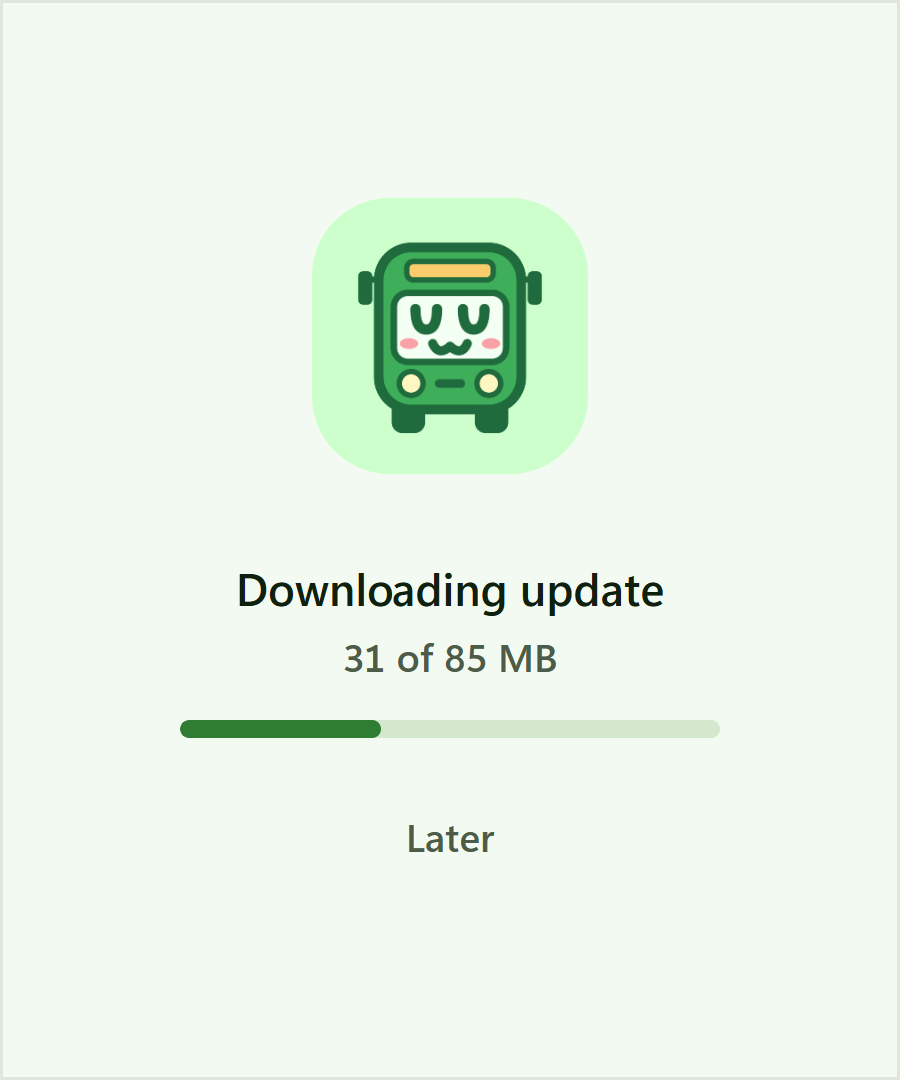
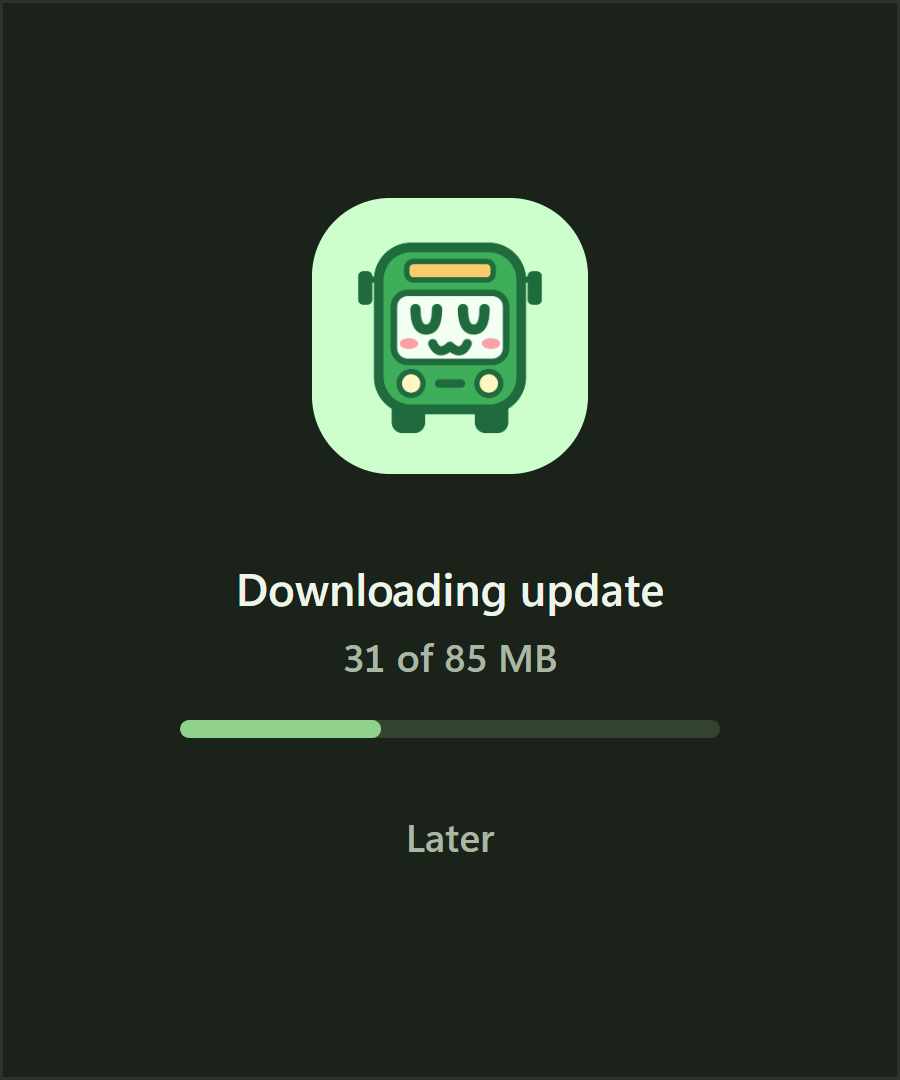
The app checks for a new version as it opens, in a small window with its icon: Checking for updates..., then Starting... and the app's window. When there's a new version it can install itself (installed with the , as an AppImage, or on a Mac), it downloads in that window, with a bar and how much has come, then says Installing update... and opens again as the new version. Later, under the bar, opens the app now and lets the download carry on in the background. Offline, it opens after a few seconds without it. The window is light or dark as your computer is.
After that it checks every hour while it runs, and again when your computer wakes from sleep. To check now, right-click the tray's bus and pick Check for updates...: a notification says what it found, even if you're up to date.
A new version is only found once its installers are on the release, which is a few minutes after it's out on Android.
To stop the notifications about new versions, open Service alerts (the bell in the Edge Tray) and pick Off under New versions of the app. The tray's menu and the title bar still offer the update.
- Installed with the , as an AppImage, or on a Mac: it downloads the update itself, then a notification, the tray's menu and a green update button in the title bar, right of the screenshot buttons, offer Restart to update, which shows the small window saying Installing update... as it goes. If you don't, it updates the next time you quit.
- Installed with the , or : a notification says there's a new version; click it to download the new installer, and install it over the old one. With the apt repository added, brings it instead.
Your favourites and settings stay.
Location
Stops near me and the live map need to know where the computer is. On Windows, turn on Settings > Privacy & security > Location. On Linux, the app works out where the computer is from the Wi-Fi networks around it, so Wi-Fi needs to be on (connected or not). It scans them with NetworkManager and asks BeaconDB, an open database of where Wi-Fi networks are, as GeoClue does. Only the networks' hardware addresses and signal strengths are sent, never their names or anything of yours, and networks named to opt out (ending ) are left out. If Location Services are off in GNOME's Settings > Privacy, it doesn't look. On a computer with no Wi-Fi, or one BeaconDB doesn't know the networks around, it can't tell where it is: type a place instead.