
Web app: basics
Open and install the app
The web app runs in any modern browser, and installs onto your phone or computer like any other app.
Open sgbus.uwuapps.org in your browser. There is nothing to sign up for, and nothing to download first. Everything you save stays in that browser.
A tour of the screen
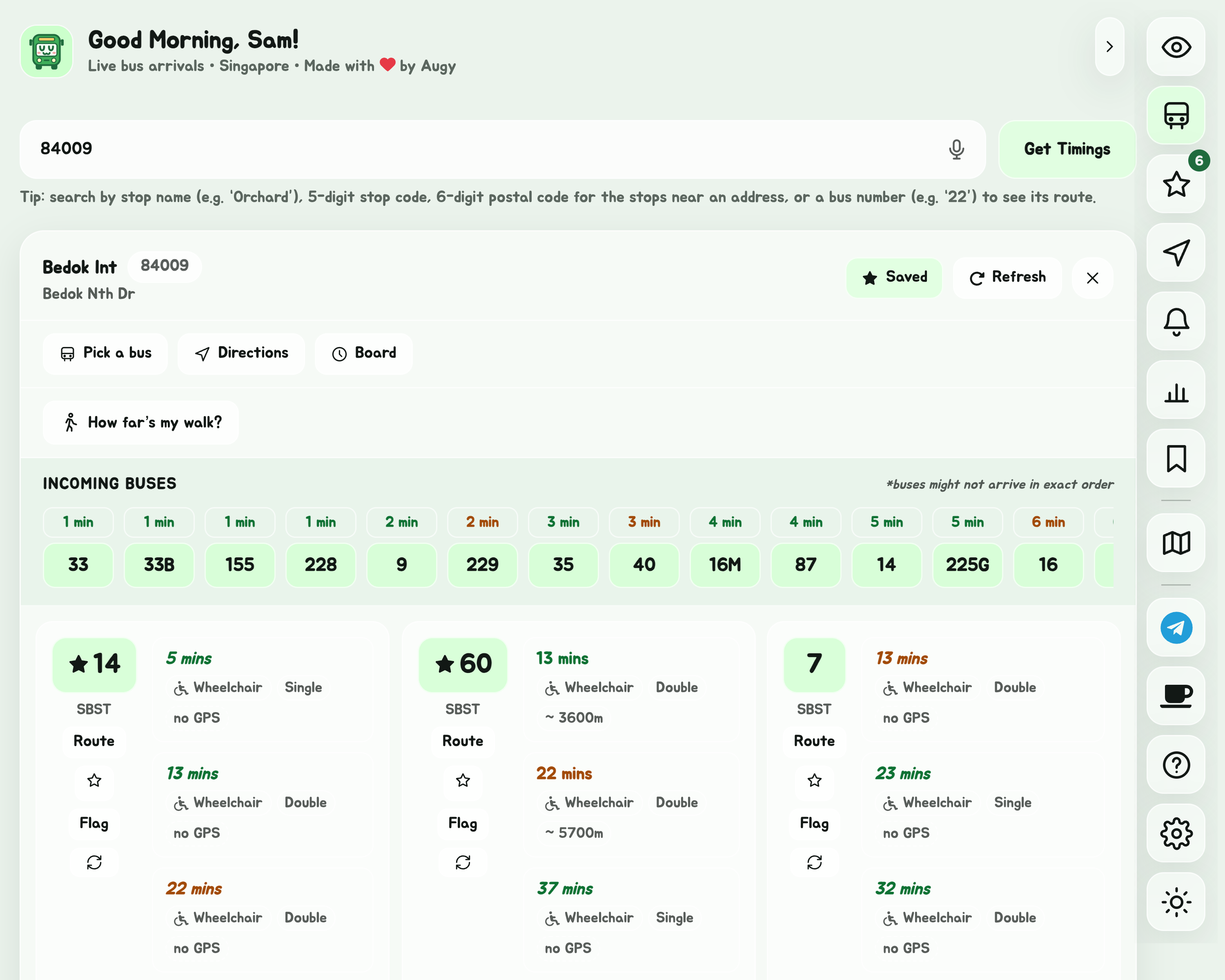
- The greeting at the top greets you by the time of day, and by name once you have set one in Settings.
- The Edge Tray is the column of buttons at the top right of the screen. First come the app's pages: Glance (the eye), Bus timings (the bus), Favourites (the star), Navigate (the arrowhead, with its Bus only tab for the route planner), Service alerts, Your trips (the bar chart) and Places (the bookmark). Under a line, Explorer (the map), then, in the Android app on a phone with NFC, Card value (the card), on a phone or tablet, SimplyGo (its own icon), the Telegram bot, a page to buy Augy a coffee, this guide (the question mark), Settings (the gear) and the theme picker. Hover over a button for its name, or, on a phone or tablet, press and hold it. The arrow beside the Edge Tray tucks it away at the edge of the screen, and brings it back. To have it on the left, see Settings.
- The search box, on Bus timings, finds a stop, a bus or an address. See Find a bus stop. The weather is on Glance.
- Stops near me, under the search box, lists the stops around you. See Find a bus stop.
- The timings card opens in its place once you pick a stop.
What a button does
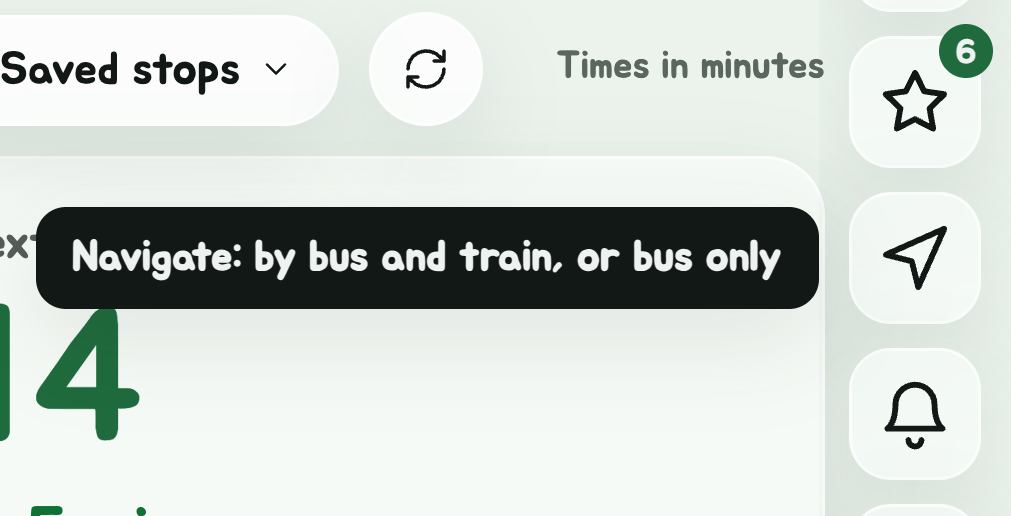
On a phone or tablet, press and hold any button, in the Edge Tray or elsewhere, to see what it does, as hovering does with a mouse. Letting go doesn't press it. The first time you open the app on a touch screen, a note beside the Edge Tray says so.
SimplyGo
On a phone or tablet, SimplyGo's icon in the Edge Tray goes to its app, for your card's balance, top-ups and travel history.
- With the SG Bus Timings Android app installed, it opens SimplyGo straight away.
- Otherwise it opens SimplyGo's page on Google Play or the App Store: tap Open there if you have it, or Install if you don't. SimplyGo has no link a website can use to open its app.
Install it
Installing puts SG Bus Timings on your home screen or in your app list, opening in its own window without the browser's address bar. It also lets the app open when you have no connection; see Updates and offline use. On iPhone and iPad, it's also the only way to get service alert notifications. Installed, it also has shortcuts and, on Windows, a widget.
iPhone and iPad
- Open the site in Safari.
- Tap the Share button.
- Scroll down and tap Add to Home Screen, then Add.
Android
- Open the site in Chrome.
- Tap the menu, the three dots at the top right.
- Tap Install app or Add to Home screen, then confirm.
Or the Android app
There's also an Android app, with screens of its own, which also follows your trip with the screen off, reads your EZ-Link or NETS FlashPay card's value, reads your phone's calendar and opens SimplyGo itself. It comes as a file from GitHub, or from Google Play. See Install the app.
Windows, macOS, Linux and ChromeOS
In Chrome or Edge, click the install icon at the right of the address bar, or open the browser menu and choose Install SG Bus Timings. Safari on a Mac offers File, then Add to Dock.
Or the Windows, Mac and Linux app
There's also a desktop app for Windows ( or ), Mac () and Linux (, or ), on Intel and AMD or on Arm: the same app in its own window, which stays in the tray and shows Service alerts as desktop notifications. See Windows, Mac and Linux apps to download and install it.
An installed app keeps its own favourites and settings, separate from the same site opened in a browser tab on some devices, especially iPhones. If your favourites seem to have vanished after installing, they are still in the browser. Sync them across, or add them again.