
Web app: advanced
Calendar
Link your calendar to see its events with a location in Navigate, and plan the way to each one, arriving on time.
Link your calendar and its events with a location, today and the next two weeks, show in Navigate. Tap one for the way there, arriving by its start.
Your phone's calendar
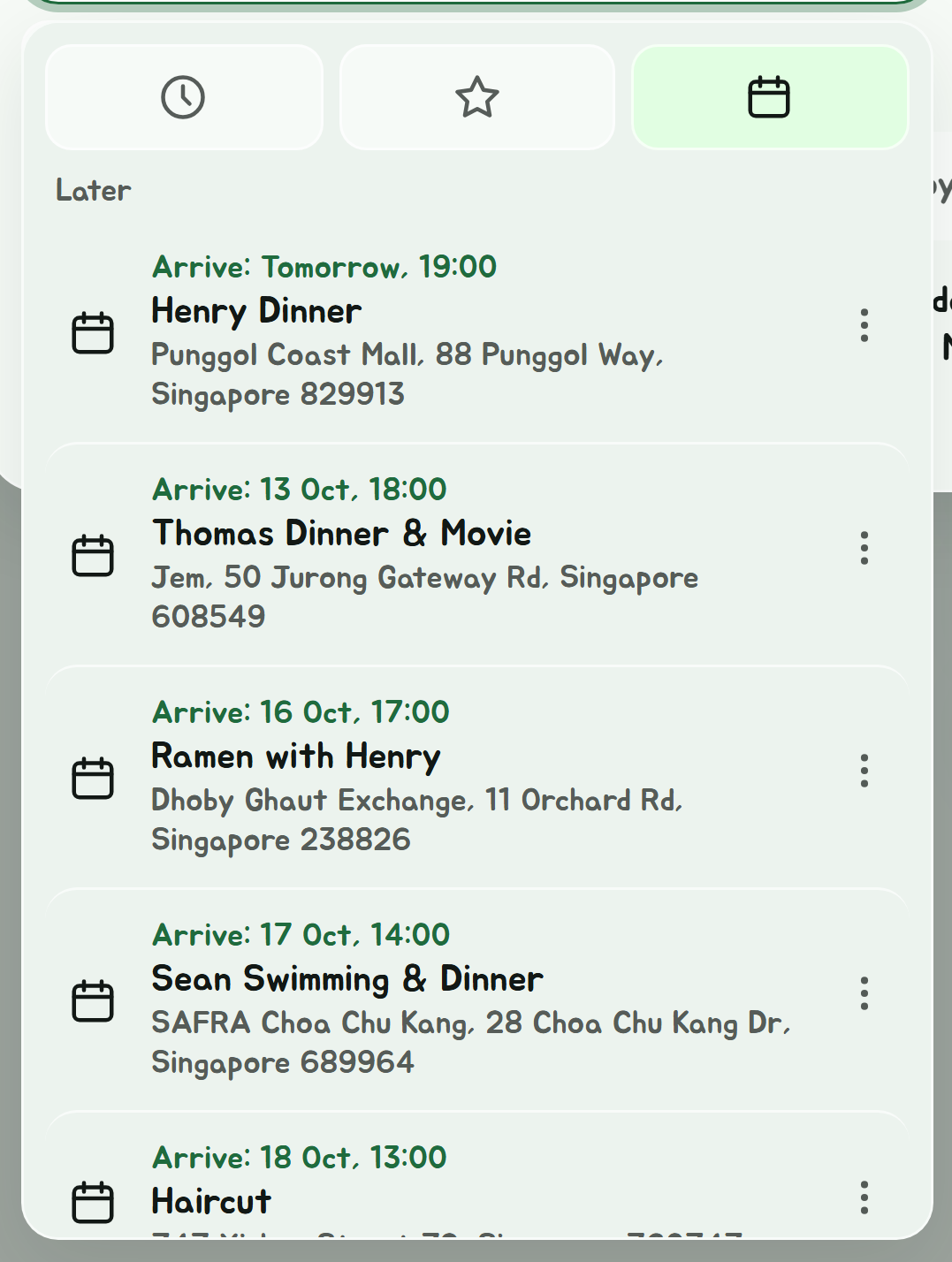
In the Android app, the app can read your phone's own calendar: every calendar on the phone, Google, Outlook, Samsung and the rest, with nothing to paste.
- In Navigate, tap into From or To, then the calendar tab, then Use this phone's calendar. Or in Calendar settings, tap Use this phone's calendar.
- The first time, tap Allow calendar access, then Allow on Android's prompt.
- Your events with a location show, and are read fresh each time you open the tab.
Your events stay on the phone. As with a link, only each event's location is looked up, to find the place.
Refused the prompt? Tap Allow calendar access again. After a second refusal Android stops asking, and the button opens the app's settings instead: turn on Calendar under Permissions.
Link your calendar
On the website, or on an iPhone, a web page can't read your phone's calendar, so you link it once by its private iCal link, or import it as a file.
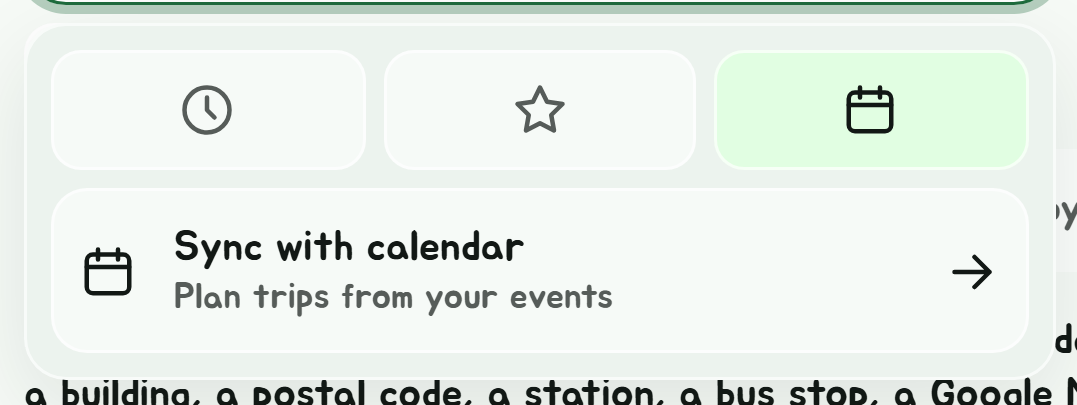
- In Navigate, tap into From or To, then the calendar tab, then Sync with calendar. Or open Settings and tap Calendar settings.
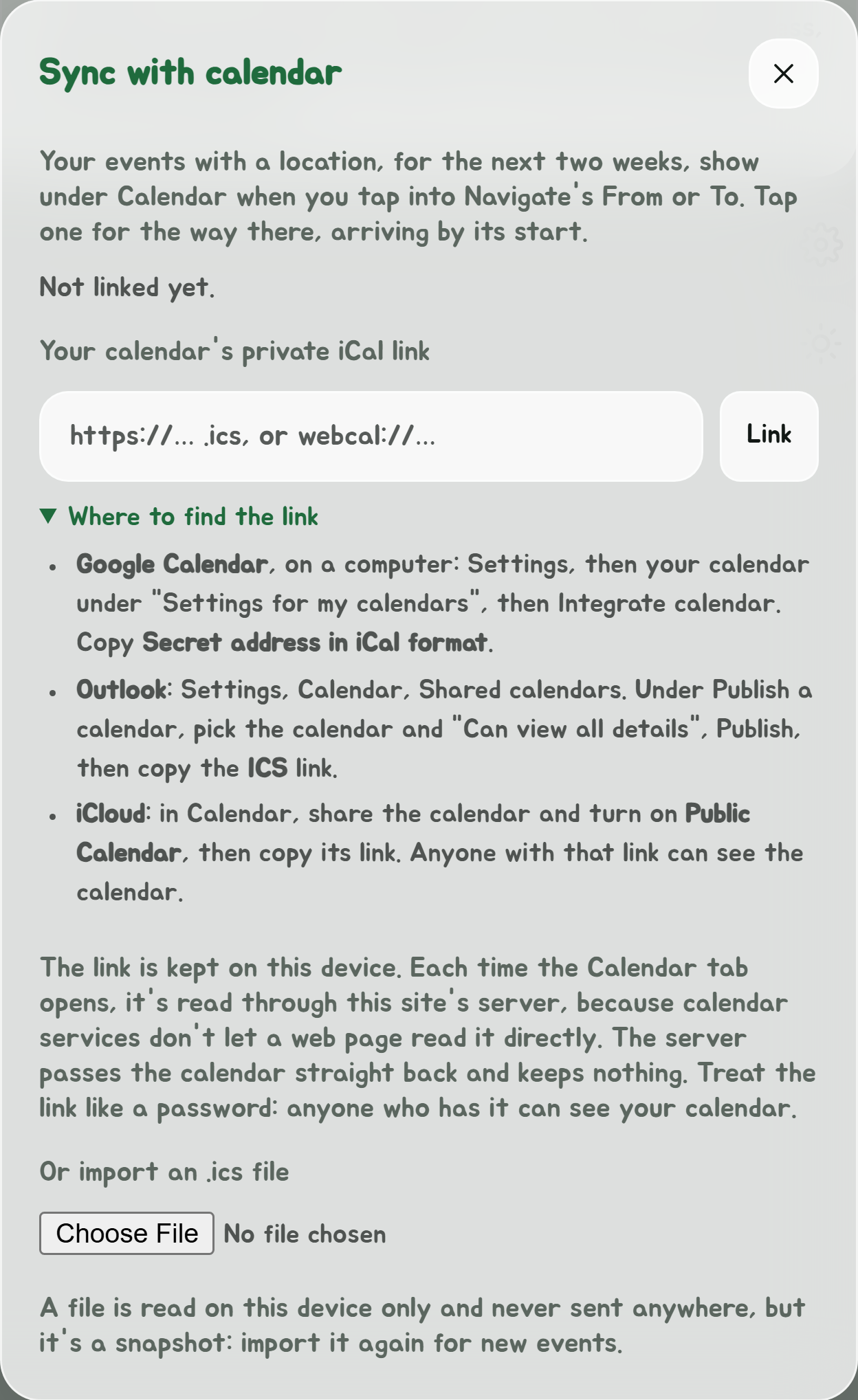
- Find your calendar's private iCal link (see below), copy it, paste it in, and tap Link.
- The window says how many events with a location it found.
Where to find the link
| Calendar | Where |
|---|---|
| Google Calendar | On a computer: Settings, then your calendar under "Settings for my calendars", then Integrate calendar. Copy Secret address in iCal format. |
| Outlook | Settings, Calendar, Shared calendars. Under Publish a calendar, pick the calendar and "Can view all details", tap Publish, then copy the ICS link. |
| iCloud | In Calendar, share the calendar and turn on Public Calendar, then copy its link. Anyone with that link can see the calendar. |
Treat the link like a password: anyone who has it can see your calendar. If it gets out, reset it in your calendar's settings (Google's is Reset, under the secret address) and link the new one.
Or import a file
Under Or import an .ics file, pick a calendar file exported from your calendar app. It's read on this device only and never sent anywhere, but it's a snapshot: import it again for new events.
Plan the way to an event
Tap into Navigate's To, then the calendar tab. Events are listed Today, then Later, each with when to arrive, its name and its location.
Tap one, and Navigate plans the way there from where you are, set to Arrive by the event's start. An all-day event, or one more than a week away, plans for Leave now instead.
An event stays listed until it ends, not just until it starts, so you can still plan the way to one you're late for. It's under Today, saying On now and when it ends, and tapping it plans for Leave now. An event with no end time in the calendar drops off once it starts.
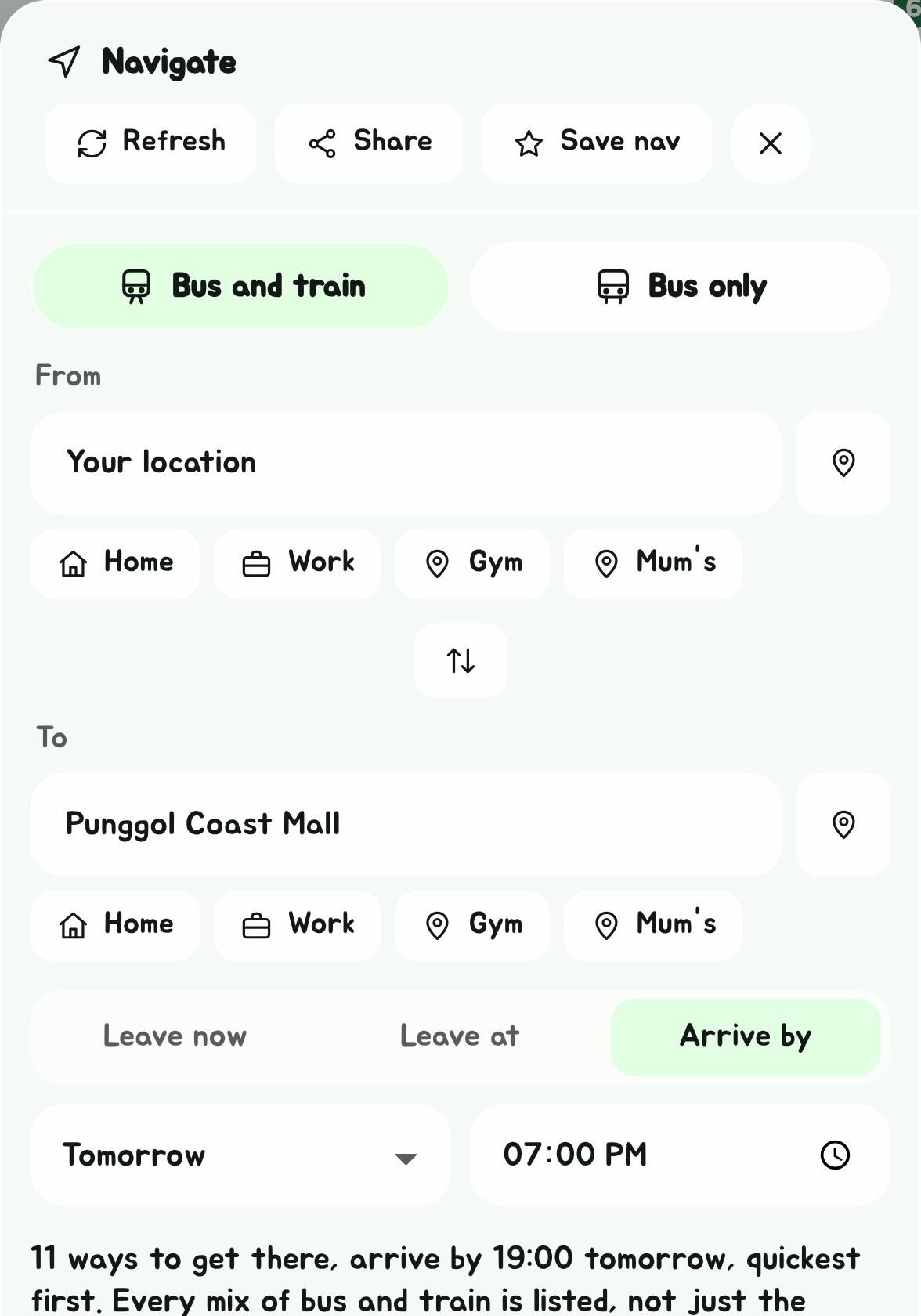
Each event's location is matched to a place on the map with Navigate's own search, by its postal code where it has one. One that matches nothing, such as "Wei's place", says Location not found; tap it, and its location goes into To for you to pick the right place from the suggestions. Online meetings, with a link for a location, and events with no location aren't listed.
Repeating events show each time they come round in the two weeks.
A stop on the way
Your events are under Add a stop in Navigate too. Tap into it, then the calendar tab, and tap an event to make its place the stop on the way. Navigate's time stays as it was: Arrive by is for where you're going, not the stop. An event whose location matched nothing puts its location in the box, to pick the right place.
An event's menu
Tap the three dots beside an event:
- Save as place saves its location to Places, named after the event.
- Share place makes a "How to get to" link to its location.
- Hide this event takes it off the list.
Change or remove it
Calendar settings, at the foot of the calendar tab or in Settings, links a different calendar or imports another file. Remove calendar forgets the link or file on this device.
How the link is kept
The link stays in this browser. Each time the calendar tab opens, the calendar is read through SG Bus Timings' server, because calendar services don't let a web page read a calendar directly. The server passes the calendar straight back to your browser, and keeps and logs nothing. Matching each location to a place uses Navigate's search, as typing it would. See Privacy.
The Telegram bot has the same, with .