
Android app: basics
The Android app
SG Bus Timings for Android, its own app with its own screens, and everything it does that a browser can't.
SG Bus Timings for Android is an app of its own. Every screen is drawn by the app itself, so it opens straight away, scrolls smoothly and looks the way Android's own apps do. This part of the guide shows the app's own screens. If you use the website instead, see Open and install the app.
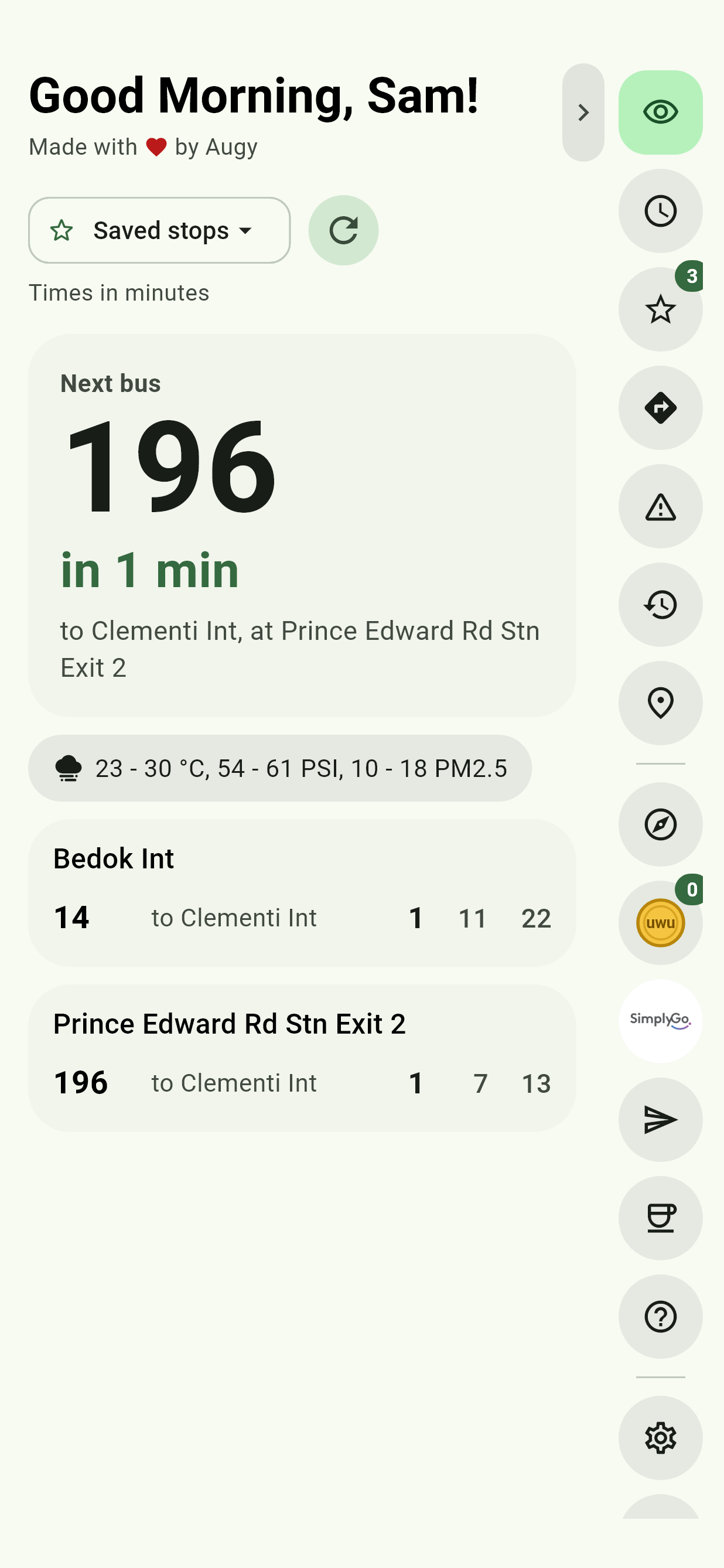
It has the same live timings, routes, Navigate, trips and favourites as the website, in the same four languages. Sync copies what you've saved from one to the other.
What only the app can do
| Feature | What it does |
|---|---|
| Material You | The whole app in your wallpaper's colours and your phone's own fonts. |
| Trips with the screen off | Your trip keeps going with the phone locked, and the alert sounds over the lock screen. |
| Bus and train offline | Plans journeys on your phone with no connection. |
| Reminders | Timings as you walk up to a stop, time to leave for an event, your last bus, and routines, with the app closed. |
| Card value | Reads an EZ-Link or NETS FlashPay card's value over NFC. |
| Home screen widget | A stop's live timings on your home screen. |
| Home and Work tiles | Bus home or to work from Quick Settings or the app's icon. |
| Voice and camera search | Say a stop, or point the camera at the code on its pole. |
| Offline Sharing | Hand a place or directions to the phone next to you, with no internet. |
| NFC stickers | Write a stop or a way home onto a sticker to tap later. |
| Picture-in-picture | The map or your trip in a small window over other apps. |
| Your phone's calendar | Plans the way to your events with nothing to paste. |
| Wear OS | A tile on your watch with the next buses at your nearest favourite stop. |
The screens are different from the website's
The app does what the website does, but some things are in a different place:
- A stop's timings, a bus's route and Settings each open as a screen of their own, with a back arrow, rather than on the page or in a window over it.
- Smaller things, such as what to pick for From, the weather and share cards, slide up from the bottom as sheets.
- The trip bar runs along the top of the screen, not the bottom.
- Press and hold any button to see what it does.
- Your phone's Back button closes what's open, then goes back to your home page. See Going back.
iPhone and iPad
There's no iPhone app. Add the website to your home screen instead: see Open and install the app.