
Web app: basics
Your main screen
Glance and your next bus, the pages in the Edge Tray, picking your custom home, and the tours.
The app opens on Glance: the next bus in big letters, and your stops' buses under it. Bus timings, the search box and a stop's timings, is the page after it. Everything else is in the Edge Tray, each part of the app a page of its own. Make any of them your home, and the app opens on it.
Glance
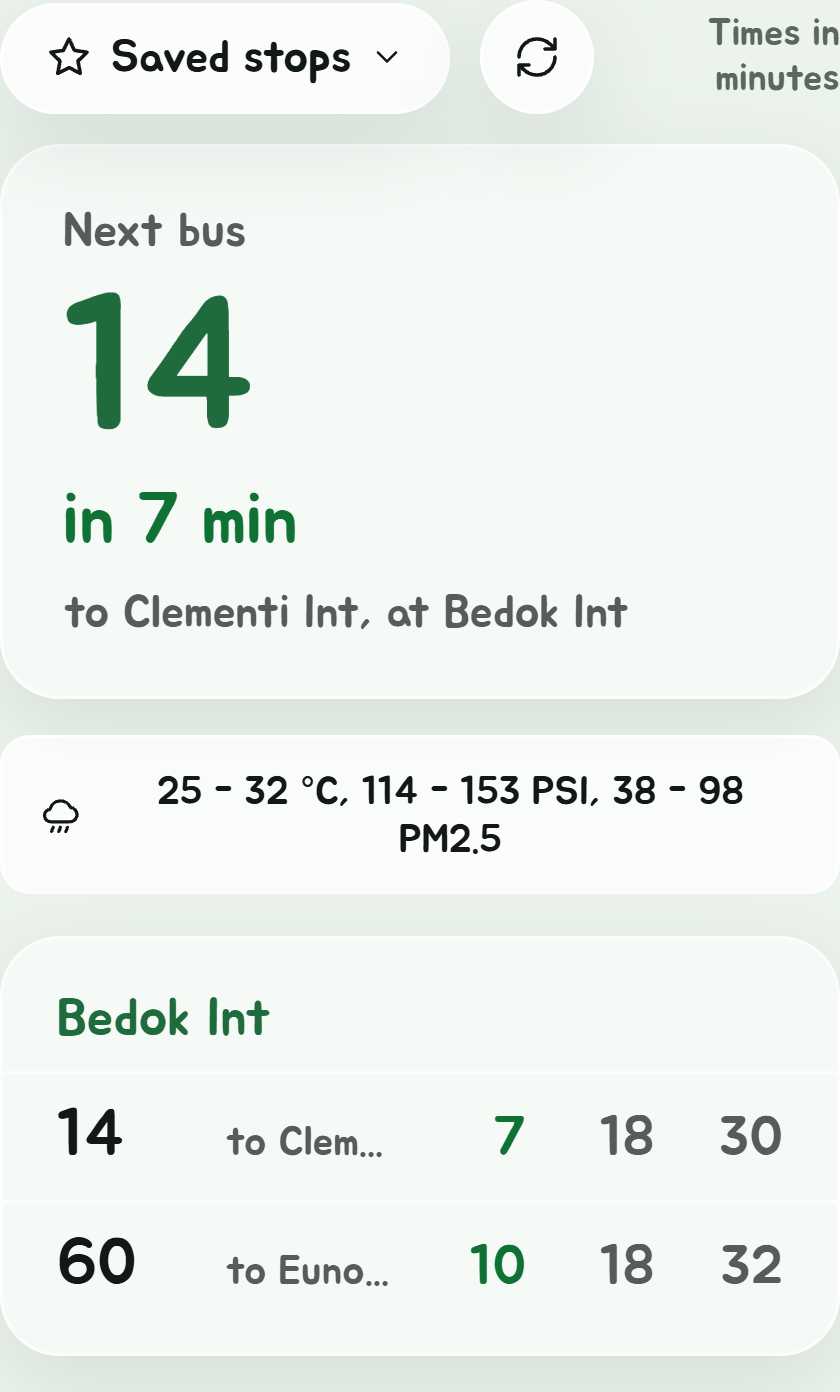
Glance, the eye at the top of the Edge Tray, is the page to read on the way out:
- The next bus, in big letters: its number, how soon it comes (Arriving under a minute), where it's going, and the stop. A favourite bus comes first whenever one is coming.
- Today's weather and air, a tap away.
- Your stops: each a card, with one line per bus: its number, where it's going, and its next three times in minutes. Arr is under a minute away. The soonest bus is at the top.
Once you have favourite buses, the cards show only those, and a stop none of them is due at is left out, so a busy interchange is a line or two, not a dozen. With no favourite buses, every bus shows. Star a bus by searching its number and tapping the star.
Tap the big bus, a line or a stop's name for its full timings, on Bus timings, as a search would. Back comes back to Glance.
The times count down by themselves, and fetch again every 30 seconds while the app is open on Glance. The round arrows beside the chip fetch them at once.
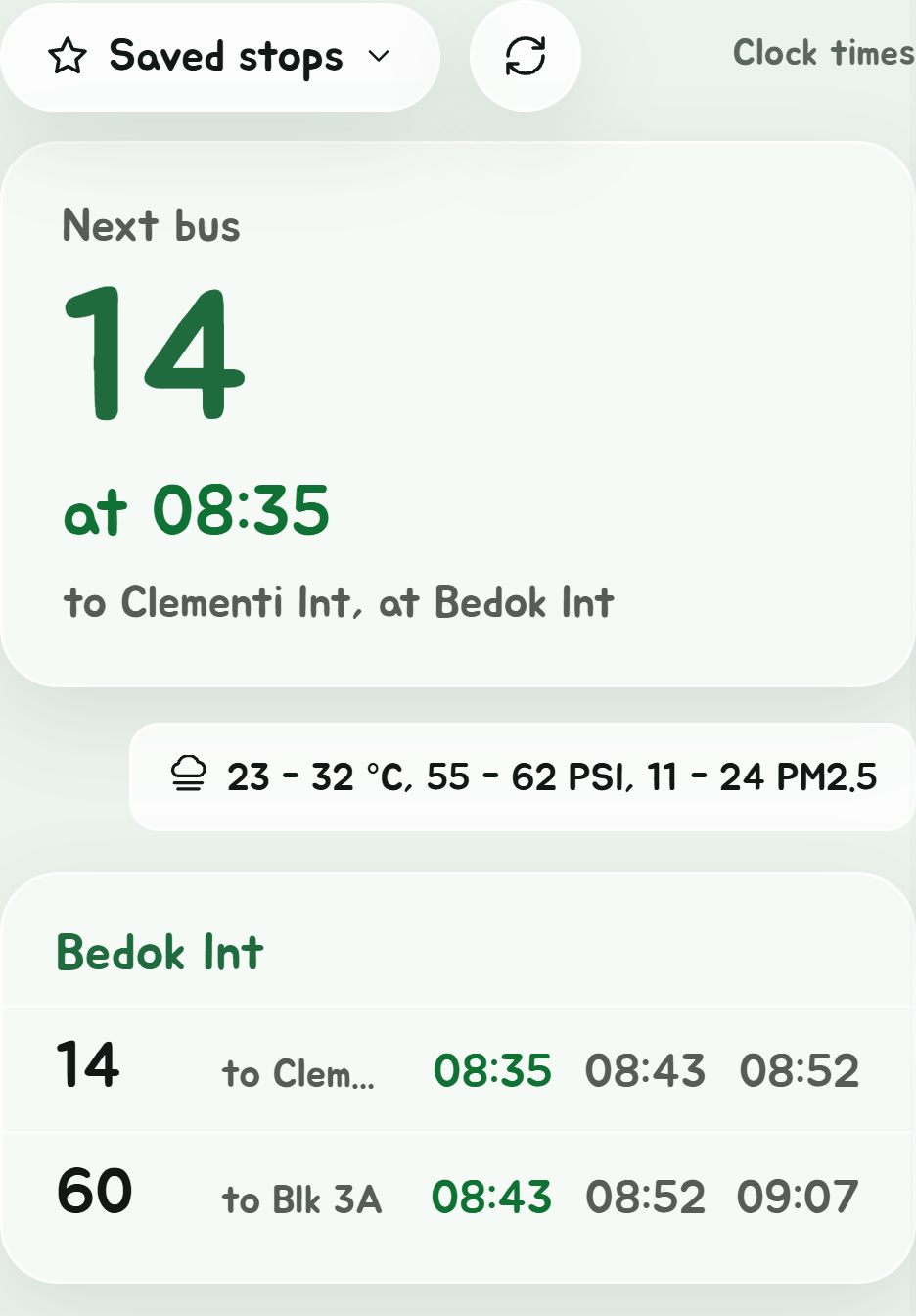
With Bus times on Clock time in Settings, Glance shows the time each bus comes, such as at 08:35, rather than minutes, and says Clock times beside the refresh button.
Pick whose buses
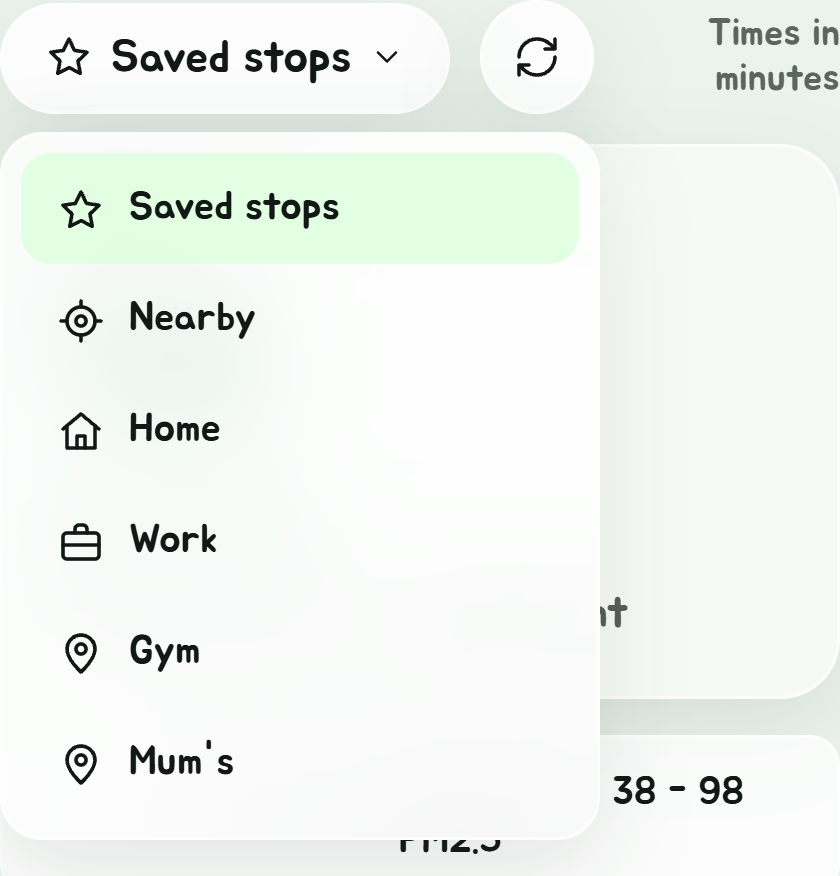
The chip above it picks the stops:
| Chip | Shows |
|---|---|
| Saved stops | Your favourite stops, up to twelve. The one it starts on, once you've saved a stop. |
| Nearby | The four stops nearest where you are, each with how long the walk is. The first time, it asks to use your location. |
| Home, Work and your other places | Up to four stops within 500 m of the place, the place's own stop first if it's a bus stop. |
| Your lists | The stops in the list, up to twelve, in the order you put them in, each with just the list's buses there, or every bus at a stop the list has no buses for. A list shows here once it has a stop or a bus at a stop in it. |
On Nearby, the big bus is the next one you'd make if you set off now, and it says when to leave: Leave in 3 min for, or Leave now for. The walk is a guess, the straight line with a quarter more for corners, as Will I make it? works it out.
Glance and Favourites show the same list: pick a list on the chip and Favourites opens on it too, and a list's tab in Favourites puts Glance on it, if it has a stop. Saved stops, Nearby or a place puts Favourites back on Favourites, and Favourites' own tab puts Glance on Saved stops.
The chip remembers what you picked. Turn Glance off in Settings, Next bus at a glance: its button leaves the Edge Tray, and the app opens on Bus timings instead.
Bus timings
Bus timings, the bus under Glance in the Edge Tray, is the search box, the stops near you under it, and, once you pick a stop, its timings in their place. The X at the top of a stop's timings puts them away, back to the search box and the stops near you.
Pages in the Edge Tray
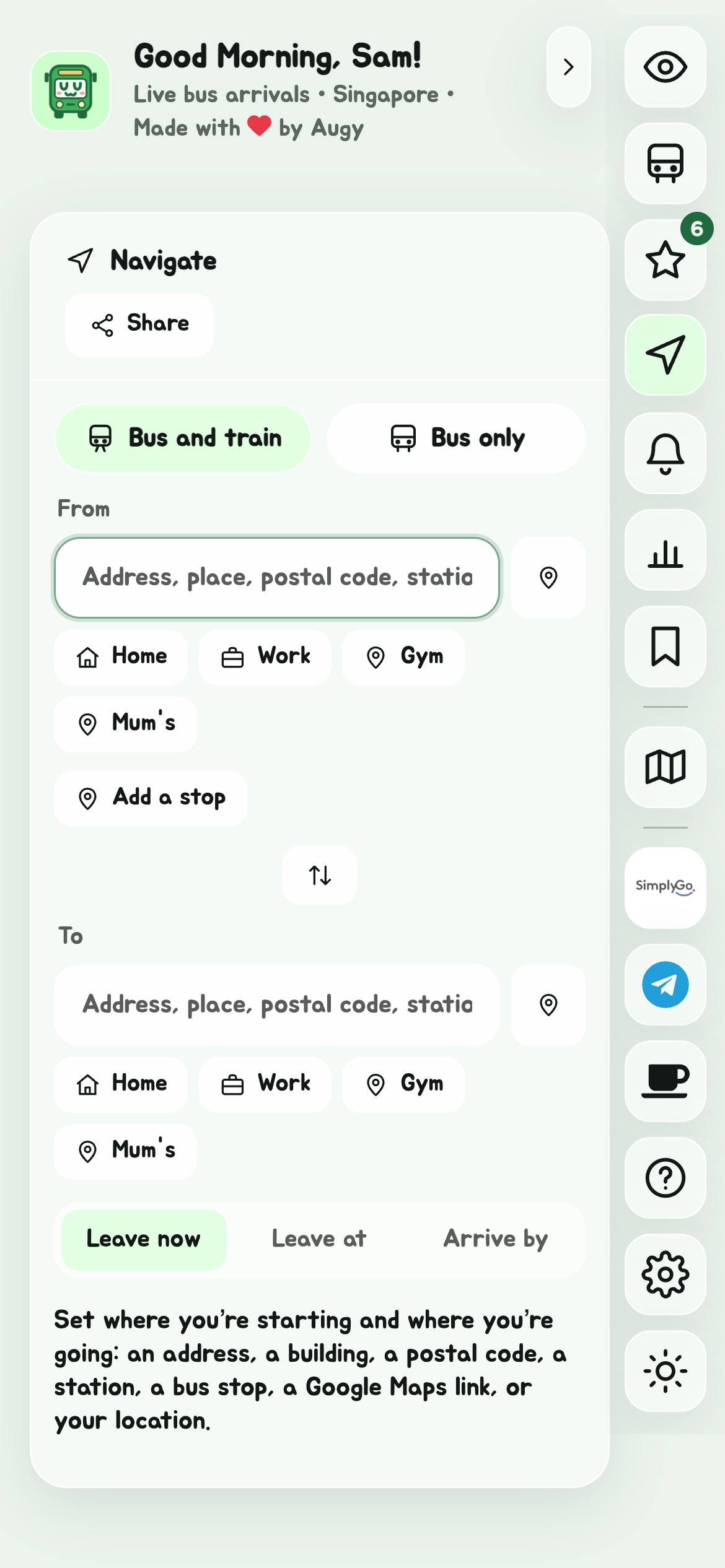
Each part of the app is a page of its own, with its button at the top of the Edge Tray, over a line:
- Glance: the next bus, the weather and your stops' buses
- Bus timings: the search box, and a stop's timings
- Favourites
- Navigate, with its two tabs, Bus and train and Bus only, inside it. It opens on the one you used last.
- Service alerts
- Your trips
- Places
Tap a button to switch to its page; the one on show is filled in. Taps that lead somewhere still take you there: a saved stop in Favourites opens its timings on Bus timings, a place in Places opens the way there on Bus and train, and a stop in a journey opens its timings. A bus's timings opened from a way in Navigate have Back to Navigate, back to that same way.
The small things still open as windows over the page: Settings, the theme, the weather, a bus's route, and the stops near a postal code.
Going back
Back (your browser's, or Telegram's) closes the window that's open, then goes back to the page you were on before, one step at a time. Only once you're back where you started, with nothing open, does it leave the app. A window's X, or a tap outside it, still closes it too.
In the Android app, Back closes what's open and then, on whichever page you're on, says Press back again to exit: press it again within two seconds to leave the app.
Custom home
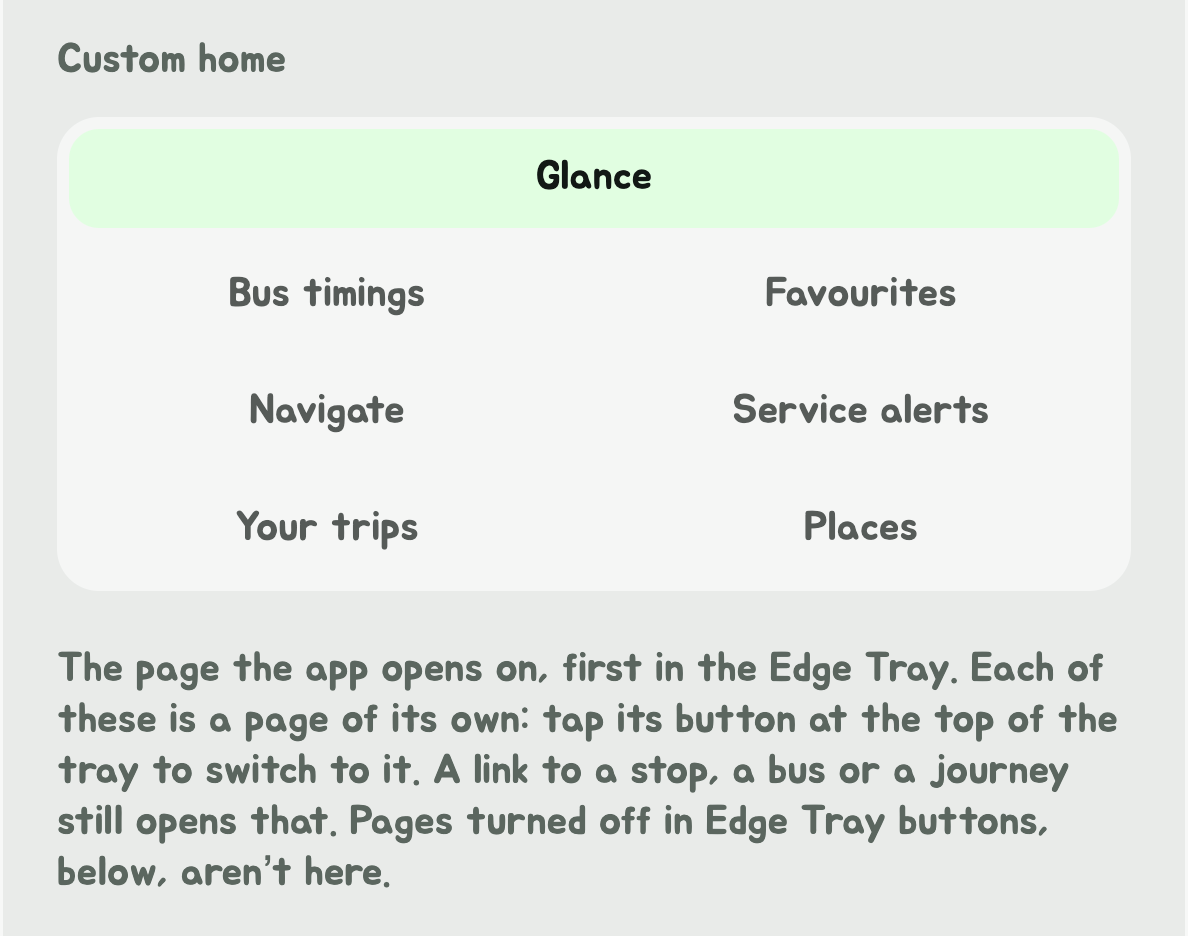
In Settings, Custom home picks the page the app opens on, every time: Glance to begin with, or any of the others. Its button moves to the top of the Edge Tray. Someone who mostly plans journeys can make Navigate their home, and open straight on it, on the tab they used last.
A link to a stop, a bus or a journey still opens that.
Simple (Lite), Normal or Advanced Super App
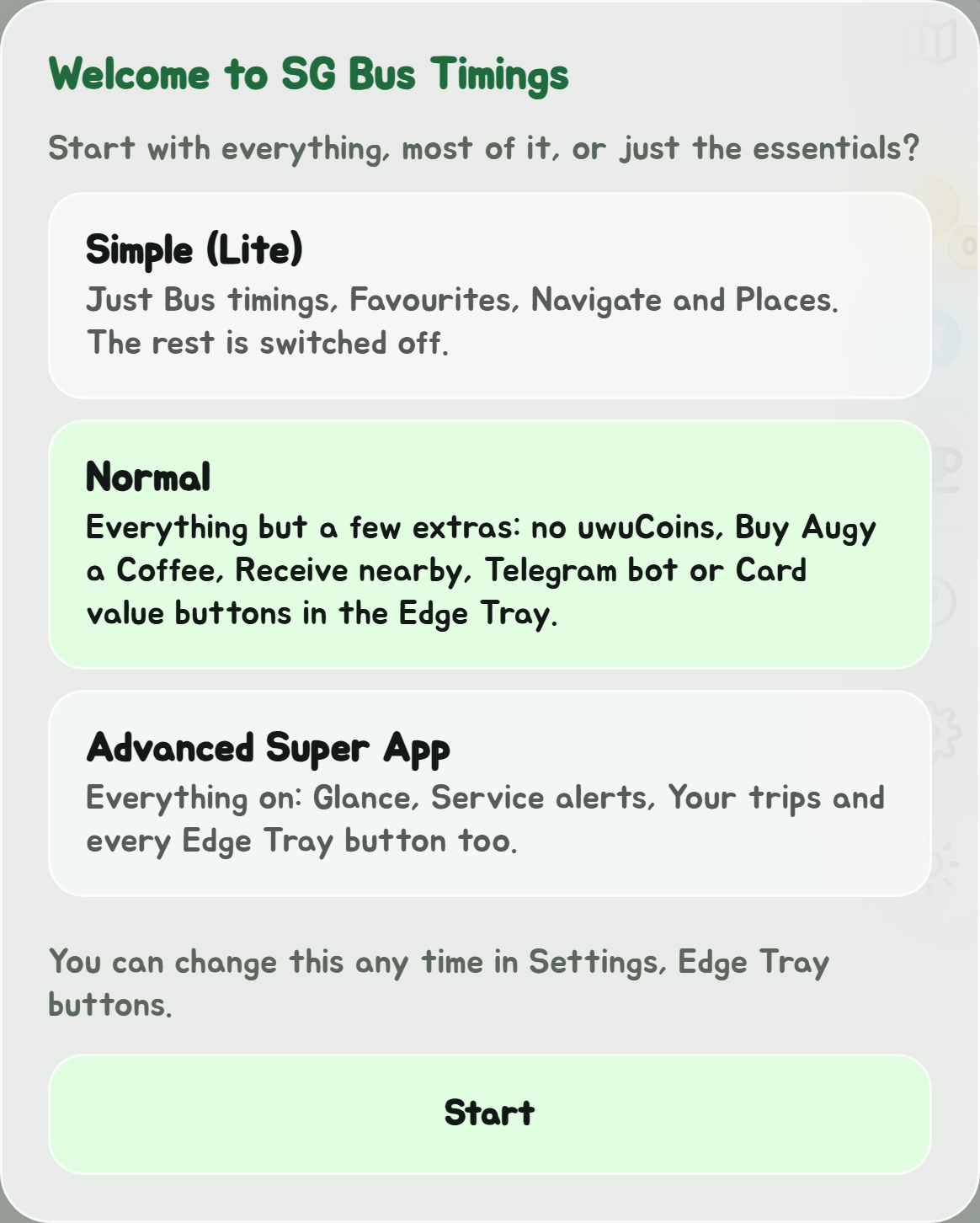
The first time the app opens, it asks how much to start with:
- Simple (Lite): just Bus timings, Favourites, Navigate and Places. Glance, Service alerts, Your trips and every extra Edge Tray button are off, and so are the coin pop-ups.
- Normal: everything but a few extras. The Edge Tray has no uwuCoins, Buy Augy a Coffee, Receive nearby, Telegram bot or Card value buttons, and the coin pop-ups are off.
- Advanced Super App: everything on, as the app always was. Closing the window is the same as picking this.
Any of it can be changed later in Settings' Edge Tray buttons, and uwuCoins in Help and extras.
The tours
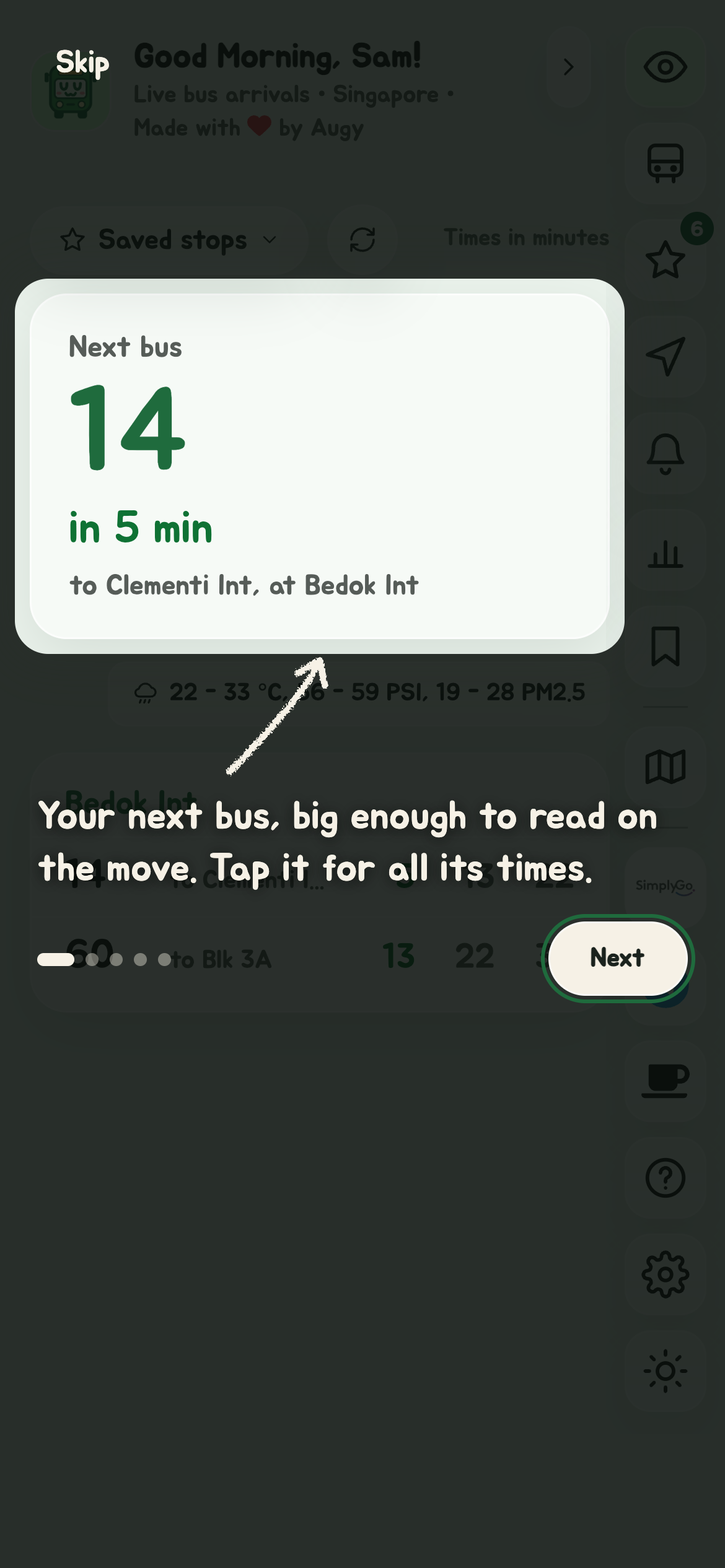
The first time the app opens, a short tour shows the basics, one thing at a time: the next bus, the chip and your stops on Glance, then the pages in the Edge Tray and Settings. Next moves on, and Skip at the top ends it.
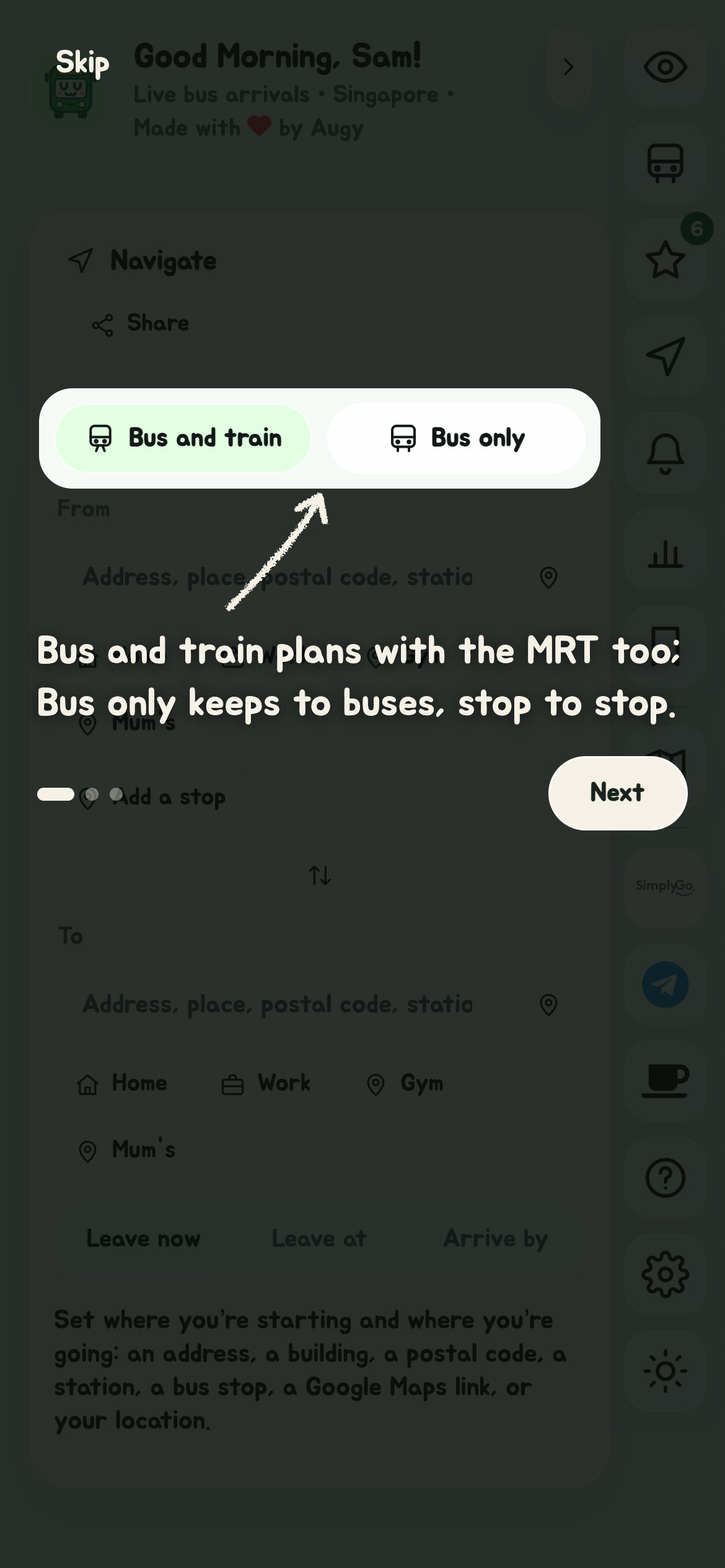
Every other page has a tour of its own too, shown the first time you open it: Bus timings, Favourites, Navigate, Service alerts, Your trips and Places. Each lights up what's on that page, such as Navigate's two tabs, From and To, and the time to leave or arrive by. A tour leaves out what isn't there yet, so Your trips with no trips just says how to start one.
Explorer and the sgbus terminal have one each too, the first time you open them: Explorer's lights up the dots round you, the compass, Layers and Back, and the terminal's the prompt, where the answers show, and how to close it.
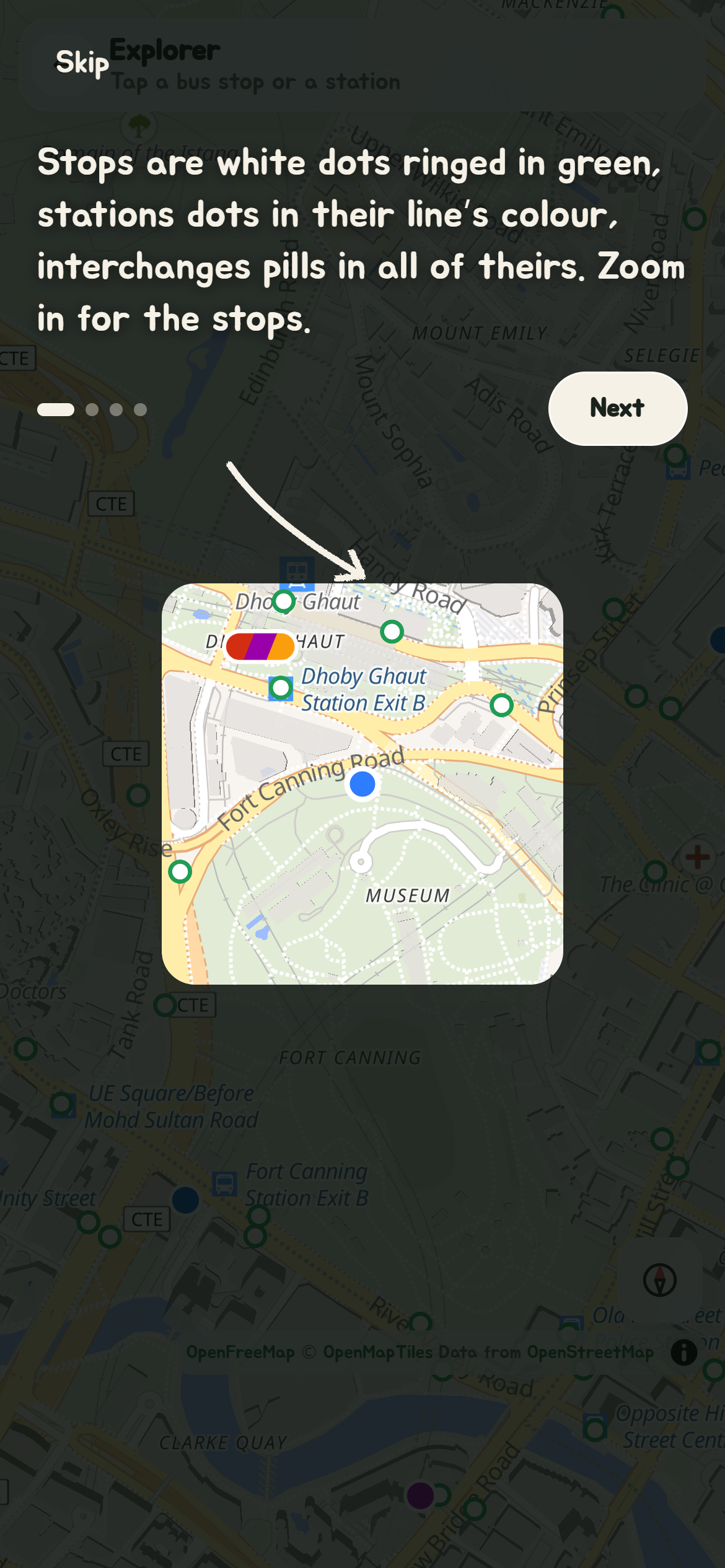
To see any of them again, open Settings: Show me around has a button for each page, for Explorer and for the sgbus terminal.