
Web app: basics
Bus routes
See every stop a bus calls at, in both directions, or just the stops still ahead of you.
A bus's route shows every stop it calls at, in order, so you can check it goes where you think it goes, and pick the stop to wait at.
Open a route
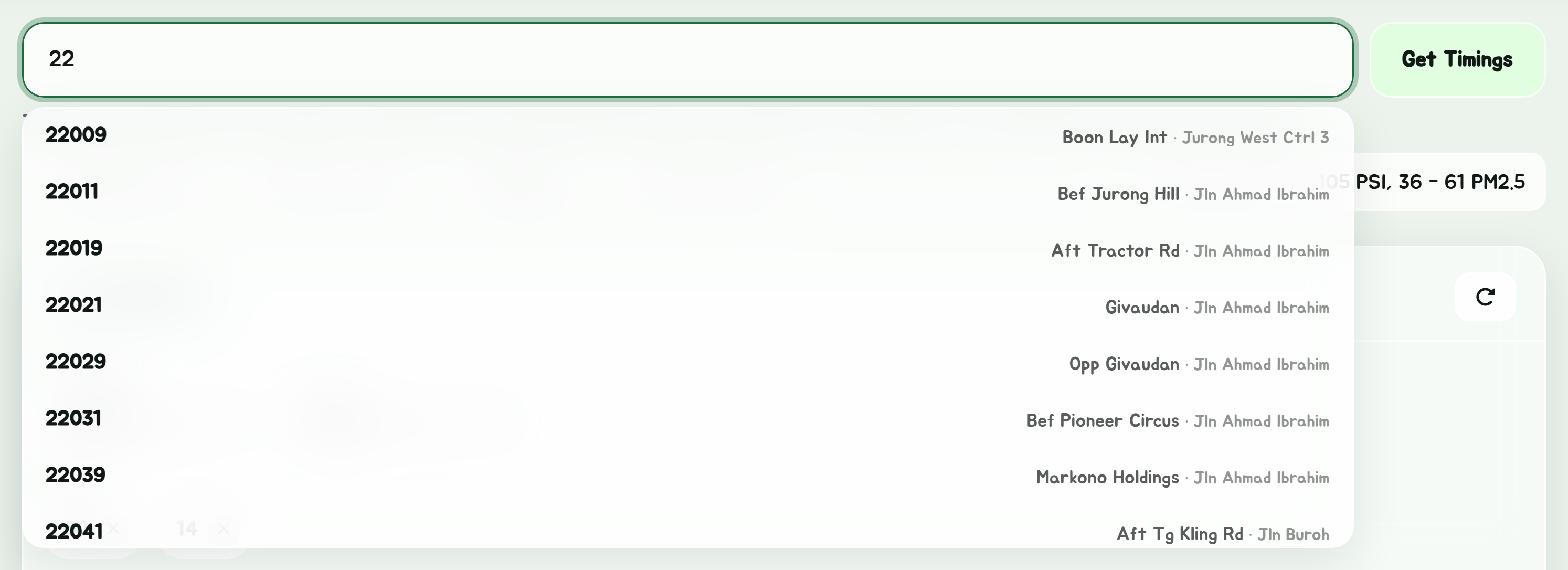
- Type a bus number, such as or , into the search box and pick it.
- Or tap Route next to any service on a stop's timings.
The route opens over the page, titled with the bus number.
What the route shows
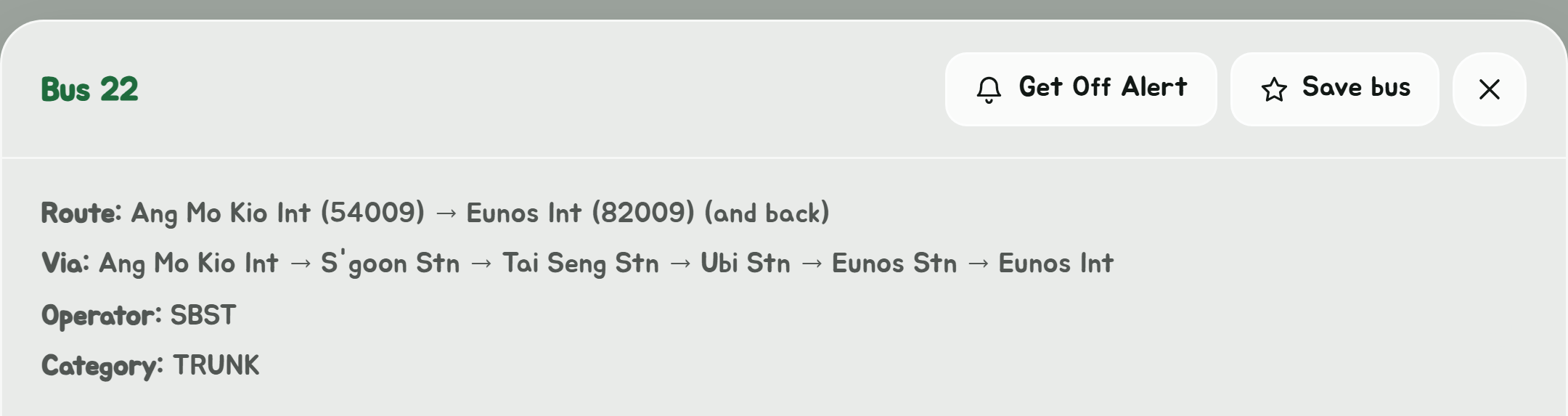
- Where it runs: the stops it starts and ends at, or, for a loop service, where it starts, ends and turns around.
- The operator that runs it.
- Landmarks along the way: interchanges, MRT and LRT stations, and hospitals, so you can see roughly where it goes at a glance.
- Every stop, in the order the bus calls at them. Your favourite stops on the route are listed first, so the ones you use are easy to find on a long route.
Directions
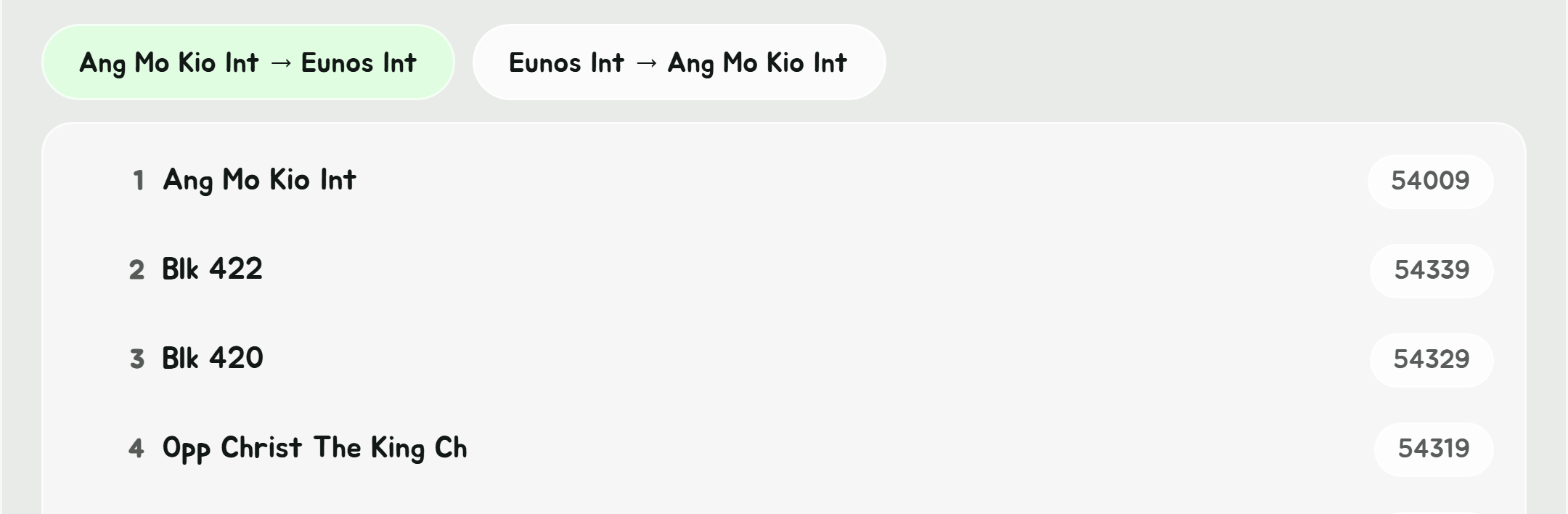
Most buses run both ways. The tabs above the stop list switch between the two directions. When you opened the route from a stop, the direction that stop is on is picked for you and marked "(current)". A loop service, which only runs one way, has just the one.
From this stop
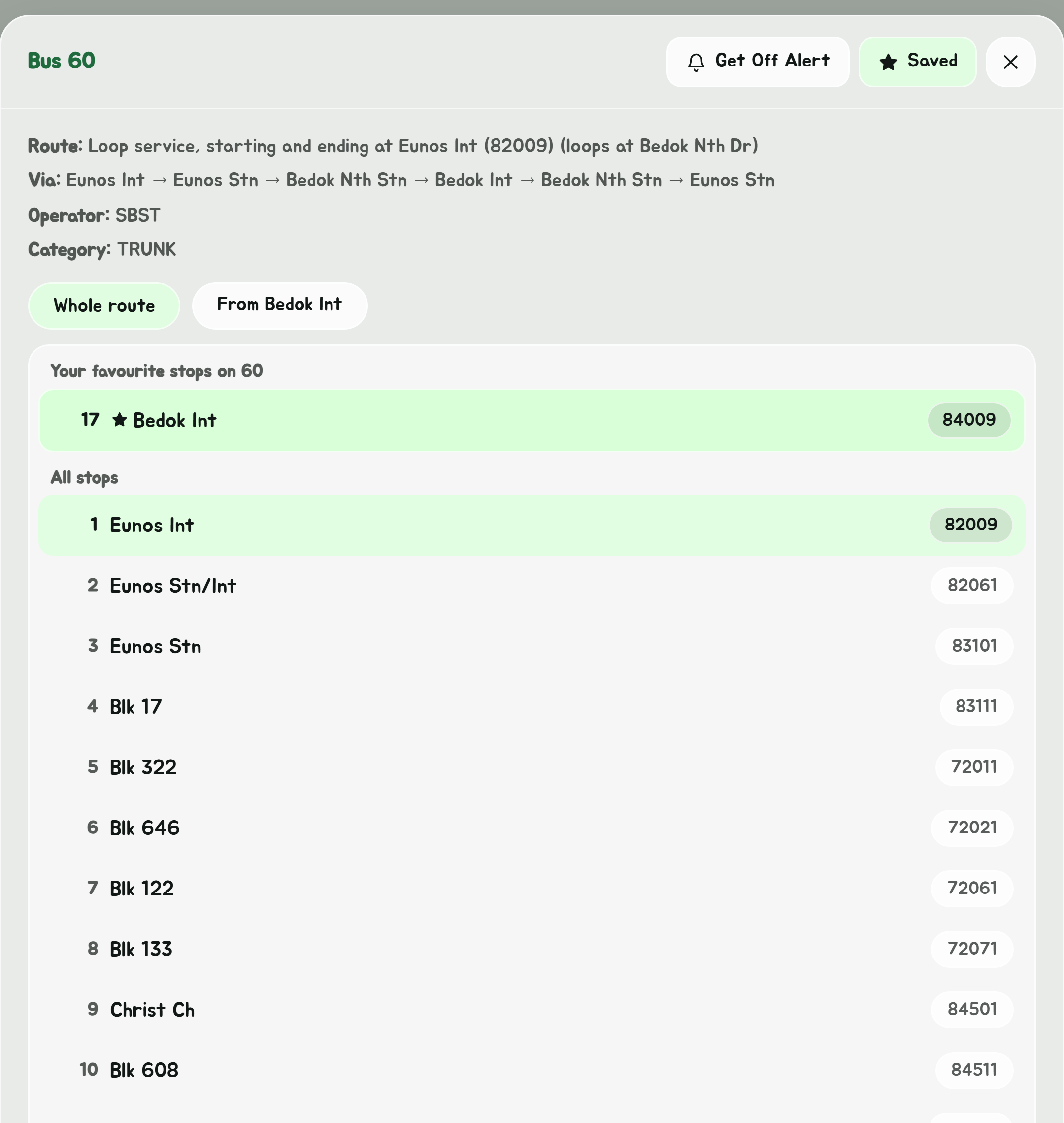
When you opened the route from a stop, a second pair of tabs appears:
- Whole route shows every stop.
- From your stop shows only the stops still ahead, from where you are to the end of the route. It is the same list as Route from here on the timings card.
Open a stop on the route

Tap any stop in the list to open its timings, narrowed to this bus. The timings say how many stops the bus has left to go, and Back to bus 22 (with your bus) returns to the route.
Alert me to get off
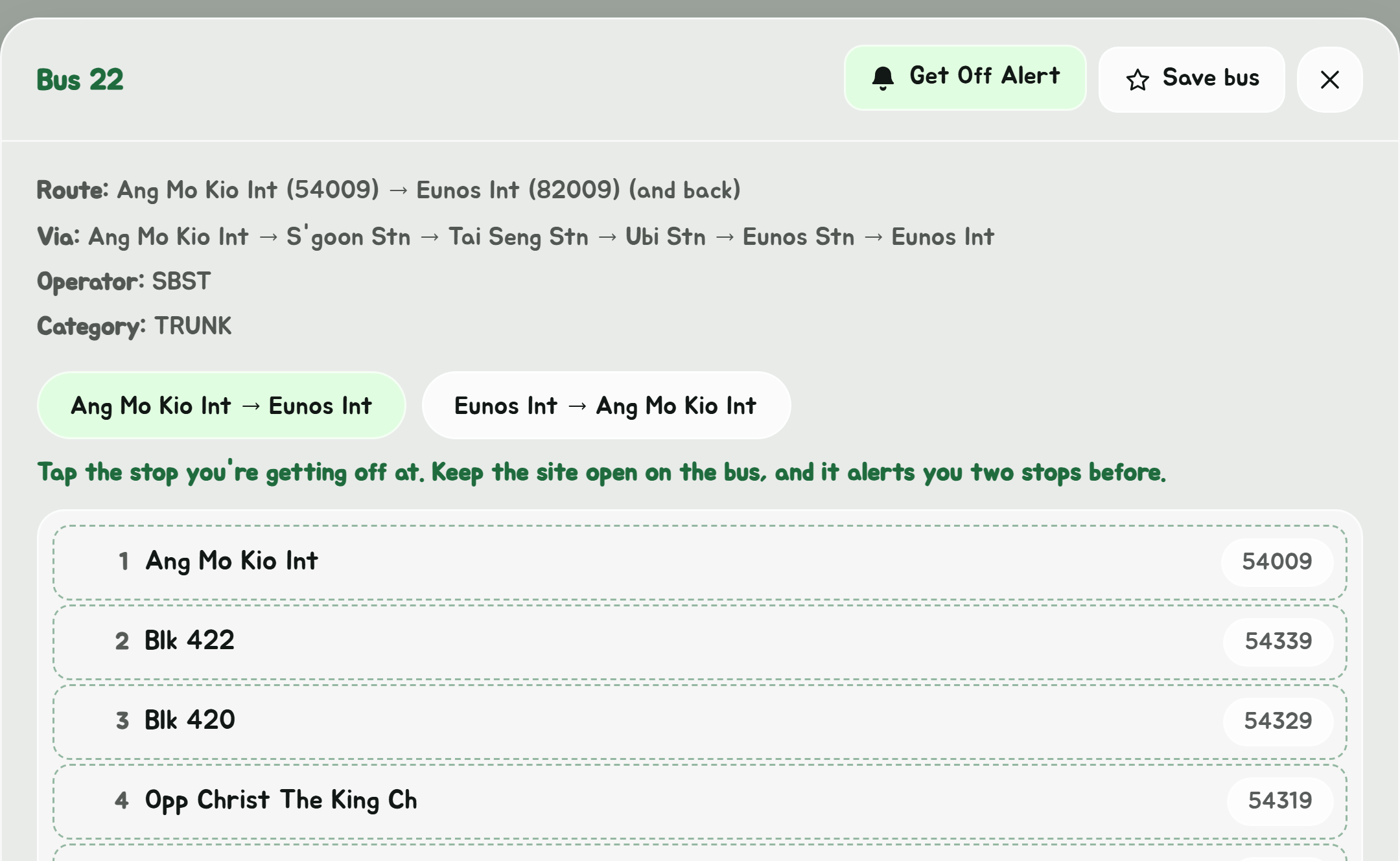
On the bus? Tap Get Off Alert at the top of the route, then tap the stop you're getting off at. The site follows you along the route and buzzes two stops before it. See Get Off Alert.
Save the bus

Tap Save bus at the top of the route to add the bus to your favourite buses. It is then starred and pinned in every stop's timings, and appears as a chip in Favourites that opens this route.