
Web app: advanced
Sync between devices
Copy your favourites, places, routines, calendar, settings, trips and past searches from one device to another, directly, or with the Telegram bot, with a 6-letter code.
Your favourites, places, trips and the rest are kept on each device separately. Sync copies them from one device to another, say from your phone to your laptop, without an account. The two devices talk to each other directly; nothing passes through a server. You can sync with the Telegram bot too.
Both devices have to be on the same wifi, or one has to be joined to the other's hotspot. Two devices on different networks, or a phone on mobile data, usually cannot reach each other.
On the first device: show a code
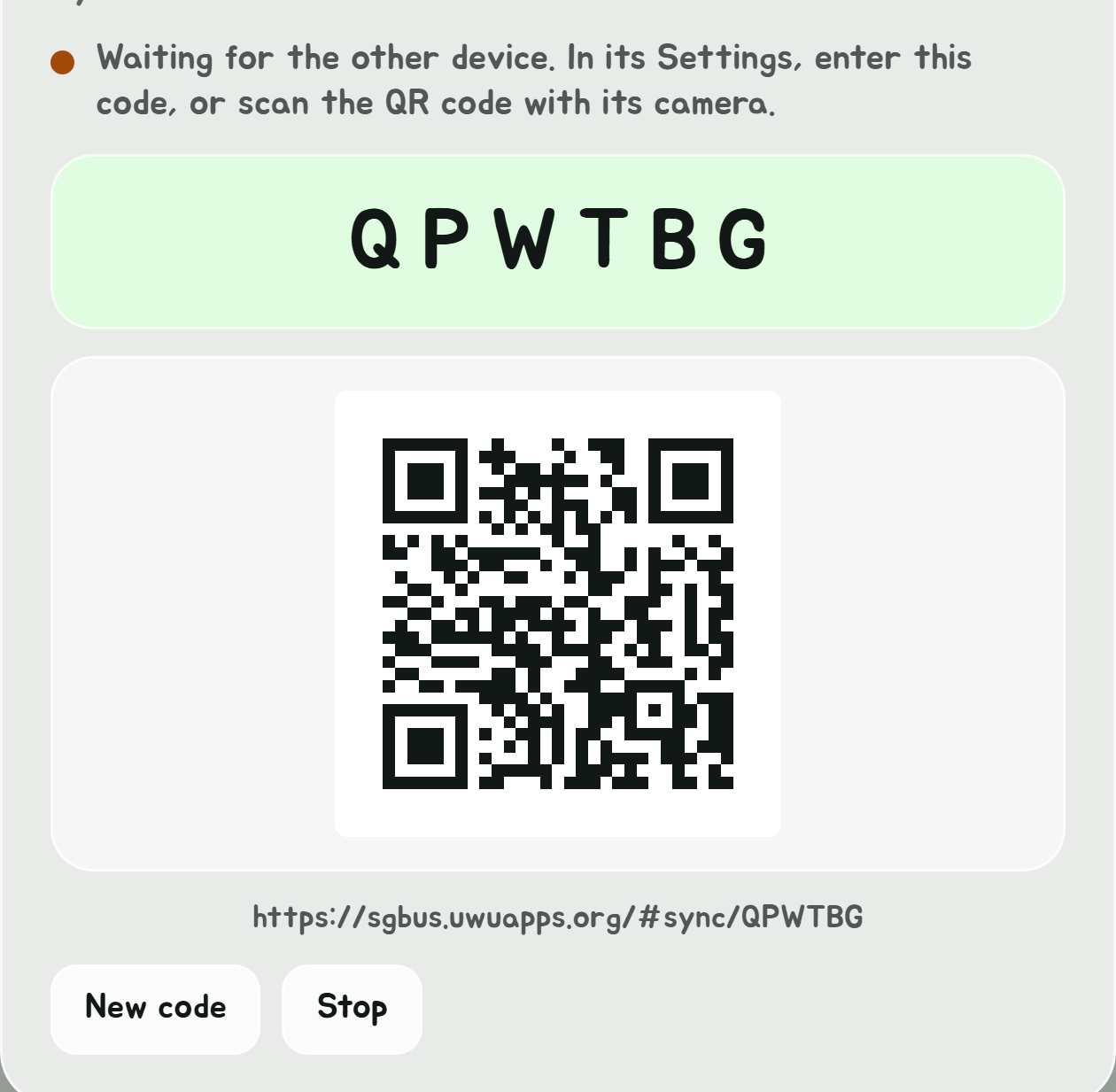
- Open Settings, from the gear in the Edge Tray or by tapping the app's title.
- Under Sync with another device or Telegram, tap Show a code on this device.
- A 6-character code appears in large type, with a QR code and a link under it. Tap the code to copy the link.
The status reads "Waiting for the other device" until the second device joins.
On the second device: enter it
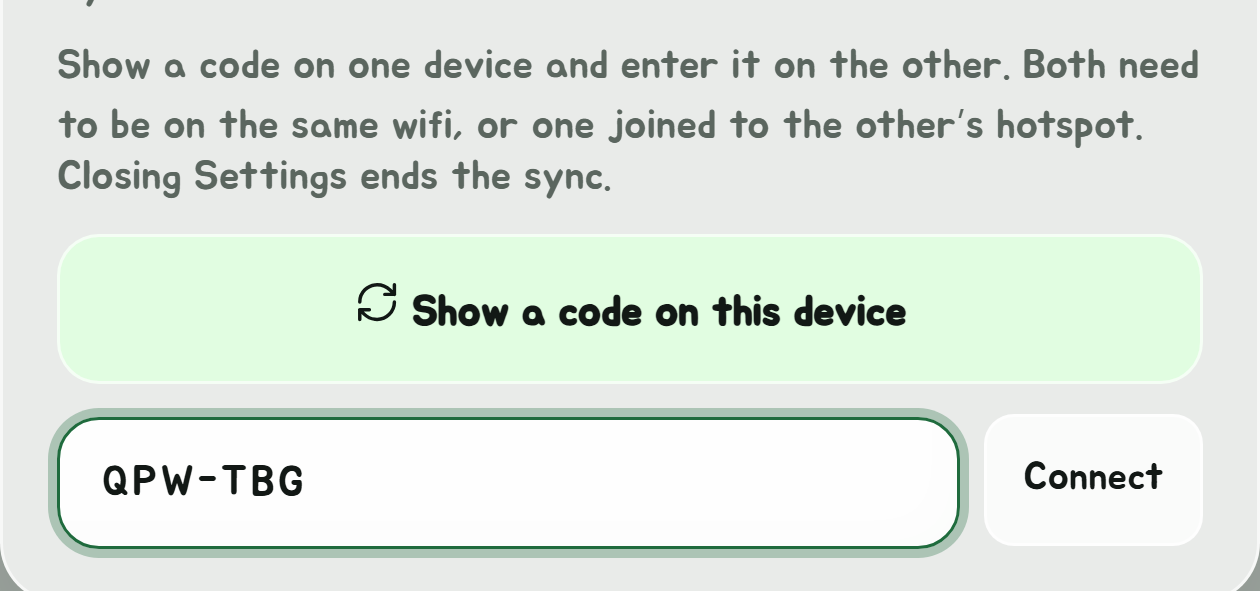
Do one of these:
- Scan the QR code with the second device's camera, and open the link.
- Open the link, if you sent it to yourself.
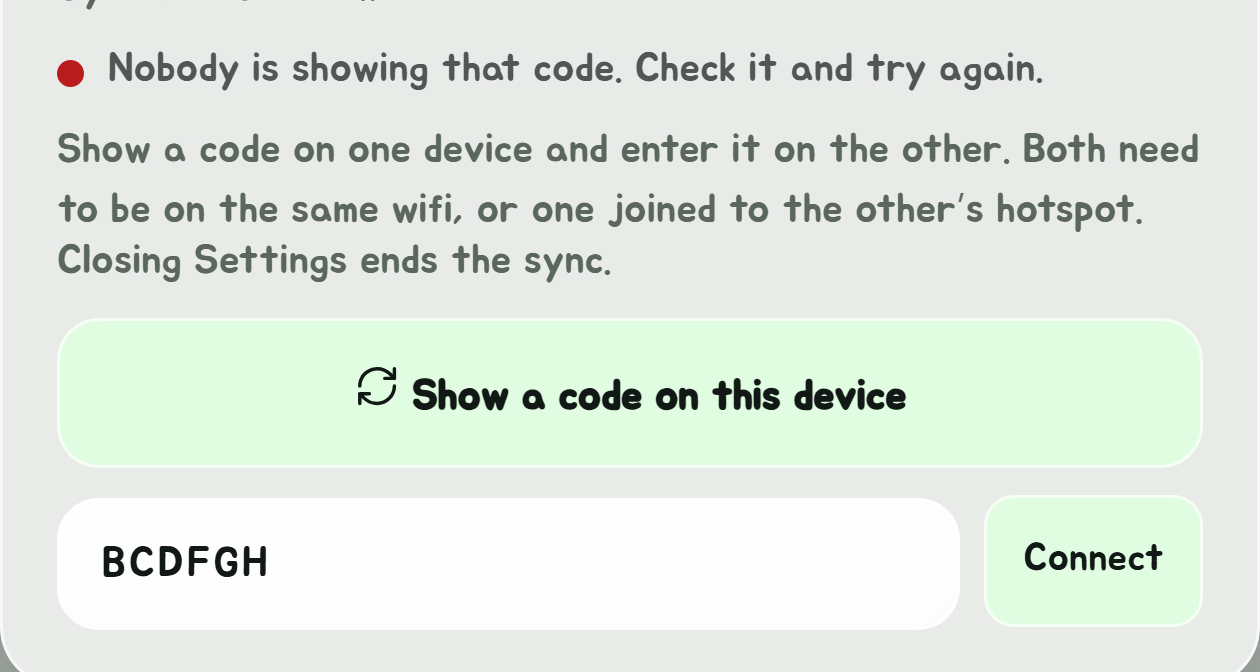
- Open Settings, type the code into Or enter the other device's code, and tap Connect.
Codes ignore capitals, spaces and dashes, so works as well as . The code never contains a vowel, a , an , a or an , so it cannot be misread.
Pick what to copy
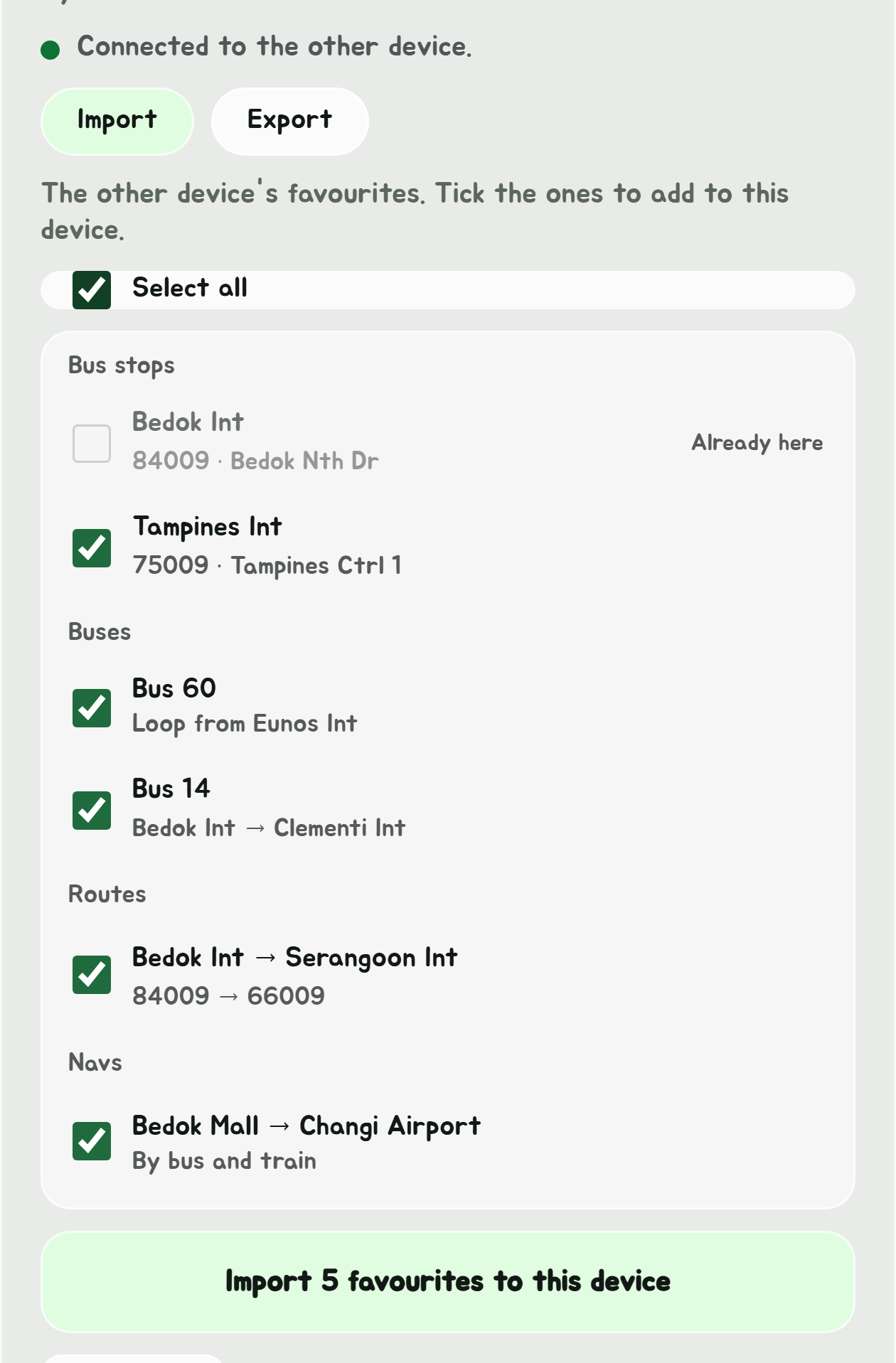
Once connected, both devices show two tabs:
- Import lists the other device's favourites that this one does not have.
- Export lists this device's favourites that the other one does not have.
Above the list, a button for each kind of thing, such as Bus stops, Places or Routines, with how many of it are on offer, shows just that kind; All shows everything again. Tick the ones you want, or Select all for the kind on show, then tap the button underneath to copy them. Ticks in other kinds stay ticked, and their button is highlighted, so one tap copies everything you ticked. The other device saves them straight away and says how many were new.
Copying only ever adds, except where there's only one of a thing: your name, your birthday, your calendar's link and each setting (see below). Nothing else is removed or replaced on either device.
Besides favourite stops, buses, routes and navs, the lists hold:
- You: your name and birthday from Settings. Each is listed when the two devices have different ones, and copying it replaces the one on the device it's copied to.
- Places: Home, Work and your other places. A device that already has a Home or Work keeps its own; a place already saved at the same spot isn't copied again.
- Trips: trips from Your trips that the other device doesn't have, and its stats count them from then on.
- Past searches: the searches the other device doesn't have, each in its place by when it was searched, keeping the newest 50.
- Routines and Last bus reminders, between two phones with the Android app. Each phone runs its own, so a routine copied to both notifies on both.
- uwuCoins: this device's balance. Taking another device's, or the Telegram bot's, adds it to yours; taken again later, it's added again.
- Calendar: your calendar's link, replacing the calendar on the device it's copied to. A calendar imported from a file, or the phone's own calendar in the Android app, stays on its device.
- Settings: the ones you've changed from how they start, such as dark mode, the colour, where favourites pin, the Edge Tray's side and buttons, the Get Off Alert, Shake to refresh and birthday confetti. Copying one changes that setting on the other device.
Only what the other device can keep is listed: a browser without the Android app isn't offered routines.
Finish
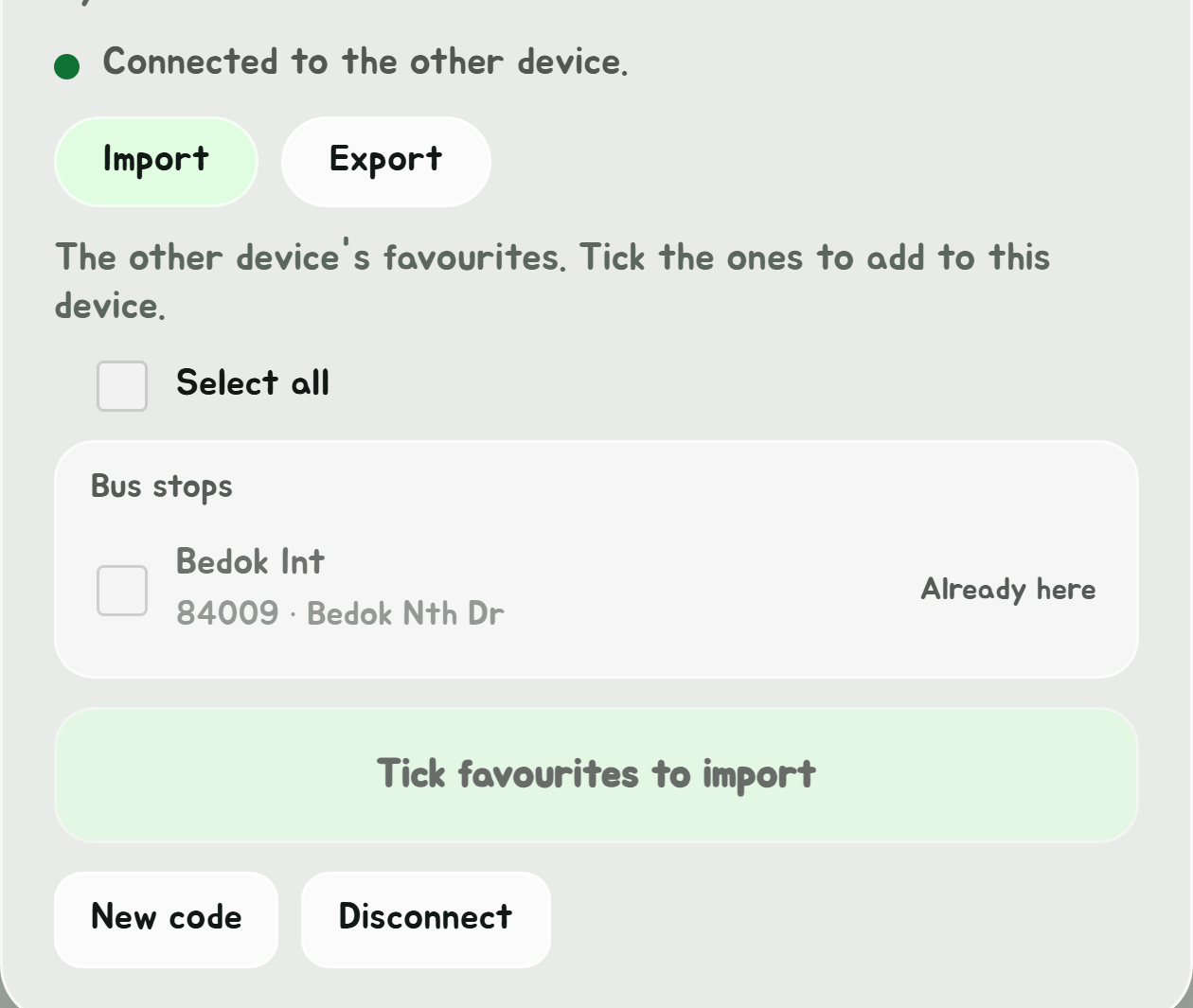
Tap Stop to end the sync, or just close Settings. Closing Settings ends it too. New code retires the code on screen and shows a fresh one, so the old code stops working.
If it will not connect
| The app says | What to do |
|---|---|
| Could not reach the other device. Both have to be on the same network... | Put both devices on the same wifi, or turn on a hotspot on one and join it from the other. Work, school, hotel and guest wifi often block devices from reaching each other, even on the same network; use a hotspot. Check the code is still the one on screen. |
| Nobody is showing that code. Check it and try again. | The code was mistyped, or the first device has stopped or shown a new code. |
| Cannot reach the pairing service. Everything else still works. | The service that introduces the two devices is down or blocked. Try again later. |
| Could not load syncing. Check your connection. | This device is offline, or something is blocking the sync script. |
| This browser cannot make peer-to-peer connections. | Use an up-to-date Chrome, Edge, Firefox or Safari. |
| Lost the connection to the other device. Tap Connect to try again. | The connection was working and dropped, often because a screen locked. Tap Connect. |
Switching one device to mobile data does not help. Two different networks is exactly the case that fails.
With the Telegram bot
You can sync with the Telegram bot the same way, from any network:
- In Settings, under Sync with another device or Telegram, tap Sync with the Telegram bot. A code appears, with Open the bot and the command to send it, such as .
- Tap Open the bot, which opens the bot with the code filled in, then Start. Or send the bot the command yourself. On a computer, scan the QR code with your phone to open the bot there.
- Once the bot says it's connected, Import lists what the bot has, and Export what this device has that the bot keeps. Tick and copy as between two devices; the bot says in the chat what it saved.
The bot keeps your name and birthday, favourite stops, buses, routes and navs, places, routines, your calendar's link, and where favourites pin. It has no trips, past searches or last bus reminders, and no other settings, so those aren't offered.
The sync ends when you tap Stop or close Settings, when you send the bot , or after 10 minutes.
Privacy
Syncing with the Telegram bot goes through this site's server, as the bot can't connect to your device directly. What's copied is held there for 10 minutes at most and deleted as soon as either side ends the sync. Only your device and the bot can read it.
Between two devices, a free public service, run by PeerJS, introduces the two to each other. It sees the code and both devices' IP addresses, and each device learns the other's IP address. Your favourites go straight from one device to the other, encrypted, and never through that service. Anyone with the code can connect while it is on screen, so do not share it beyond your own devices. See Privacy and your data.