
Android app: basics
Find a bus stop
Search by name, road, stop code, bus number or postal code, say it, scan it, or let the app find the stops near you.
Bus timings, the clock in the Edge Tray, has the search box at the top and the stops near you under it.
What you can type
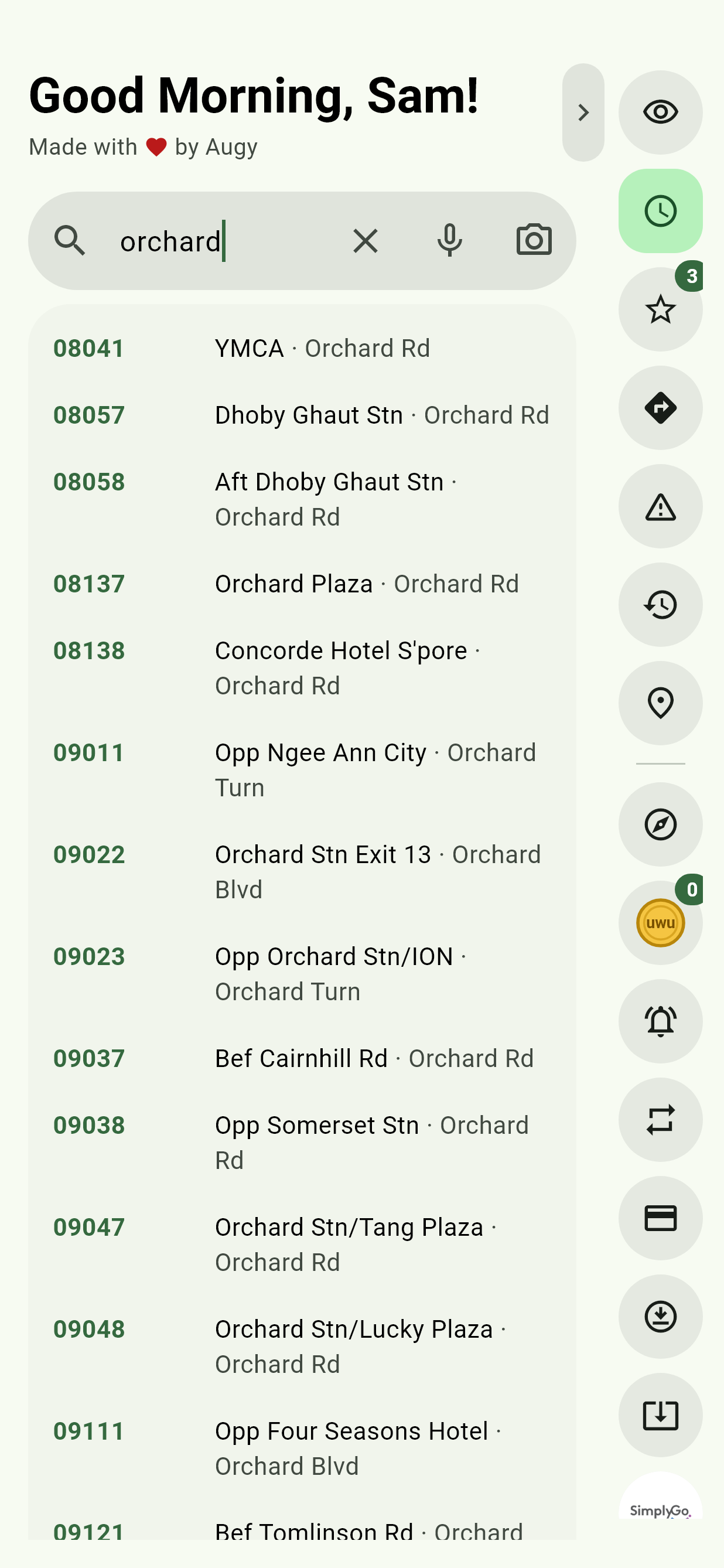
| Type this | Example | What happens |
|---|---|---|
| A stop's name | , | Lists the matching stops |
| A road | Lists the stops along it | |
| A stop's name and its road | Lists the Blk 109s on a road with Bedok in its name | |
| A 5-digit stop code | Press enter to open that stop | |
| A stop code and some buses | , , | Press enter to open that stop, narrowed to those buses |
| A bus number | , , | Offers that bus's route |
| A 6-digit postal code | Offers Bus stops near this postal code | |
| An MRT or LRT station | , | Lists the stops at its exits |
| A shuttle bus route | , , | Offers that shuttle's route |
| A shuttle bus stop | , | Offers its shuttle times |
Tap a match to open it. Pressing enter on your keyboard opens the best match. The cross clears the box.
Words can come in any order, from the stop's name or its road. Each word matches the start of a word, so doesn't find Blk 1090.
LTA shortens a lot of words in stop and road names: Bt for Bukit, W'lands for Woodlands, Opp for Opposite, Ctr and Ctrl for Centre and Central. Type either the full word or the short one, and the search finds both.
The stop code is printed on the pole at every bus stop, and never changes. Better still, save the stop as a favourite.
Shuttle buses
Shuttle buses come up as you type too: a route by its code, such as for NUS's, and a stop only shuttles use by its name, marked Shuttle buses only. A stop opens with its shuttle times. A route opens on a screen of its own, with what its timetable says now and its stops in order.
Say it, or scan it
The search box has two more buttons:
- The microphone: say a stop, its code or a bus. It uses Android's own speech screen, so SG Bus Timings itself never hears you.
- The camera: point it at the 5-digit code on a bus stop's pole, and that stop's timings open. The text is read on your phone, by Google's ML Kit; nothing is sent anywhere.
Your past searches
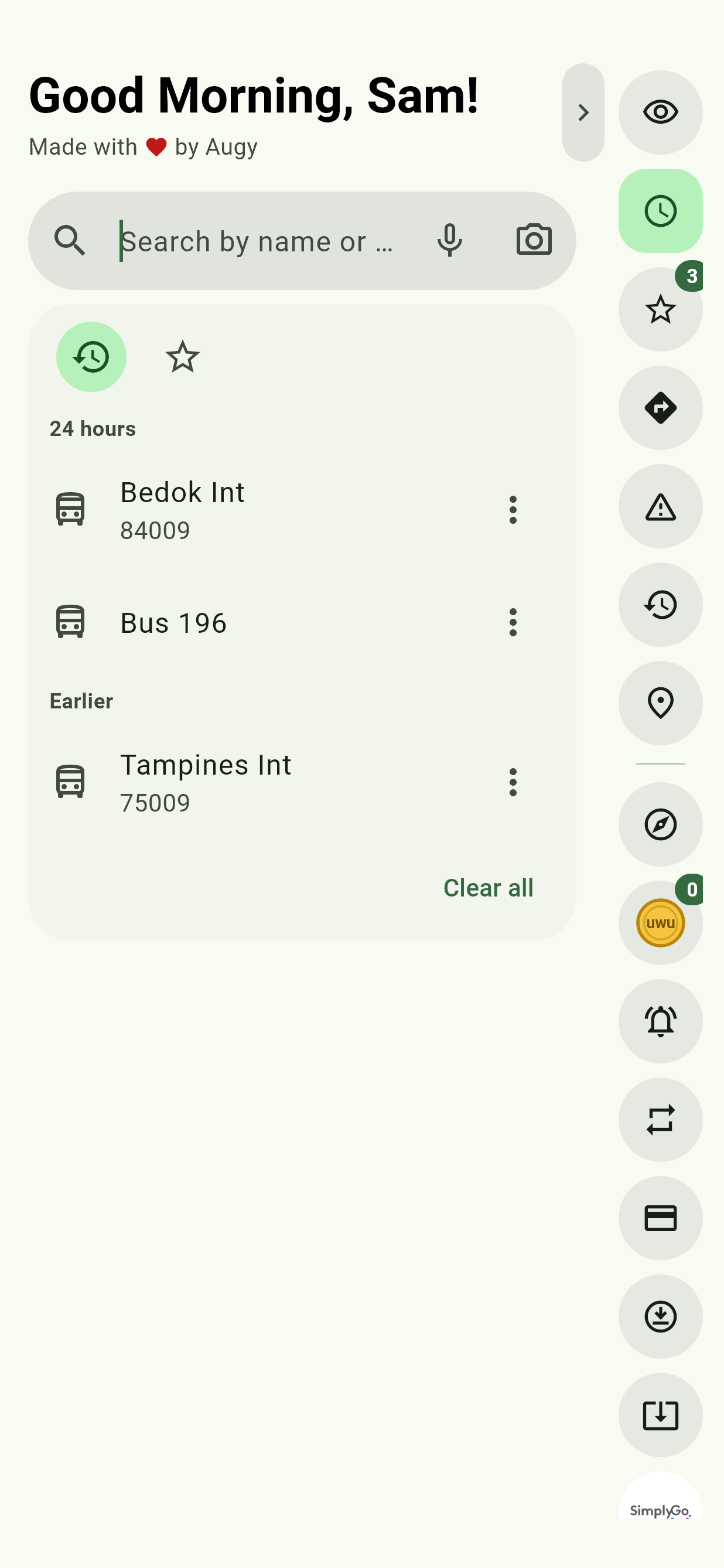
Tap into the box before you type for your past searches. The star tab beside them has your favourite stops and buses.
Stops near me
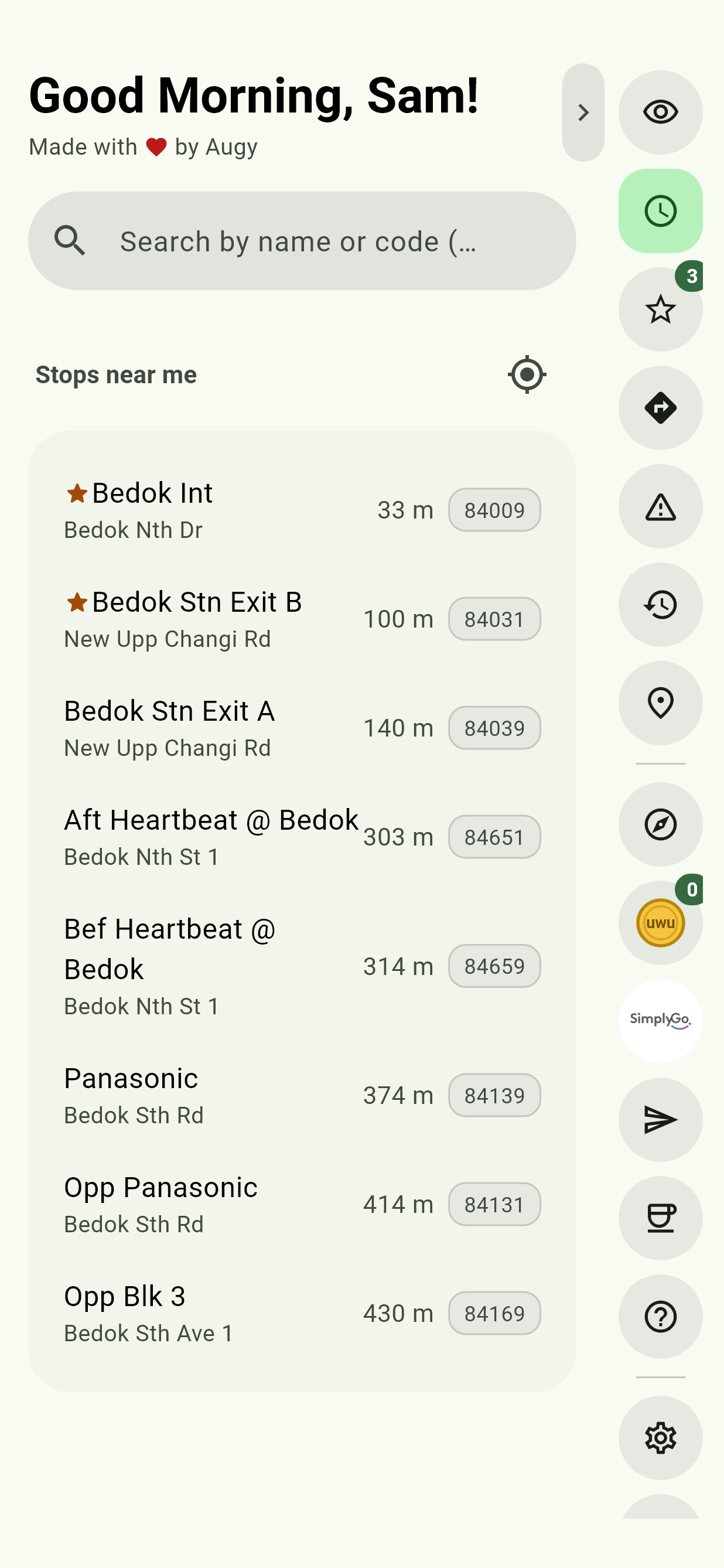
Stops near me lists the stops around you, nearest first, each with how far away it is. Tap one for its timings; Back to nearby stops at the top brings the list back.
The first time, tap Show stops near me, and allow location on Android's prompt. After that the list fills in by itself each time you open Bus timings. The button at its top right looks again after you've moved.
If your phone's Location is turned off, the app asks to turn it on with one tap, then carries on. Without Google Play services, it opens Android's Location settings instead.
Your location is only used on your phone to measure the distance to each stop. If nothing happens, see Location does not work.
Stops near an address
Type a 6-digit postal code, such as , and tap Bus stops near this postal code. The app looks the address up with OneMap, Singapore's official map, and lists the stops nearest it, in a sheet titled with the address it found.
Narrow a stop to some buses
Add bus numbers after the stop code: , or for a few. A star takes every bus starting with those numbers: shows 222, 225G, 228 and the rest of the 22s. You can also do this once a stop is open, with Pick a bus.