
Web app: advanced
Shortcuts and widgets
Jump straight to the stops near you, Navigate or Service alerts from the app's icon, and keep a stop's live timings in a widget on Windows.
Once you've installed the app, you can open it straight at the part you want. On Windows, you can also keep a stop's live timings in a widget.
Shortcuts
Press and hold the app's icon on Android, or right-click it on Windows, macOS, Linux or ChromeOS, for three shortcuts:
| Shortcut | Opens |
|---|---|
| Stops near me | Bus timings, with the bus stops around you. See Stops near me. |
| Navigate | Navigate by bus and train, ready for where you're going. |
| Service alerts | Service alerts: train disruptions and traffic incidents right now. |
On Android you can also drag a shortcut onto your home screen as an icon of its own.
iPhone and iPad don't offer shortcuts for apps added to the Home Screen.
The Bus timings widget
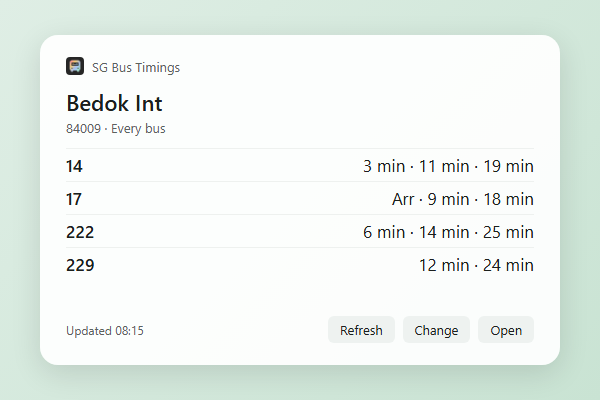
The widget shows the next buses at a stop you pick: every bus there, or only the ones you choose. It's like a routine in the Telegram bot, kept on your screen.
Add one
Widgets for web apps only work on Windows 11, for the app installed from Microsoft Edge.
- Install the app from Edge. See Install it.
- Open the Widgets board: press Windows key + W, or click the weather at the left of the taskbar.
- Click +, find Bus timings under SG Bus Timings, and pin it.
- Pick a stop: one of your favourite stops, or type a stop's 5-digit code.
- Under Buses, type the bus numbers you want, separated by commas, such as . Leave it empty for every bus.
- Click Show timings.
You can add as many as you like, each for a different stop or set of buses.
Using it
- Refresh fetches the latest timings. The widget also updates itself when you open the Widgets board, and every so often in between, as often as Windows allows. Updated says when it last did.
- Change goes back to picking the stop and buses.
- Open opens the app at that stop.
Choose the widget's size from its … menu. Small shows the next two buses, medium the next four, and large all of them, up to twelve.
Android: the Android app has the same widget for your home screen. Windows, Mac and Linux: the desktop app has it as a small window on your desktop. iPhone: a web app can't add widgets to your home screen. See What the web app can't do. For a stop's timings at a glance, try a routine in the Telegram bot.