
Web app: basics
Favourites
Save the stops, buses and routes you use, group them into lists, and open any of them with one tap.
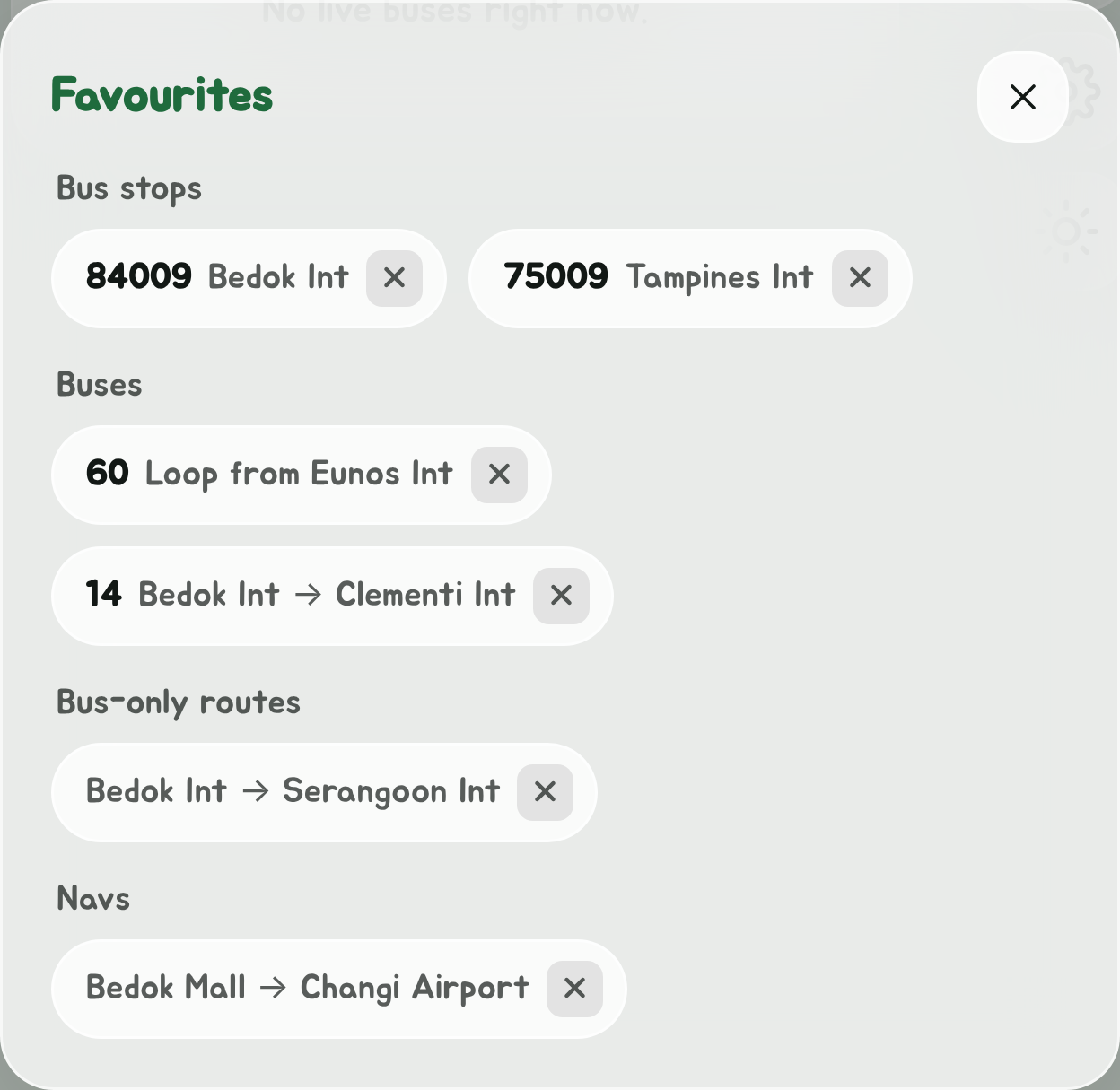
Tap the star at the top of the Edge Tray to open your favourites, in up to five groups: Bus stops, Buses, Buses at stops, Bus-only routes and Navs. The number on the star is how many you have. Each favourite is a chip; tap it to open it, which also closes the favourites, or tap the cross on its right to remove it.
Save a favourite
| To save | Do this | The chip opens |
|---|---|---|
| A bus stop | Tap Save on the stop's timings | That stop's timings |
| A bus | Tap Save bus on the bus's route | That bus's route |
| A bus at one stop | Tap the star on the bus's row in the stop's timings | That stop's timings, for just your buses there |
| A bus-only route | Tap Save route on Navigate's Bus only tab | Bus only, with both ends set |
| A nav | Tap Save nav in Navigate | Navigate, with both ends set, and its stop on the way if it has one |
A saved button reads Saved. Tap it again to remove the favourite.
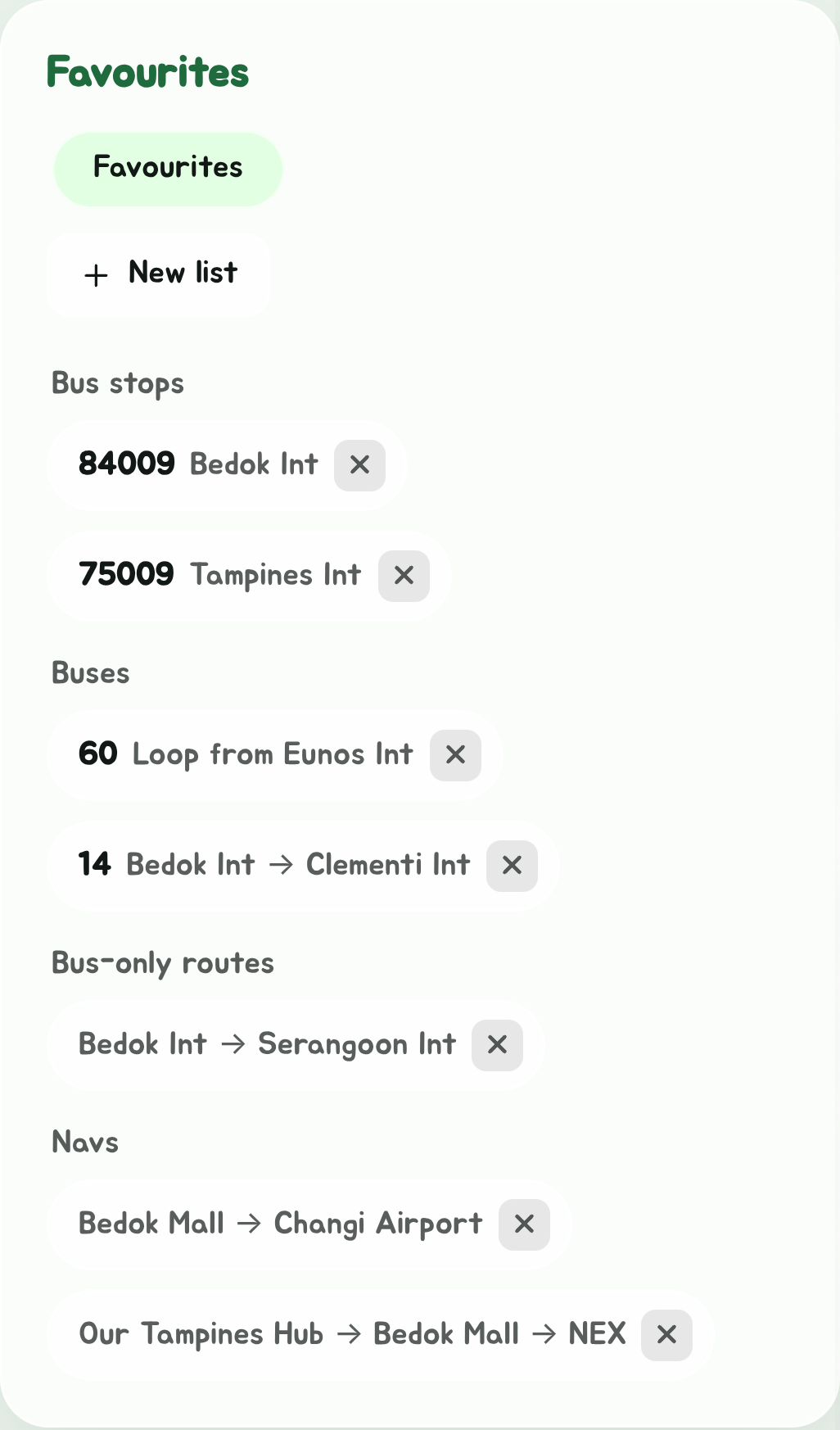
A nav saved with a stop on the way shows it between its ends, and keeps it: the same two ends without the stop are a favourite of their own.
Favourite buses are pinned
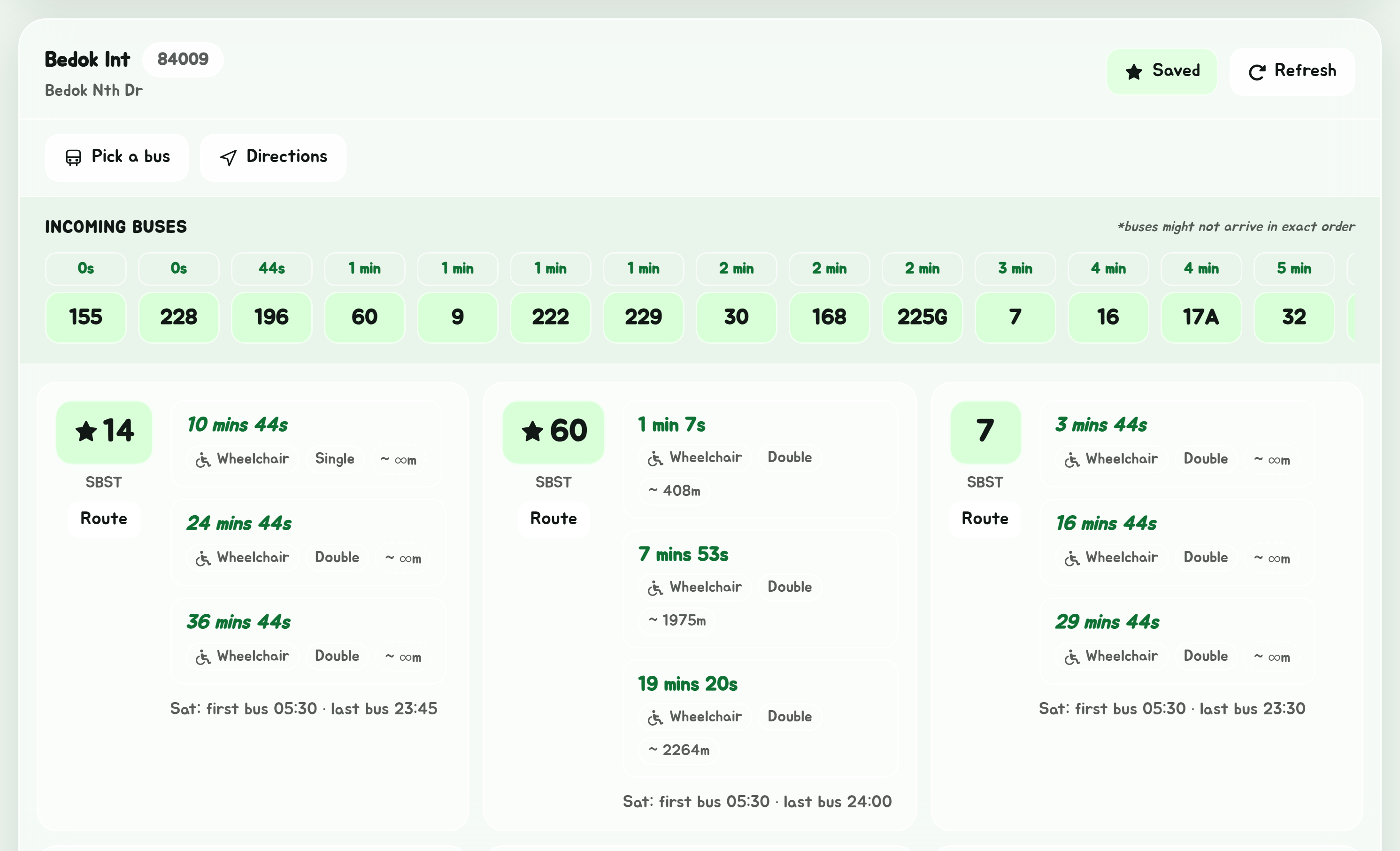
A favourite bus is starred wherever it shows up: in every stop's timings, in the Pick a bus grid, and in the route planner's list of buses. In a stop's timings it is also pinned, to the top of the list by default, so the buses you actually catch are the first thing you read.
On Glance, your stops show only your favourite buses once you have any. A stop with buses saved at it shows just those.
Favourite stops are pinned in the same way in lists of stops, such as on a bus's route.
Buses at stops
A favourite bus is that bus everywhere it goes. To save a bus only at the stop where you catch it, as LTA's MyTransport does, tap the star on its row in that stop's timings. The star fills in; tap it again to take it out.
In Favourites, Buses at stops has a chip for each stop with the buses saved there, such as Orchard Stn · 7, 174. Tap it for that stop's timings with only those buses; Show all services brings back the rest. The cross removes every bus saved at that stop.
Lists
The tabs at the top of Favourites are your lists. Favourites comes first: it has every favourite, and can't be deleted or renamed. To group some of them, such as the stops and buses you take to work:
- Tap New list, give it a name, and tap Save.
- Tick the stops, buses and buses at stops to put in it, then tap Done.
- Tap a list's tab to see just what's in it.
On a list's tab, Choose what's in it changes what's in it, and Rename and Delete list do as they say. Deleting a list, or tapping the cross on a chip in it, only takes things out of that list: they stay in Favourites. Removing a favourite from Favourites takes it out of every list too.
Lists hold stops, buses and buses at stops. Bus-only routes and navs stay in Favourites. You can have up to 20 lists.
A list with a stop in it is also a choice on Glance: pick it from the chip above the next bus to see just that list's stops and buses. The two stay in step: the list you pick in one is the one the other opens on.
Top or bottom
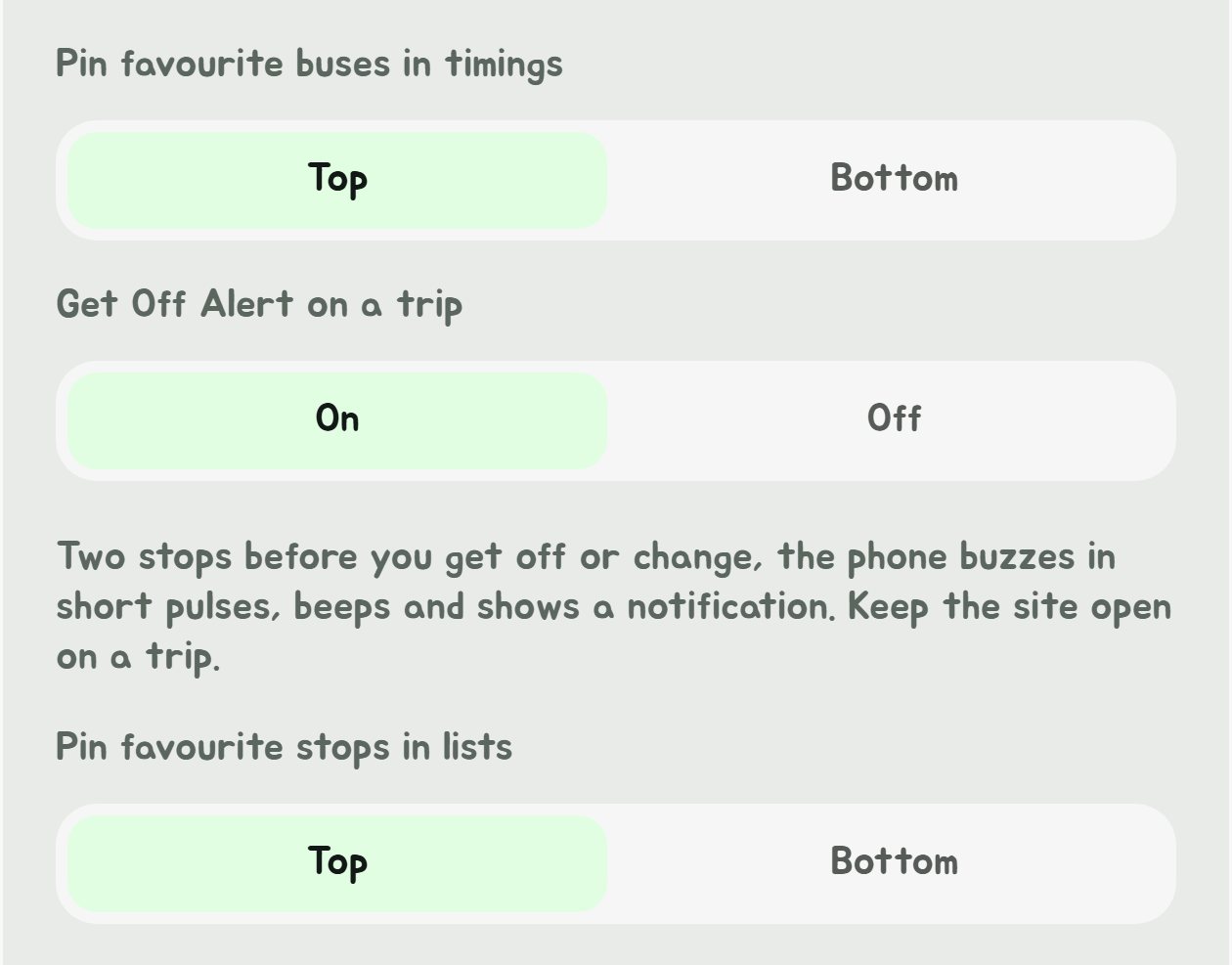
Open Settings to choose where favourites are pinned:
- Pin favourite buses in timings: Top or Bottom.
- Pin favourite stops in lists: Top or Bottom.
Where favourites are kept
Favourites are saved in your browser on this device only. Clearing your browser's data for the site removes them, and another browser or device starts with none. To copy them to another device, use Sync between devices.