
Android app: advanced
Sync between devices
Copy favourites, places, trips, routines and settings between the Android app and another device or the Telegram bot.
What you've saved is kept on each device separately. Sync copies it from one to another, without an account: the two devices talk directly, and nothing passes through a server. Open it from Settings.
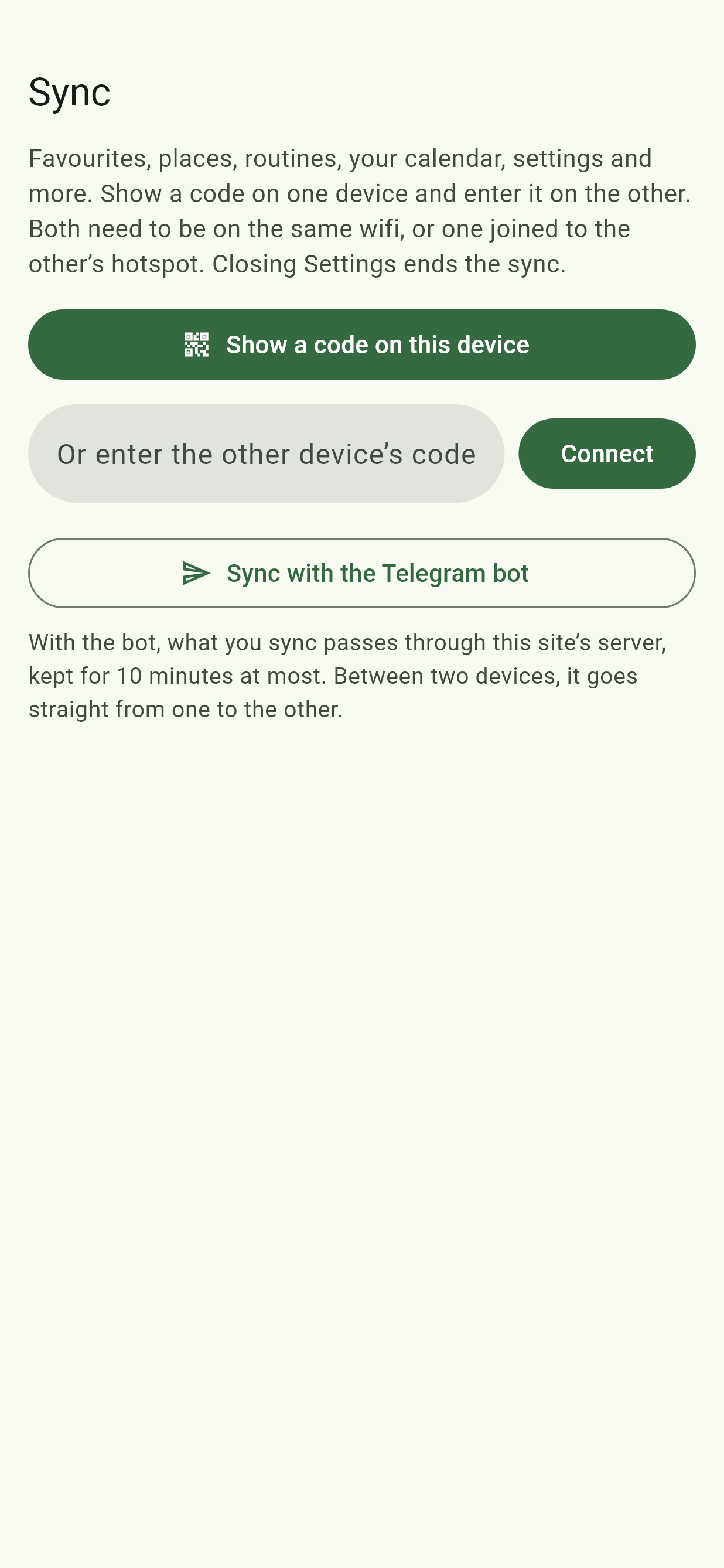
Both devices have to be on the same wifi, or one has to be joined to the other's hotspot. Two devices on different networks, or a phone on mobile data, usually cannot reach each other.
Connect the two
- On one device, tap Show a code on this device. A code appears, with a QR code and a link. Tap the link to copy it.
- On the other, scan the QR code with its camera, open the link, or type the code into Or enter the other device's code and tap Connect.
The other device can be another phone with the app, or the website in a browser. Closing Settings ends the sync.
Pick what to copy
Once connected, both show two tabs:
- Import lists the other device's things.
- Export lists this device's.
Tick the ones you want, or Select all, then tap the button underneath. The other device saves them straight away and says how many were new.
Copying only ever adds, except where there's only one of a thing: your name, your birthday, your calendar's link and each setting, where taking the other's replaces this one's. Nothing else is removed.
| Kind | What it copies |
|---|---|
| You | Your name and birthday |
| Bus stops, Buses, Routes, Buses at stops, Lists, Navs | Your favourites |
| Places | Home, Work and your other places |
| Trips | Your trips the other device doesn't have |
| Past searches | The searches the other device doesn't have |
| Routines, Last bus reminders | Your reminders, between two phones with the app |
| Calendar | Your calendar's link. The phone's own calendar stays on its phone |
| Settings | Each setting, such as your Edge Tray buttons and Bus times |
Only what the other device can keep is listed: a browser has no routines, for example.
With the Telegram bot
Tap Sync with the Telegram bot, then Open the bot, or send it the command shown. See Sync with the web app. With the bot, what you sync passes through the site's server, kept for 10 minutes at most.
If it won't connect
"Could not reach the other device" means they aren't on the same network: join the same wifi, or turn on a hotspot on one and join it from the other. Check the code is still the one on screen. See also If it will not connect.