
Android app: basics
Install the app
Download SG Bus Timings for Android, install it, and bring across what you've saved from an older version or Chrome.
The app comes as a file from GitHub, or from Google Play. It runs on Android 7.0 or newer.
GitHub or Google Play
Both are the same app, with the same screens, and either one brings across what you've saved. Google allows a few permissions only for other kinds of app, so the app from Google Play uses your location only while you're using it: with the app open, or a trip running. It never asks for location All the time, and goes without four things:
| In the app from GitHub | In the app from Google Play |
|---|---|
| Timings near a stop, as you walk up to a favourite stop, which needs location with the app closed | Not there. Open the stop, or put it on a widget |
| "On a bus?", offering a trip when the phone notices you're riding | Not there. Start the trip yourself from Navigate or a bus's route |
| On your first trip, an offer to leave the app out of battery optimisation | Not asked. Turn it off yourself in Android's settings for the app if your phone stops trips |
| Routines, last bus reminders and Time to leave on time by themselves | On time once you allow Alarms & reminders: see If they come late |
None of these changes much day to day. Timings, Navigate, trips with the screen off and the Get Off Alert, widgets, card value and everything else are in both. A trip follows you with the screen off in either, as its notification counts as using the app. With the app closed, the app from Google Play plans Time to leave from Home in Places.
Updates differ too: the app from GitHub updates itself, and the one from Google Play updates through Google Play, like any other app.
Download and install it
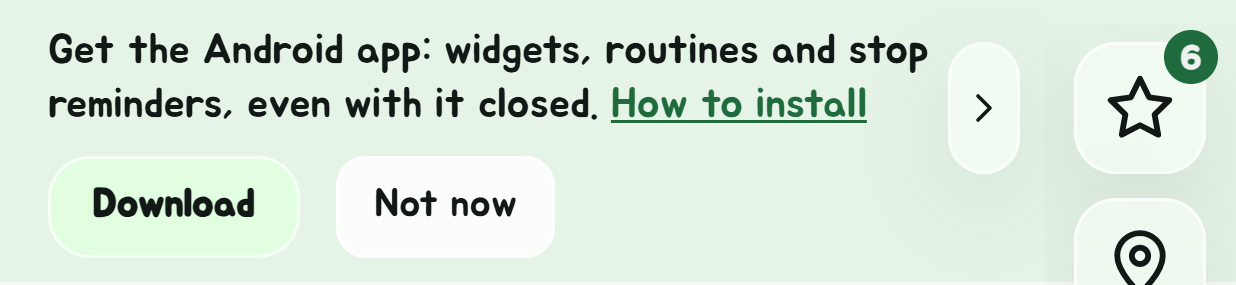
On an Android phone, the website offers the app in a bar at the top: Download fetches the newest version, for step 2 below, and Not now puts it away for a month.
- On your Android phone, open the latest release and tap the file under Assets, such as , to download it. Or open one someone sent you, from Files or Telegram.
- Open the downloaded file. If Android asks, allow installing apps from your browser or Files, then tap Install. If Play Protect asks about the app, tap More details > Install anyway.
- Open SG Bus Timings from your home screen or app list.
Already added the website to your home screen from Chrome? Remove that one first, so you don't have two icons.
If Android says App not installed, an older copy made a different way is in the way. Uninstall SG Bus Timings, then install the file again.
The first time it opens, the app asks how much to start with: see Simple (Lite), Normal or Advanced Super App.
Coming from version 2.3 or earlier
Versions 2.0.0 to 2.3.1 showed the website inside the app. Update as usual: the first time the new version opens, it brings everything across by itself, once: your favourites and lists, places, past searches, trips, routines, reminders, uwuCoins, feats and Easter eggs, your calendar's link and every setting. A note at the bottom says so. There's nothing to do, and nothing to sync.
Coming from version 1
Versions 1.0.0 to 1.2.0 kept your favourites, places, trips and settings in Chrome, so after updating the app starts empty. Everything is still in Chrome; bring it across with Sync:
- In Chrome on the same phone, open .
- Open Settings, and under Sync with another device tap Show a code on this device.
- Switch to the app straight away, open Settings > Sync, type the code in and tap Connect. Pick Select all, then copy them over.
Do it in one go: Chrome stops answering if it's left in the background for long. If it says it can't reach the other device, show a new code in Chrome and try again.
Service alerts you turned on in version 1 come from Chrome. Turn them off there (Service alerts > Off in Chrome), then on in the app, so you don't get each one twice.
On version 1.1.0, the update bar says Download instead of Update: it opens the latest release, where you download the newer and install it over the old one, once. From then on, the app updates itself.
What it asks for
The app asks for each permission only when you first use what needs it. See What the app asks for.