
Web app: advanced
Places
Save Home, Work and any other place, with a name of your own, to get there in a tap or share it.
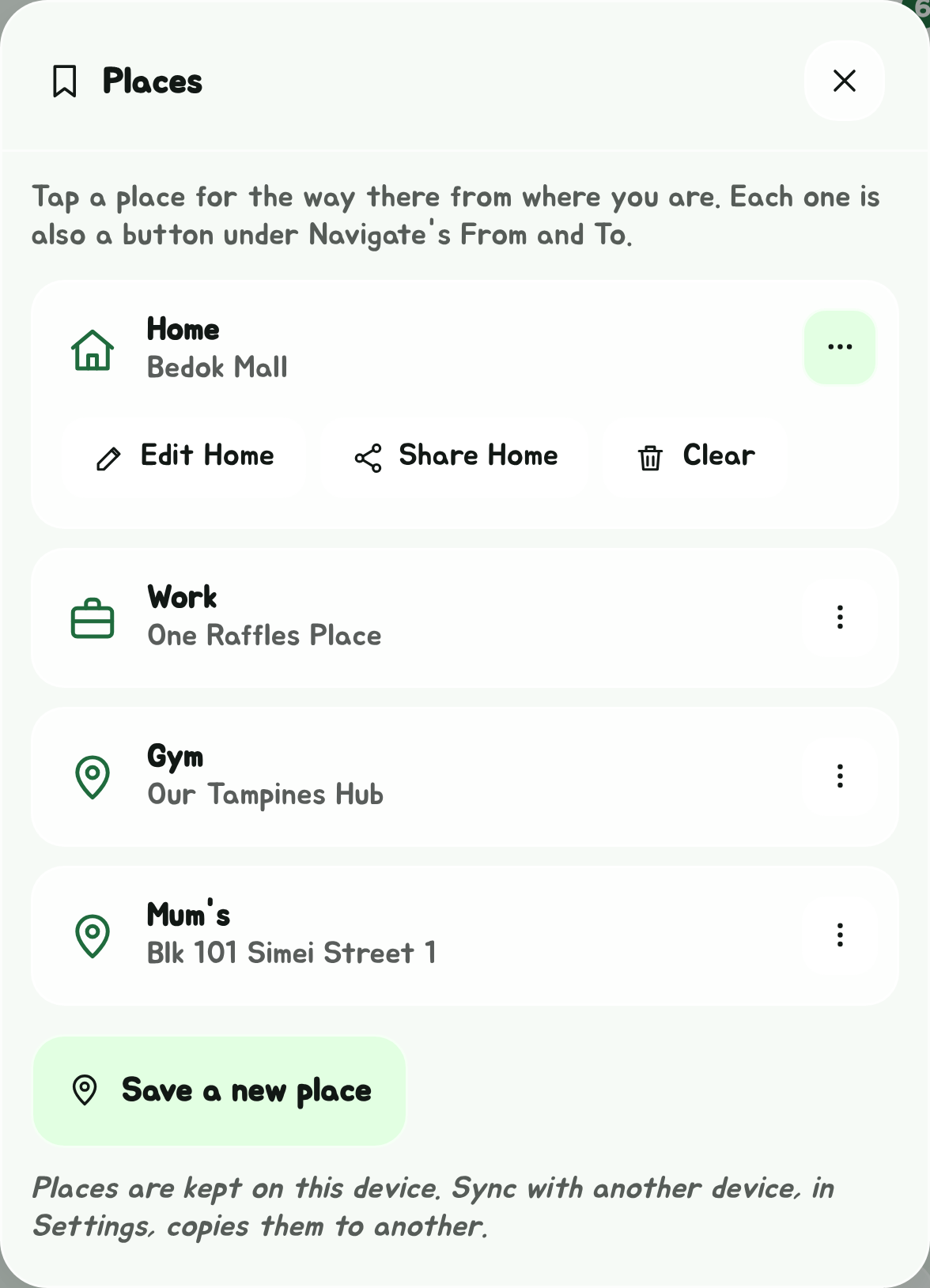
Places keeps Home, Work and any other place you go often, each with a name of your own if you like: "Gym", "Mum's". Open it with the bookmark in the Edge Tray.
Get there
Tap a place for the way there from where you are: Navigate opens with it in To, and finds where you are for From.
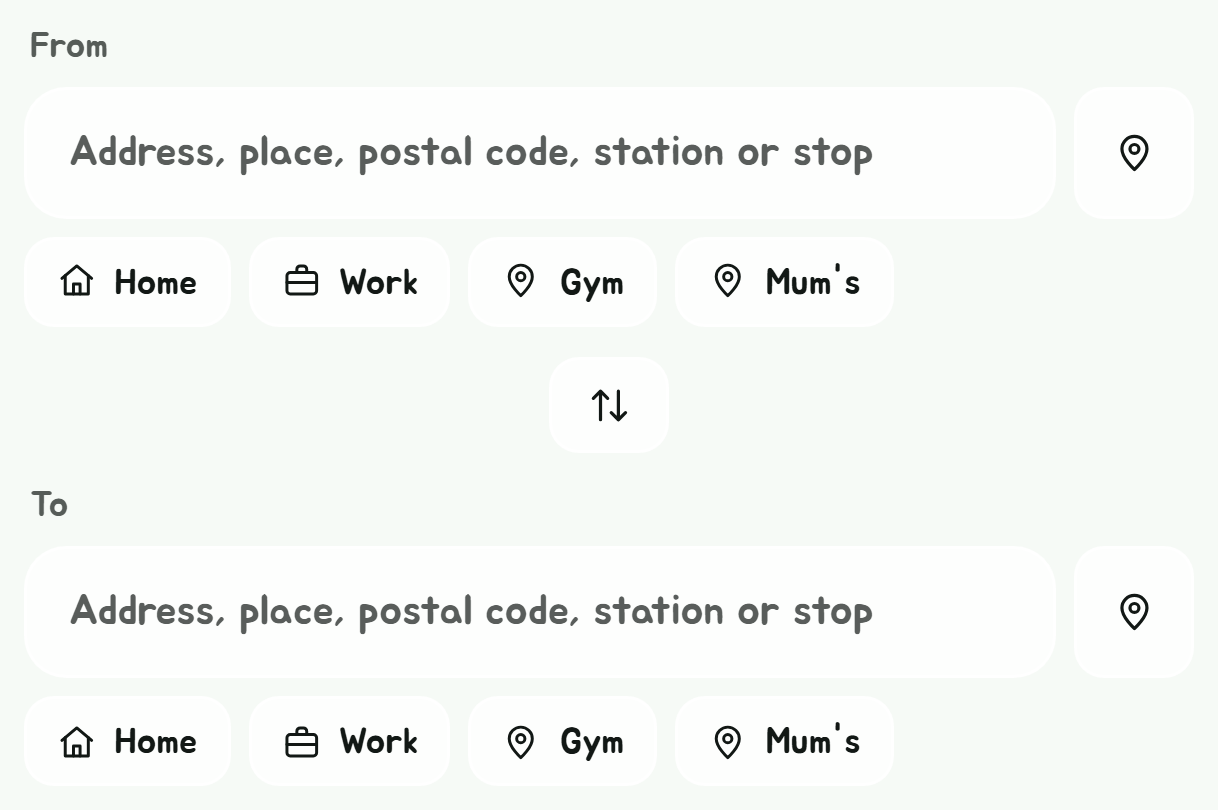
Every place is also a button under each end of Navigate, on its Bus and train and Bus only tabs, after Home and Work. The buttons wrap onto more lines once there are more than fit.
Save a new place
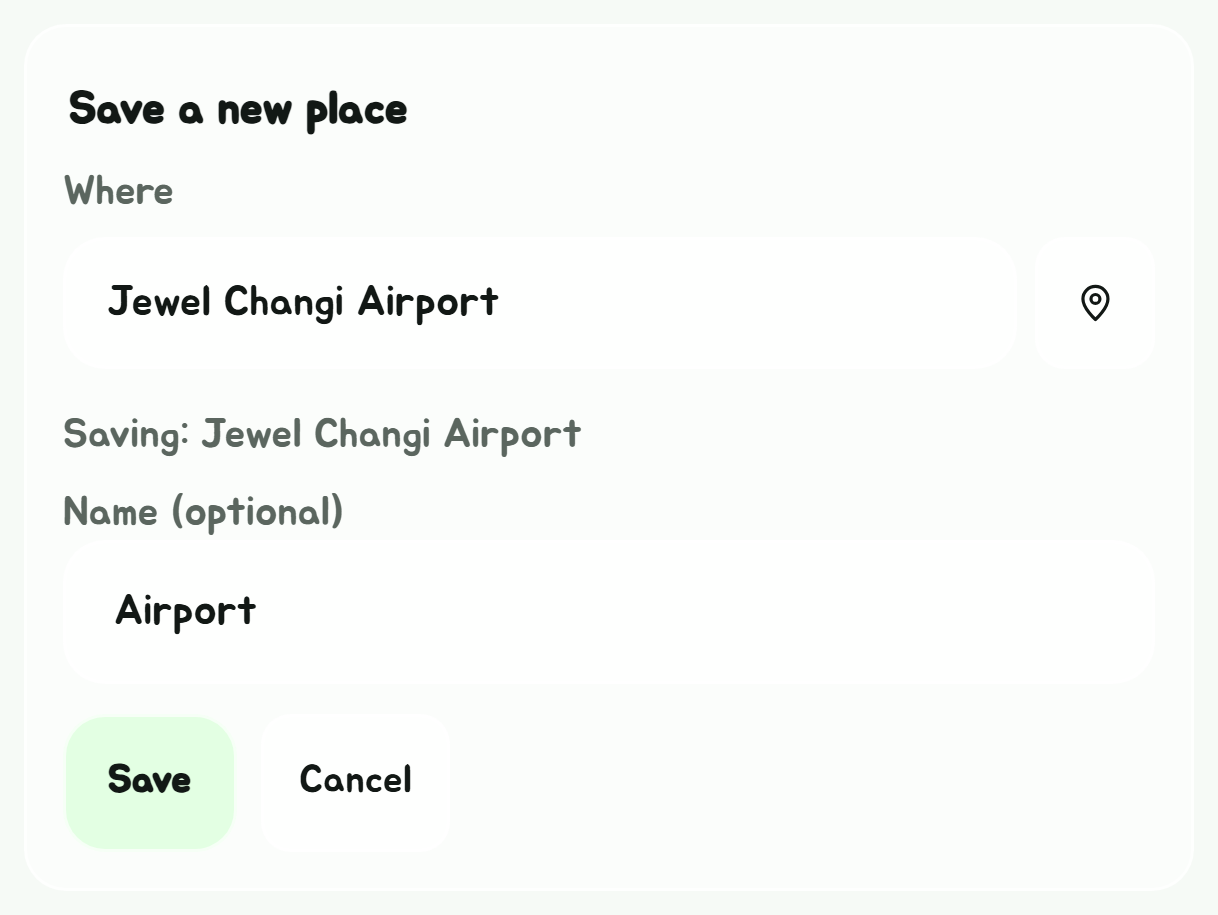
- Tap Save a new place.
- In Where, type an address, a building, a postal code, a station or a stop, or paste a Google Maps link, and pick it from the suggestions. Or tap the pin to use where you are now. Tapping into the box first shows your past searches to pick from.
- In Name, give it a name of your own, or leave it blank to call it what it is.
- Tap Save.
A past search or a calendar event can be saved as a place from its menu too.
Home and Work
Home and Work are always first. Until one is set it says so, and its buttons under Navigate's and the planner's ends are dashed; tapping either sets it. Their menus edit, share or clear them.
Change, share or delete a place
Tap the menu, the three dots, beside a place:
- Edit changes where it is, or its name.
- Share makes a "How to get to" link: whoever opens it gets Navigate with the place in To, from wherever they are. See Links you can share.
- Delete removes it; for Home and Work, Clear unsets it.
Anyone with a place's link can see where it is, and place links don't expire. Think twice before sharing your home's link somewhere public.
Where they're kept
Your places stay in this browser. Syncing favourites can copy them to another device; it never replaces a Home or Work that device already has. The Telegram bot keeps its own.