
Android app: advanced
Get Off Alert
Trips in the Android app: followed with the screen off, the trip bar and timeline, buzzing OFF in Morse two stops before you get off, last buses, traffic and faster ways.
Dozing on the bus, or deep in your phone on the train? Start a trip and the app follows your location along it, from the walk to your first stop to the walk at the end, then alerts you two stops before each change and your stop. Every trip is kept in Your trips.
Start a trip
- Navigate: open a way, then tap Start trip. See Navigate.
- Bus only: open a journey, then tap Start trip. See Navigate by bus only.
- A bus's route: tap Get Off Alert, then the stop you're getting off at. See Bus routes.
The first time, Android asks for your location and for notifications; allow both. The app from GitHub also asks, once, to leave the app out of battery optimisation. Some phones (Xiaomi, Samsung, Oppo and others) otherwise stop a trip in the background to save battery. The trip starts whichever you choose. The app from Google Play doesn't ask: if your phone stops trips, turn battery optimisation off for the app in Android's settings.
The trip bar
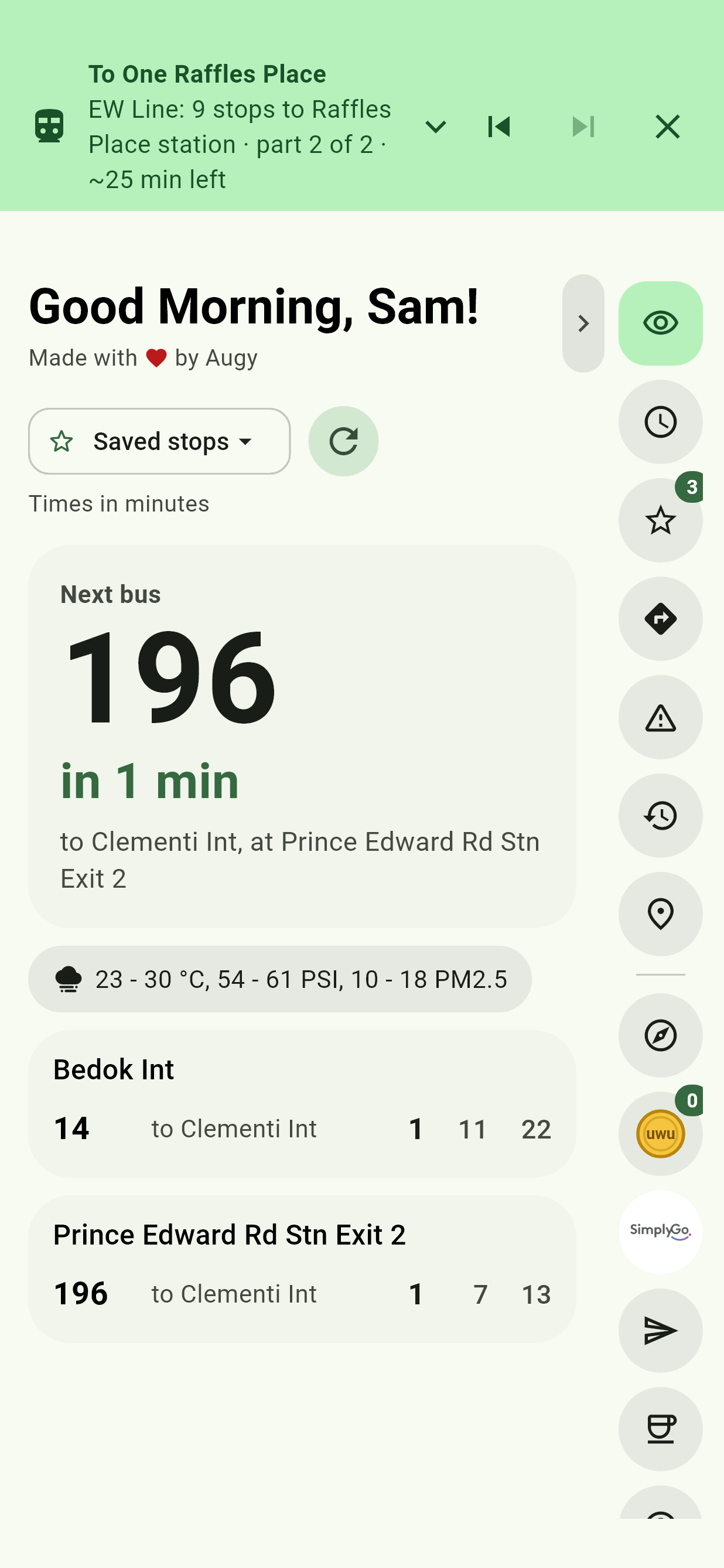
A bar along the top of the app says where you are: the bus or line, how many stops are left, which part of the journey you're on (each ride and each walk is a part), and the minutes left to the end of the whole trip. Its buttons:
| Button | What it does |
|---|---|
| Tap the bar | Opens the trip's screen. |
| Back to the part before | Takes it back to where you'd got to on that part, or its start if you'd finished it, with its alert ready to go off again. Your location then puts you where you really are. |
| On to the next part | Moves it on by hand. It's grey on the last part, where End the trip finishes it. |
| End the trip, the cross | Stops it. |
The timeline
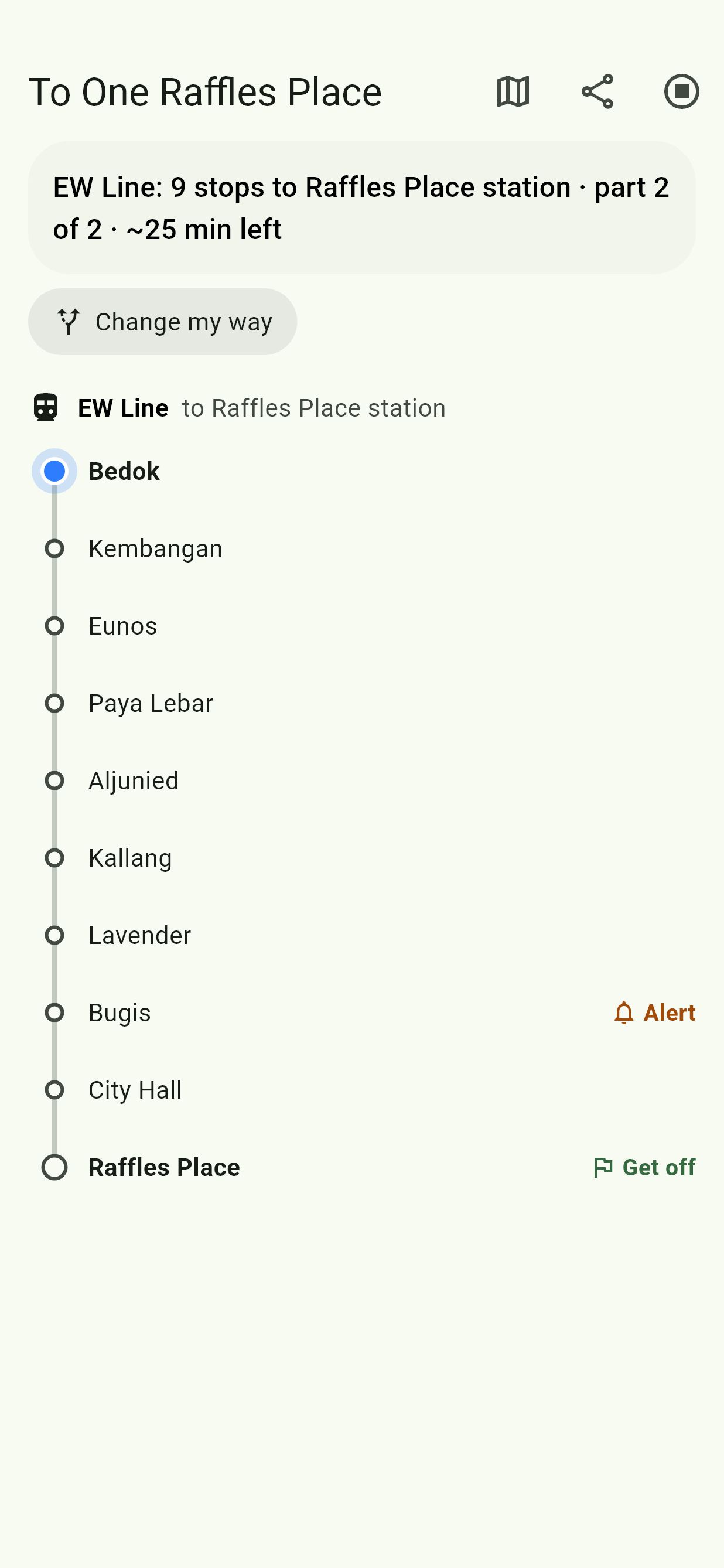
Tap the trip bar for the trip's own screen, with every stop on the way, a blue dot gliding along the line as you move, and the stops you've passed greyed out. It marks Alert where the alert goes off, and Get off or Change. Tap a bus stop for its timings for your bus, with the trip still running.
At the top, the map button shows the trip on the live map, the share button sends your live progress, and the stop button ends the trip.
While you wait at the stop for a bus, it also lists the other buses that go straight to the same stop: Also direct:.
A ride on the Circle Line says which way round the loop it goes: CW or ACW on the timeline, and (clockwise) or (anticlockwise) on the bar.
A trip to Tuas or Woodlands Checkpoint, or across the Causeway, has a MyICA button, which opens MyICA Mobile for its immigration QR code, or its Play Store page if it isn't installed.
The alert
Two stops before you get off, the phone:
- buzzes "OFF" in Morse code (– – – · · – · · · – ·), rather than one long vibration;
- beeps three times;
- shows a notification, "Get off in 2 stops, at Bedok Int";
- and the trip bar says the same.
The sound can be Earphones only in Settings: with earphones in, the beeps play just in them; with none, the phone only buzzes. Never out loud on a quiet bus.
To turn the alert off, set Get Off Alert on a trip to Off. Trips still show how many stops are left.
With the screen off
A trip carries on with the phone locked or the app in the background. The screen doesn't have to stay on. While it runs, an On a trip notification shows where you are on it, with End trip to stop it, and the alert sounds over the lock screen. The notification's icon shows what you're on: a bus, a train in its line's colour, or walking, with the bus or line beside the app's name.
It also has a bar of your whole trip: a segment for each part, in its colour, with a marker for each alert still to come. On Android 16 and later that's a Live Update, near the top of your notifications and lock screen, with what you're on moving along the bar, and the stops or minutes left in a chip in the status bar. You can turn Live Updates off for the app in Android's settings.
Leave the app and the trip shrinks to a small window: see Picture-in-picture.
Swiping the app away from your recent apps ends that, and the server's alert takes over if you've allowed notifications: it follows your bus from LTA's live positions, a little less exactly. Opening the app again picks the trip back up, as long as it was still going in the last 3 hours.
How it follows you
- Walking or riding: up to about 10 km/h is walking; a bus or train's speed, about 40 km/h on average, is riding. So walking to your stop never counts as boarding, and once you're riding, 150 m down your bus's route is enough.
- Waiting at the stop: the trip stays there until your location shows you moving along the bus's route, so a long wait inside an interchange never counts as riding. With no GPS while you wait, it checks the bus's live timing and holds until that bus is due.
- Along the bus's road: it follows the road the bus takes, not a straight line from stop to stop, so a long stretch with no stops, like an expressway, still counts the stops you pass.
- Underground, where GPS gives out, it goes by how long each ride should take, and no further than your last good location allows.
- A stray location: no location moves you further than a bus or train could have gone by then.
- Never got on after all? If it took you as on the bus and then sees you standing at your first stop, it goes back to waiting for the bus.
- Already on your next ride? If your location shows you on the next bus or train, down its route and past its first stop, the trip moves on to it by itself, even if it never saw you reach the end of the part before. It doesn't while you're walking or still on the ride you were on, and it waits until you've gone down the next route, so a train beside a bus's road doesn't count.
- In the wrong place? If the trip has you somewhere you aren't, it notices from your location and moves back. An alert that went off too early goes off again at the right stop.
A ride across the Causeway is followed in three parts: to Woodlands Checkpoint, across to the Johor Bahru checkpoint, and on, or the other way round. The alert tells you to get off at each for immigration, and the time to clear counts as the wait before you get on again: see Immigration time.
Waiting for the bus
Get ready to board
While you wait for a bus on your trip, when it's 1 minute away the phone buzzes twice and shows a notification, "Bus 174 is 1 min away from Tampines Int. Get ready to board." It comes once for each bus, and only while you're still waiting.
Your last bus
The trip keeps an eye on the last bus of the day for every bus on it you've still to get on. If you're going to miss one, it looks for another way from where your last ride ends and says what to do first. It switches by itself, with Undo, or offers:
| Button | What it does |
|---|---|
| Reroute | Makes it your trip after that point, alerts and all. What comes before stays as it was. |
| Navigate from here | With your location on: Navigate, from where you are to where you're going. |
| See all ways | With your location off, in its place: Navigate from where the way starts. |
Change your way
Change here
To get off somewhere else, open the trip's screen and tap Change my way. Change here then shows by every stop still ahead, so a stray tap changes nothing. Tap one by the stop you want, and a sheet lists the ways on from there, quickest first. Tap one and the trip changes from there, with Undo to put it back.
Back to Navigate
A trip started from Navigate has Back to Navigate beside Change my way. It opens the way you picked, part by part, as it was when you started, on Bus and train or Bus only, with its live timings brought up to date. All ways goes on to the rest. The trip carries on. A time you picked that has passed is left out, so it plans for now.
Cycling or driving instead
If a walk on your trip goes faster than anyone walks, the app asks Are you walking?, once a trip. With the screen off, it asks when you next open the app.
- I'm cycling or I'm driving: it reminds you to cycle safely or drive safely, then asks whether to change where you're going next. Pick a bus or train still ahead, such as Cycle to Blk 1, then Bus 99, and the trip becomes the way there, then the trip as it was from that ride on. Or Cycle all the way there or Drive all the way there switches the rest of the trip.
- Close keeps walking.
Either choice opens the live map on the way there, and the bar says what changed, with Undo.
Traffic and faster ways
Traffic on the way
Every five minutes, each bus still ahead is checked against LTA's live traffic, and the minutes left go by it. When the traffic makes a bus 2 minutes or more slower, or an incident is on its way, the app says by how much and why, naming the roads. Tap it for that bus's road on the live map.
A faster way
Every few minutes, the trip plans again from where you are. If another way would get you there at least 5 minutes sooner, the app suggests it, with why. Walking the rest counts too, and, with Cycling set to I have a bike in Settings, cycling it.
Reroute makes it your trip from there, with Undo. Keep my way puts the suggestion away for 15 minutes. A notification says it once too.
The app also says when your location is weak, or no other way is running.
Share your trip
The share button on the trip's screen gives a link to your live progress: see Share my ETA.